Removing the Recorder Hard Drive
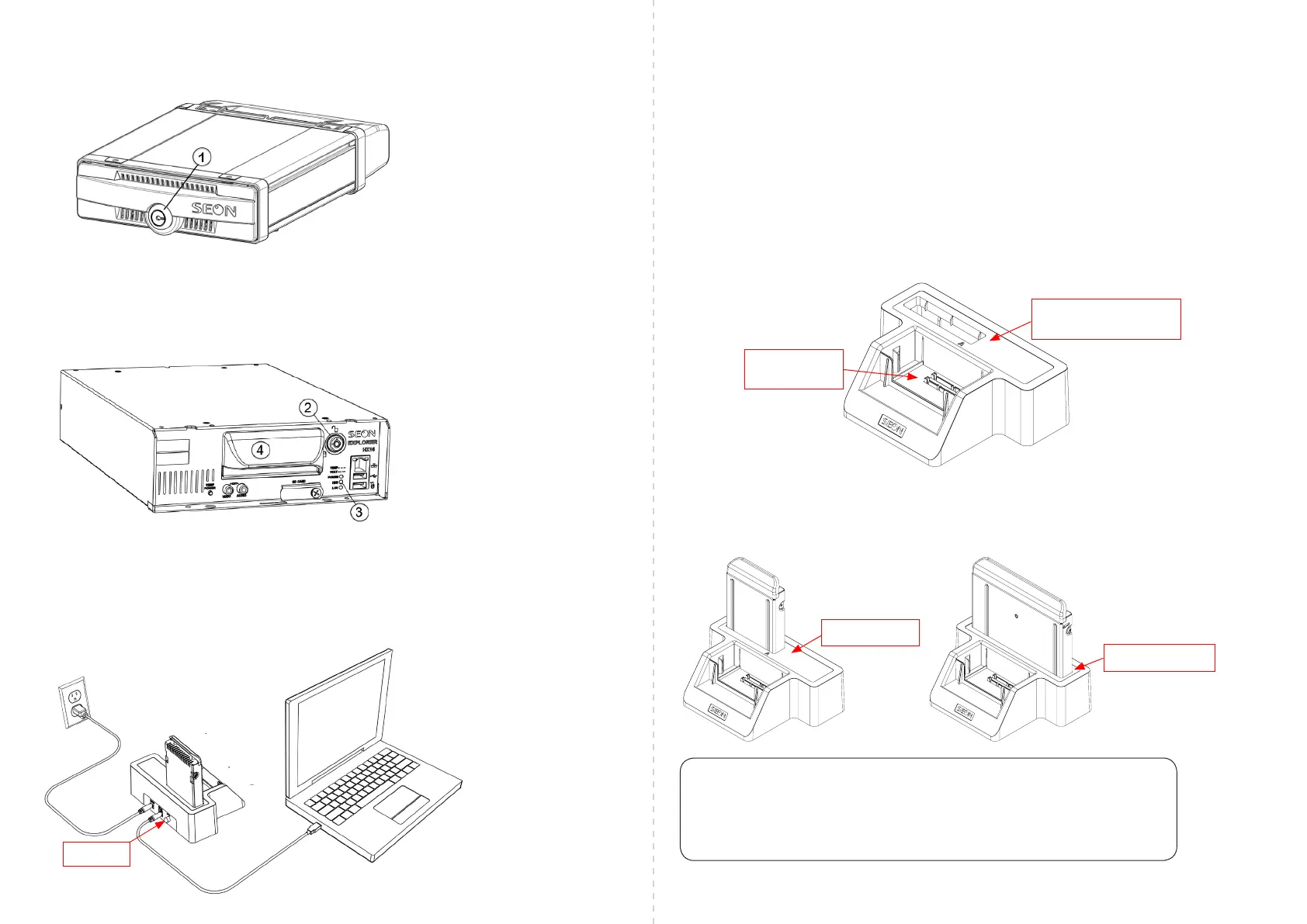
1. Use the corresponding key to open and remove the recorder cover.
2. Insert the recorder hard drive key. Turn the key by a quarter turn to unlock the hard drive.
3. Wait until the HDD LED stops ashing.
4. Gently remove the recorder hard drive.
Note: Your recorder may differ slightly from the model shown here.
3. If you are using one of the following recorder drive types, ensure the appropriate alignment plate is installed
in slot 1 at the rear of the HDD dock (see Figure A), then insert the drive (see Figure B):
• TH4, TH6, MX, and TL series drives use alignment plate A.
• TH8 drives use alignment plate B.
• TX and DX series drives use alignment plate C.
– or –
If you are using an HX/NX recorder drive, insert it into slot 2 at the front of the HDD dock (see Figure A).
4. Power on the HDD Dock by pressing the Power button next to the AC and USB cables.
Drive slot 2
(HX/NX drives only)
Drive slot 1
(with alignment plate A installed)
Figure A - Drive Slots
Connecting the HDD Dock
Once the vMax View software has been installed, connect the HDD Dock to the computer as shown.
1. Connect the USB cable to a USB port on your computer.
2. Connect the power supply to the HDD Dock and to AC power.
Power button
Figure B - HDD Dock with Alignment Plates
Alignment plate A
Alignment plate B or C
Note: Turn off HDD Dock when Switching Drives
For proper program operation, turn off the HDD Dock when switching drives (power
button is on the back). Some Windows operating systems may not support powered
removal of hard drives.



 To Previous Page
 Loading...