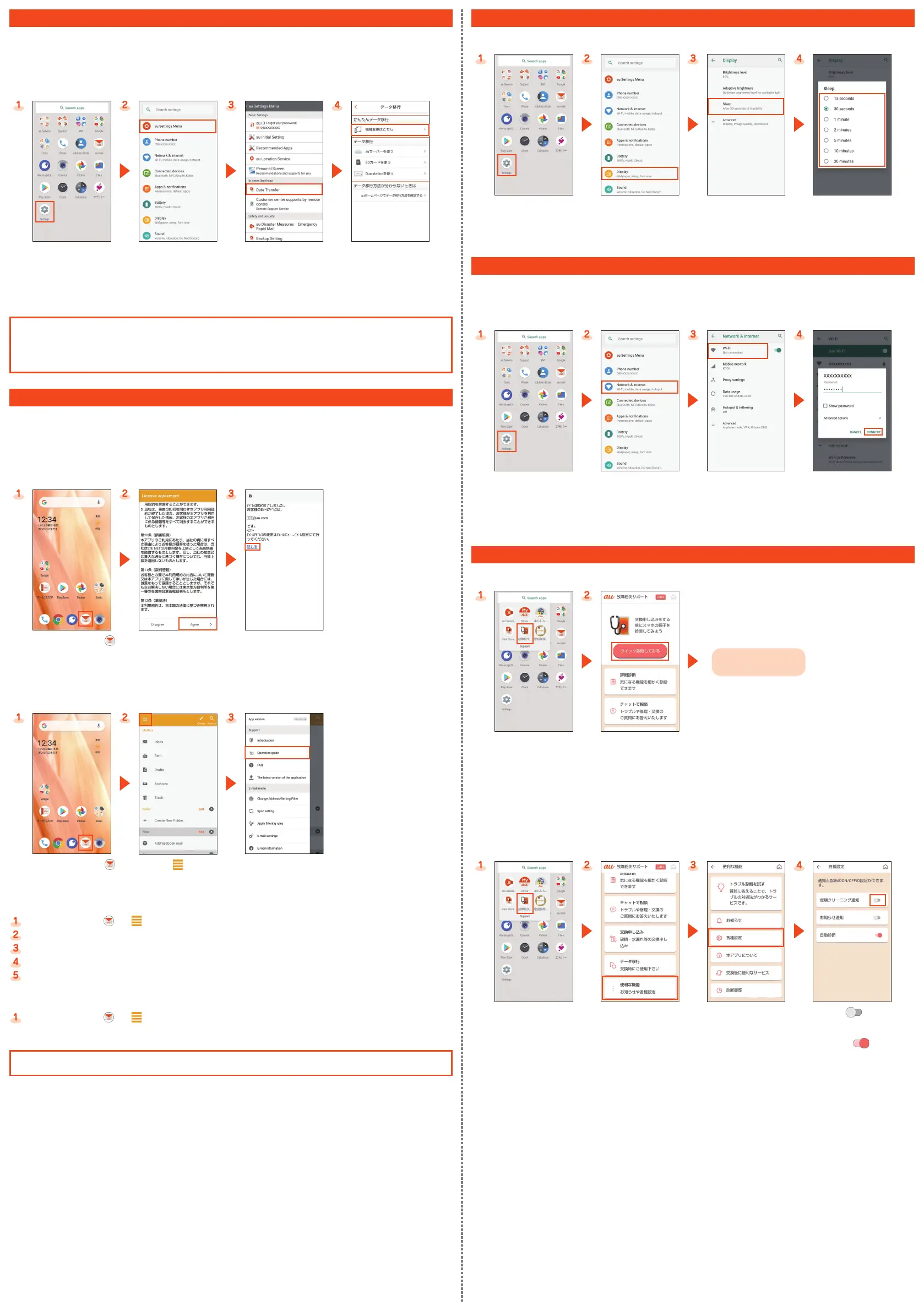
How to Transfer Data with the au Settings Menu
You can return/store data from an old au phone to this product using a microSD™ memory card or au server. To protect important data, be
sure to save (back up) data periodically to a microSD™ memory card or au server.
● To return data using an au server, store data from the old au phone to the au server beforehand. To use the au server, you must set an
au ID. (If the old au phone does not have au Settings Menu, use au Cloud application).
● To return data using a microSD™ memory card, save the data from the old au phone to the microSD™ memory card beforehand. (If the
old au phone does not have au Settings Menu, use the au backup application.)
On the home screen, swipe/
flick up the screen and display
the “App list screen” →
[Settings].
[au Settings Menu]. [Data Transfer].
*
Tap “機種変更はこちら” (If you
have changed a model) and
transfer data by following
on-screen guidances.
* If a confirmation screen is displayed for terms of use/privacy policy, follow the on-screen guidances.
Automatically Storing Photos and Address Book Entries
Use the following steps to set automatic storage of photos and address book entries to the au server using the “Data Storage”
application.
● On the home screen, swipe/flick up the screen and display the “App list screen” → [Settings] → [au Settings Menu] → [Backup
Setting] → Select the type of data to store automatically.
au-mail Settings and Changing au-mail Address
au-mail is a service which enables you to exchange e-mails with other cell phones which support e-mails and with PCs. An e-mails
address is set automatically in the initial settings. You can change the e-mails address set in the initial settings.
● You cannot make the initial settings via Wi-Fi
®
communication.
■ Initial Settings
If you have changed a model, an au-mail address from an old au phone is displayed.
On the home screen → [ ]
Confirm the contents →
[Agree] → Follow on-screen
guidance.
Check au-mail address →
[閉じる] (Close).
■ Checking the Usage Method of au-mail Address
On the home screen → [ ]
[ ]
[Operation guide] → Select the
usage method to check.
■ Changing au-mail Address
On the home screen → [ ] → [ ] → [Change Address/Setting Filter].
[メールアドレスの変更へ] (To change mail address) → Enter the security code → [送信] (Send).
Confirm the contents → [承諾する] (Accept).
[ご希望のメールアドレスに変更する] (Change to your desired mail address) → Enter an au-mail address → [送信] (Send).
[OK] → [閉じる] (Close).
■ Checking au-mail Address
On the home screen → [ ] → [ ] → [E-mail information].
You can check your au-mail address.
When the confirmation screen is displayed, follow the on-screen instructions.
Operations and displayed contents are subject to change without notice.
Increase the light duration of the backlight
When the screen is dark/the backlight is quickly turned off, change the setting.
On the home screen, swipe/
flick up the screen and display
the “App list screen” →
[Settings].
[Display]. [Sleep]. Select time.
Wireless LAN (Wi-Fi
®
) settings
You can connect to an Internet service via a household wireless LAN (Wi-Fi
®
) environment or a public wireless LAN environment when out
and about.
To connect to an Internet via Wi-Fi
®
, you need to register an access point to connect in advance.
For detailed Wi-Fi
®
settings, refer to the “Online Manual” (Japanese).
On the home screen, swipe/
flick up the screen and display
the “App list screen” →
[Settings].
[Network & internet].
[Wi-Fi].
*
Select an access point →
Enter the password →
[CONNECT]
* When [Wi-Fi] is disabled, switch to enable it.
Performing a Periodic Diagnosis
It is recommended that you perform a diagnosis for trouble-free smartphone use.
On the home screen, swipe/
flick up the screen and display
the “App list screen” →
[Support] → [故障紛失サポー
ト] (Repair and Delivery
Support)
*
[クイック診断してみる]
(Try quick diagnostic)
* When the confirmation screen is displayed, check the displayed contents and follow the on-screen instructions.
■ Setting a Regular Cleaning Notice
Set a “regular cleaning notice” to let you know regularly when it is time for a diagnosis.
On the home screen, swipe/
flick up the screen and display
the “App list screen” →
[Support] → [故障紛失サポー
ト] (Repair and Delivery
Support)
*1
[便利な機能] (Useful functions)
[各種設定] (Settings)
Tap [ ] for
“定期クリーニング通知”
(Regular Cleaning Notice) and
set it to [
].
*2
*1 When the confirmation screen is displayed, check the displayed contents and follow the on-screen instructions.
*2 When a notice is displayed, use “クイック診断してみる” (Try quick diagnostic) to perform a diagnosis.
Follow the on-screen
instructions.


 To Previous Page
 Loading...