34
MAC OS X
15
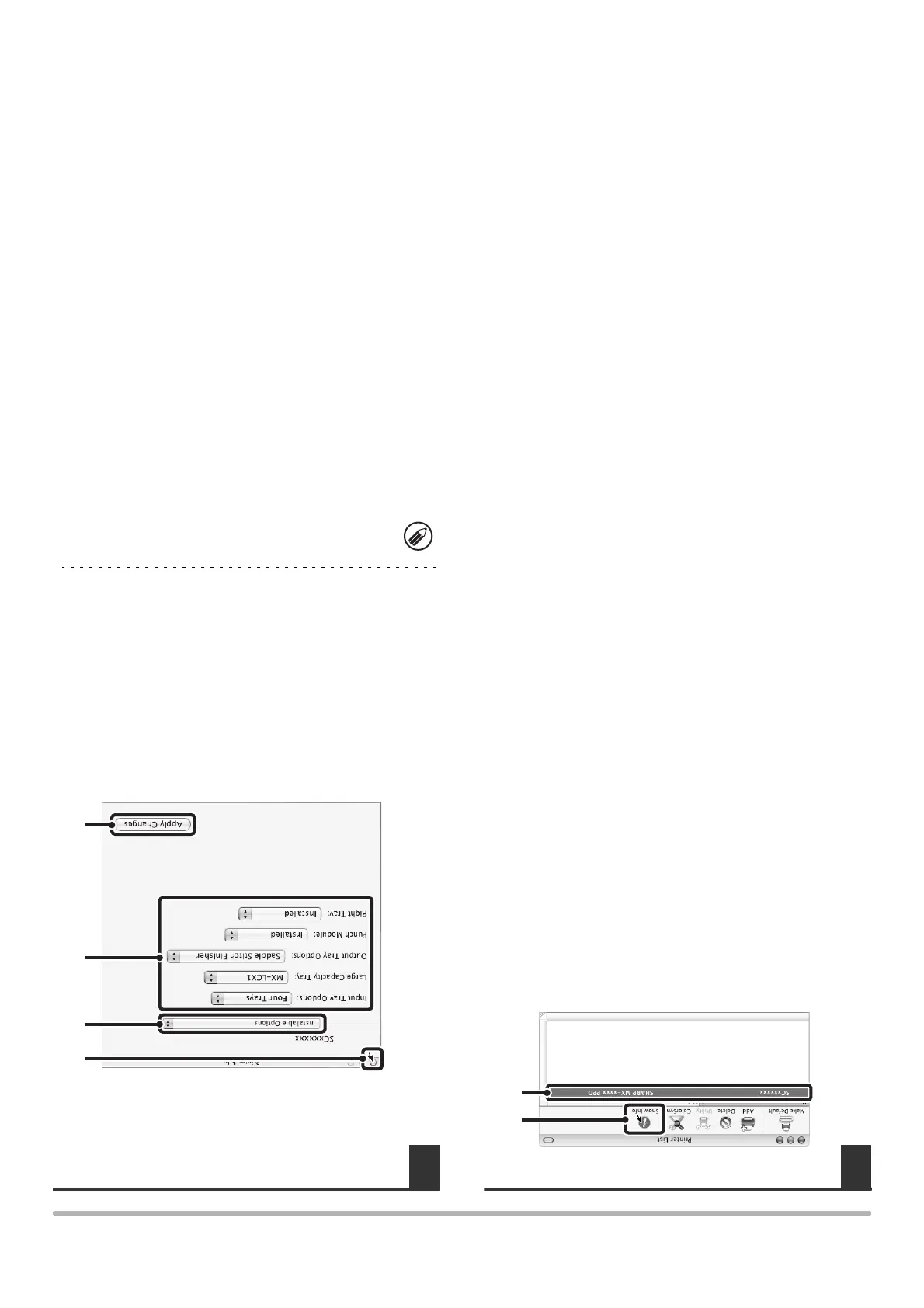
Display printer information.
(1) Click the machine's name.
If you are using Mac OS X v10.5 to 10.5.1, click the
[Options & Supplies] button, click the [Driver] tab
and go to step 16.
(2) Click [Show Info].
If you are using Mac OS X v10.2.8, select [Show
Info] from the [Printers] menu.
16
Select the machine configuration.
If you selected [Auto Select] in (3) of step 14, the
machine configuration is detected and automatically
configured. Check the configured settings to make sure
they are correct.
(1) Select [Installable Options].
If you are using Mac OS X v10.5 to 10.5.1, it does
not appear.
(2) Select the options that are installed on
the machine.
(3) Click the [Apply Changes] button.
If you are using Mac OS X v10.5 to 10.5.1, click the
[OK] button.
(4) Click to close the window.
This completes the configuration of the printer
driver.
(1)
(2)
You can check the options that are installed on the
machine by printing out the "All Custom Setting List" in
the system settings. Follow these steps to print out the
"All Custom Setting List": Press the [SYSTEM
SETTINGS] key, touch the [List Print (User)] key, and
then touch the [Print] key of "All Custom Setting List".
(1)
(3)
(2)
(4)



 To Next Page