Step 6: Syncing course changes
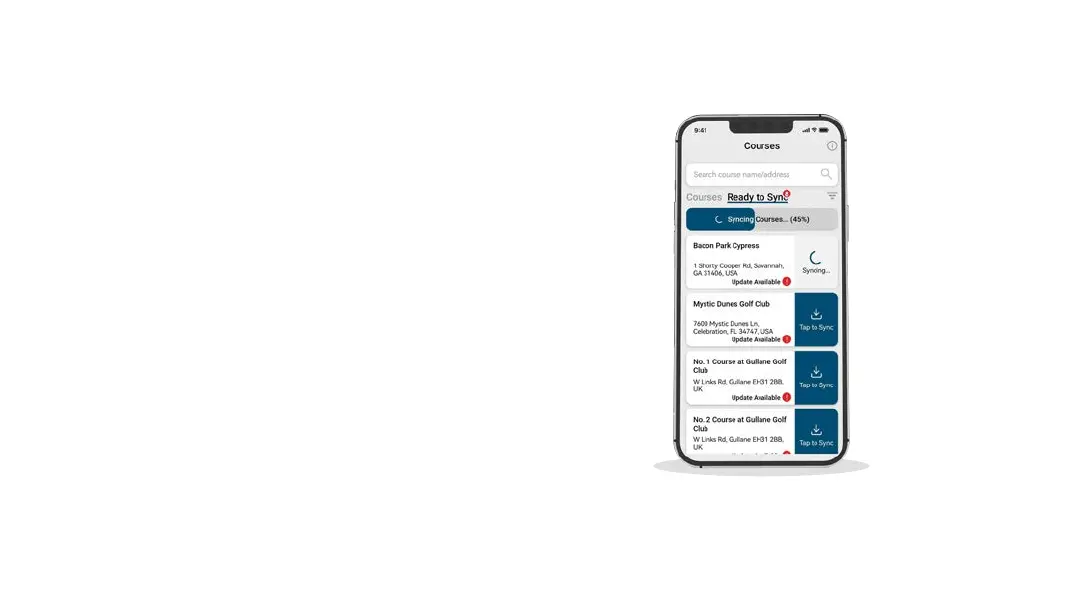
If you have any course maps that need to be uploaded to the
watch, or any updates that need to be transferred to the watch,
you should see a red notication at the top of the courses
screen. If you wish to perform a sync then tap on the ‘Ready
to Sync’ button to navigate to the ready to sync waiting list.
On the resulting screen, you will see the list of courses that
require a sync. Press the ‘Tap to Sync’ button next to the course
you want to update and sync will begin. You can sync as many
or as few in this waiting list as you wish.
Page 14


 To Next Page