Step 1: Uploading your data
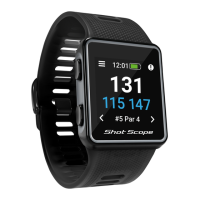
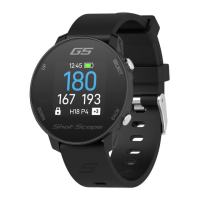
Before uploading your round, rst make sure that you have your watch turned on
and next to your mobile phone (ensure you have Bluetooth enabled on your phone
settings). Next, log into your app and tap the ‘Connect Device’ button at the top of
the screen. The screen will then change to show that a sync is waiting, tap on the
sync button to start the round sync. You will see a progress bar and when this has
completed the round will be uploaded to your account.
Step 2: Editing data
All rounds that you upload need to be signed off before they are included in
your stats. This process ensures that all of your data is completely accurate.
Rounds that have not been signed off are identied by an orange scorecard
icon on both your online dashboard and mobile app.
To begin the ‘Sign Off’ process on the dashboard, click on the card of the
round you wish to sign off and then select ‘Edit/Sign off’ found below the map.
On mobile, tap on the round card and then tap the pencil icon on the round
overview page. This opens a scorecard for your round. On this scorecard
there is a ve-step process.
We recommend editing using the dashboard on a computer,
this is the easiest way to edit.


 To Next Page