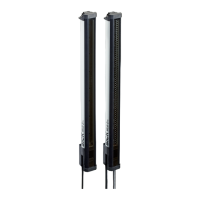
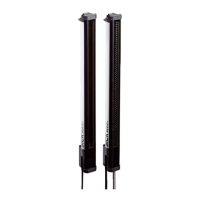
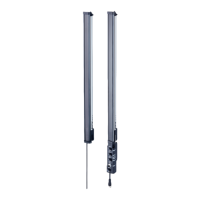
Figure 121: Measuring within zones
1
e.g. Zone 1 (NBB Zone 1, LBB Zone 1, FBB Zone 1, CBB Zone 1 or NCBB Zone 1)
2
e.g. Zone 2 (NBB Zone 2, LBB Zone 2, FBB Zone 2, CBB Zone 2 or NCBB Zone 2)
3
e.g. Zone 3 (NBB Zone 3, LBB Zone 3, FBB Zone 3, CBB Zone 3 or NCBB Zone 3)
Configure zone measuring function via SOPAS ET
Example: You would like to assign Zone 1 and the application object detection/object
width (NBB/NCBB) to digital output 1.
First, configure one or more zones. Next, assign an application and a zone to the
desired output. You can configure the zones either in the beam window or via the Zones
expandable menu.
Configuring zones in the beam window
►
Click the Zones expandable menu.
►
In the middle section of SOPAS ET (beam window), mark the beams that you would
like to combine into a zone.
►
Using Combine to a zone from the context menu, select the zone that the beams
will be assigned to – in this case Zone 1.
Figure 122: SOPAS ET beam window – Combining beams into zones
✓
The configured zones are indicated in the Zones expandable menu.
8
CONFIGURATION WITH SOPAS ET
126
O P E R A T I N G I N S T R U C T I O N S | MLG-2 ProNet 8018748.1Q3I/2024-12-18 | SICK
Subject to change without notice



 To Next Page
 Loading...