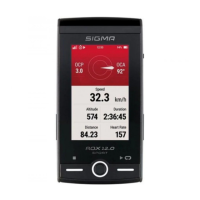
Every time you turn on the ROX 12.1 EVO, you start on the Home Screen. Before the workout, you can
select the sport profile. To do this, click on the currently active profile and then select the desired profile for
the workout.
Press the “play” button on the screen to enter the training screen of the selected sport profile. Pressing the
“play” button on the ROX will start a workout. If you want to pause your workout, press the “stop” button of
the ROX 12.1 EVO.
In the stopped state, you can choose to continue, save or delete the workout.
After successfully saving the training, personal successes and the evaluation of the training are displayed.
Pressing the Home/Power button will take you back to the Home screen.
At any time during the training you can start a navigation, change training views or add new sensors. To do
this, press the Home/Power button to get to the Home screen during the training. By clicking on the Play
button with the training time on the homescreen, you return to the active training.
Change values
To change the training values to be displayed, you have two options.
ROX 12.1 EVO: By long pressing on a value, you can change the color and function of this value to any. If
you want to change the layout, or add more training pages, you must select the desired sport profile under
Settings->Sport Profiles. Under Training Views you can now add more pages (up to 6 pages are possible),
change the layout of the pages (up to 10 values can be displayed on one page at the same time) and also
customize special pages, like Auto Lap.
All mentioned settings can also be made comfortably with the RIDE app
START NAVIGATION / START TRACK
Start Track
In the track menu of the ROX 12.1 EVO you can see all tracks that have been transferred to the ROX
12.1. By clicking on the track you can see the details of the track, via Select you can start the track. Here
you have the option to navigate to the starting point of the track or to the track point that is closest to your
current position.



 To Next Page