© 2017 Silver Peak Systems, Inc. PN 200907-001 Rev C
1
Approve the Discovered Appliance
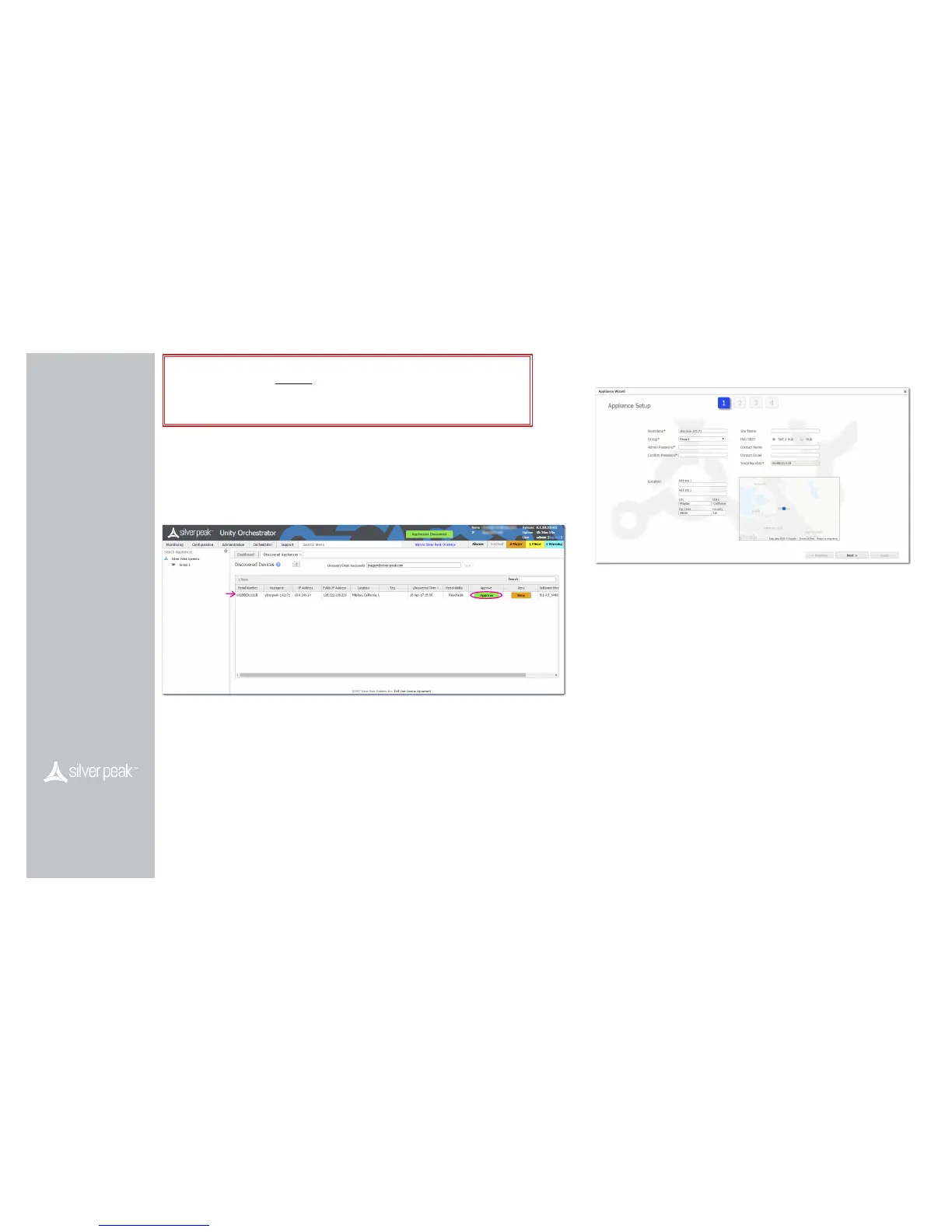
After you power on the EdgeConnect appliance, it automatically registers its serial number with the
Silver Peak Cloud Portal. The portal knows how to associate a serial number with a particular account.
a. Go to the Orchestrator.
b. In the header, click the blinking box named Appliances Discovered.
The Discovered Appliances page opens, listing the most recently discovered appliances rst.
c . After verifying that the appliance is yours, click Approve.
d. Select the group and click Apply.
The Appliance Manager Conguration Wizard opens.
2
Complete the Appliance Manager Conguration Wizard
a. If you’ve also purchased EdgeConnect Boost or EdgeConnect Plus, and you want to apply it to
this appliance, select the relevant check box(es) on the Deployment Prole page.
b. At the end, click Apply. It may take up to two minutes to register the appliance.
c . Complete the remaining wizard screens.
• On the Deployment page’s default conguration, the WAN–side interfaces use DHCP IP
addresses, unless you manually enter static IP addresses.
Before You Begin
Make sure that Orchestrator is
installed and registered.
Verify that you’ve received the
email containing your Account
Name and Account Key.
UNITY
EdgeConnect
Quick Start Guide
Part 2 - Registration
Silver Peak Systems, Inc.
2860 De La Cruz Blvd
Suite 100
Santa Clara, CA 95050
1.877.210.7325 (toll-free in USA)
+1.408.935.1850
www.silver-peak.com/support
IMPORTANT - READ THIS FIRST: You must install and register your Orchestrator with
the Silver Peak Cloud Portal BEFORE setting up an EdgeConnect appliance. After Orchestrator
is registered with your account name and key, you can proceed with EdgeConnect installation.
If you don’t know or are unsure what role the Orchestrator plays, please contact your network
architect or deployment lead.
EC-XS
EC-S
EC-M
EC-L
EC-XL
EC-L-NM
EC-XL-NM


 To Previous Page
 Loading...