7
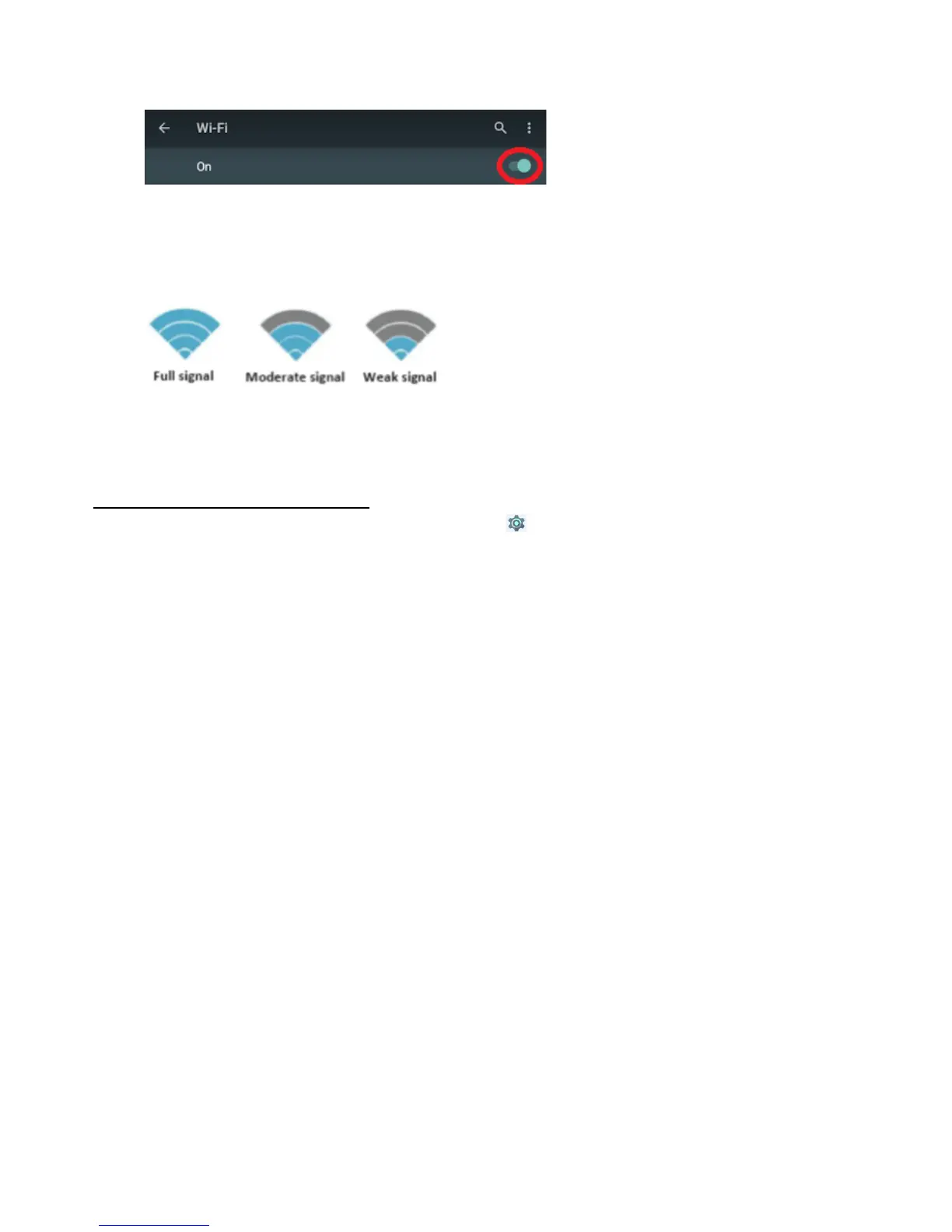
Turn on wi-fi by pressing the circled icon
A list of available wireless network names (SSID) will appear
Select your wireless network, enter the password and press connect
Wait while the Tablet connect to the network
An icon will be displayed in the status bar to show the wireless connection status
Once you are connected to a wireless network, you can select it on the list, to view the connection details
(e.g. signal strength, link speed and IP address). You can use the Forget option to disconnect from the
network and remove the stored password.
Sign in to Google account
Go to Settings by pressing icon on Home screen
Scroll to Personal section => Select Accounts => Add account => Google
If you have an existing Google account
Enter your Google email and press Next
Enter your Google account password and press Next
Accept the Terms of Service and Privacy Policy
Select backup options, payment info accordingly
If you do not have a Google account yet,
Select “Or create a new account”
Enter you first name and last name and press Next
Enter your desired username and press Next
Create your password with at least 8 characters and press Next
You will be prompted to add your phone number. You may insert your phone number or skip
this step.
Agree to the Privacy Policy and Terms of Service by pressing “I agree”
Sign in to your Google account by pressing Next
The Tablet is now ready for use.


 To Next Page
 Loading...