Offline HDD Clone
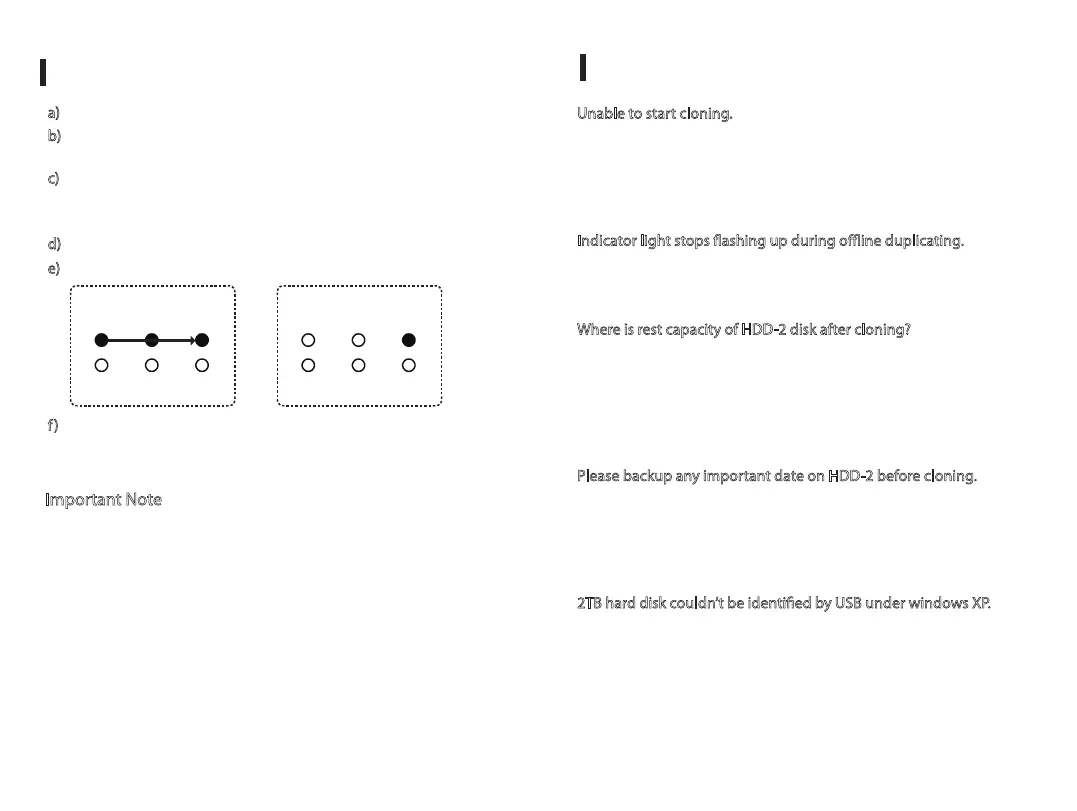
e) Clone finished when 100% Indicator is constant on
a)
Switch off the dock, unplug the USB cable from computer
b)
Insert the HDDs to "HDD-1" & "HDD-2", HDD-1 is the source
HDD to be cloned, HDD-2 is the target HDD to cloning
c)
Switch on the dock, press the clone button for 3 seconds to
enter clone mode, Clone Progress Indicators will flash one by one,
after clone started
f)
Switch off the power after clone finished, then you can take out
HDDs, please be careful the hot surface of HDDs due to long time
cloning process
d)
Clone in progress: 25% - 75% Indicators are flashing
Troubleshooting
Important Note
1. Please backup any important data before cloning process
2. Target HDD (HDD-2) capacity must be equal or larger than
Source HDD (HDD-1)
3. USB cable must be unplugged when clone in progress
4. Please do not move HDDs or disconnect power when clone in
progress
5. Press the clone button for 3 seconds enter clone mode
6. Cloning time depends on the HDD size (Not Data Size)
7. Please be careful the hot surface of HDDs after clone finished
Unable to start cloning.
Please check whether the actual capacity of HDD-2 disk is larger
than HDD-1 disk (HDD-2 must be equal or larger than HDD-1),
otherwise it won’t work when HDD-1 disk actual capacity is larger
than HDD-2 disk.
Indicator light stops flashing up during offline duplicating.
It might because of disk bad sectors so that data couldn’t be cloned
as usual. You have to to change a good disk.
Where is rest capacity of HDD-2 disk after cloning?
After cloning, the rest capacity of HDD-2 disk is showed and
operated via Windows "Disk management", which located at
"Administrative Tools" in Control Panel, Disk Management located
on the left-hand side of the Computer Management window, under
the Storage heading.
Please backup any important date on HDD-2 before cloning.
Because once you start cloning, HDD-2 hard disk partition methods
and data are completely cloned as a hard disk. Our company does
NOT undertake any responsibility for data or economy loss which
could bring by damaged data.
2TB hard disk couldn’t be identified by USB under windows XP.
Because the maximum capacity of hard disk which Windows XP can
support is 2TB and couldn’t be identified by system if over 2TB. It
only supports after upgrading the operating system Windows Vista
or above and we suggest changing hard disk into a GPT disk
partition.
25%
75% 100%
Power
HDD1 HDD2
Clone in Progress
25%
75% 100%
Power
HDD1 HDD2
Clone Finished


 To Next Page
 Loading...