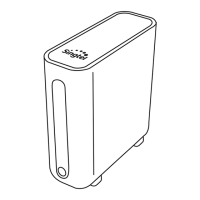
This document is a Quick Installation Guide for the Singtel Wi-Fi 6 Mesh Extender, model AP5690W, powered by ASKEY. It provides instructions for setting up and configuring the mesh extender, along with troubleshooting tips and an LED indicator guide.
Function Description:
The Singtel Wi-Fi 6 Mesh Extender (AP5690W) is designed to expand and improve Wi-Fi coverage throughout a home, eliminating dead spots and ensuring a strong, stable internet connection. It leverages Wi-Fi 6 technology for enhanced performance, speed, and efficiency, particularly in environments with multiple connected devices. The mesh system allows for seamless roaming between the main router and the extenders, ensuring a consistent and uninterrupted Wi-Fi experience. It can be set up as a primary mesh extender or integrated into an existing Wi-Fi 6 Mesh Extender network.
Important Technical Specifications:
- Model: AP5690W
- Wi-Fi Standard: Wi-Fi 6
- Ports:
- Power Port
- LAN Ports (multiple, typically 1-4)
- Buttons:
- POWER ON/OFF button
- WPS Button
- Reset Button
- LED Indicators:
- POWER LED
- LAN LED
- MESH LED
- Power Source: Power Adapter (included)
- Connectivity: Ethernet cable for initial setup or wired backhaul.
Usage Features:
Setting up your Mesh Extenders (New Installation):
- Initial Connection: Use the provided Ethernet Cable to connect any LAN port (typically 1-4) on your Optical Network Router (ONR) to any LAN port on the back of a Mesh Extender unit.
- Power On: Insert the Power Adapter into the Mesh Extender's Power Port and plug it into a power outlet. If the device doesn't turn on, depress the power button on the back.
- LED Indication: The POWER LED light will initially flash red. Once it turns solid white, the extender is ready.
- Device Connection: Connect your computer or mobile device to the Mesh Extender via Wi-Fi using the Username and Password found on the device label, or use an Ethernet cable to connect your computer to the Mesh Extender's LAN port.
Setting up your Mesh Extenders (Adding to an Existing Wi-Fi 6 Mesh Network):
- Power On New Extender: Connect your new Mesh Extender to a power point close to an already installed Mesh Extender and turn it on. Depress the power button on the back if it doesn't turn on.
- WPS Pairing: Press and hold the WPS button at the back of your installed Mesh Extender for 2 seconds. Immediately after, press and hold the WPS button on the new Mesh Extender. Wait up to 5 minutes for the Mesh LED to turn solid white on both Mesh Extenders, indicating successful pairing.
- Optimal Placement: Re-position the new Mesh Extender to a location between your original Router/Mesh Extender and areas in your home with weak Wi-Fi signals.
Optimal Placement:
For the best performance and to eliminate Wi-Fi deadspots, each Mesh Extender should be placed within the line of sight of the next closest device (router or another extender). This ensures a strong and reliable connection between mesh nodes.
A QR code is provided in the manual, which users can scan for detailed instructions on configuring their Wi-Fi settings.
Maintenance Features:
Troubleshooting Steps for Connectivity Issues:
- Wi-Fi Reset: Turn off and then turn on your Wi-Fi on your mobile phone or device to reset the Wi-Fi connection.
- Router Reboot: If the issue persists, reboot the main router.
LED Indicator Guide:
The device features several LED indicators to communicate its status:
-
POWER LED:
- White ON: Mesh device is ready.
- Red ON: System failure.
- Red Flashing: Mesh is booting up.
- Off: Power off.
- White/Red alt. Flashing: Firmware upgrade.
- White Flashing: Factory Reset.
-
LAN LED:
- White ON: Ethernet connection established.
- Off: No LAN connection on the port.
-
MESH LED:
- White ON: Good signal strength in wireless mesh network (SNR > 25dB) / Wired backhaul.
- Red ON: Weak signal strength in wireless mesh network.
- Off: No mesh connectivity.
- White Flashing: Mesh Pairing.
This comprehensive guide ensures users can effectively set up, optimize, and troubleshoot their Singtel Wi-Fi 6 Mesh Extender for an improved home network experience.

 Need help?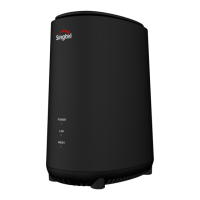

 To Next Page
 General