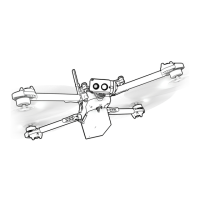
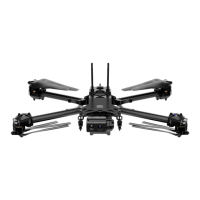
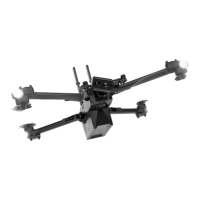
To enable autonomous ight, choose a subject you would like the drone to follow by
tapping the ‘+’ icon
To stop following a subject in any skill, tap the Stop button at the top of the screen.
Note that the STOP button will change to a Land button after the Skydio 2 stops
following a subject
Understanding the Height Floor
The Height Floor setting can have a signicant impact on Skydio 2’s tracking performance. As
such, it is important for all pilots to understand how this setting works as well as how and
when it is safe to disable it.
The Height Floor setting is enabled by default on all Skydio 2 drones. While this
setting is enabled, Skydio 2 will attempt to remain at least 8 ft above the tracked
subject while in any autonomous follow mode. This helps create a buer of space
between the Skydio 2 and any moving objects, such as people, pets or vehicles.
While enabled, the Height Floor setting may aect your ight in a number of ways
It is important to note that the Height Floor setting only applies while a subject is
being tracked. If Skydio 2 is in manual ight mode with no subject selected, you
always have full control over the vehicle’s height
While following a subject, Skydio 2 may become “trapped” by obstacles
and unable to continue following due to the height restriction, even though
the space underneath the drone is clear
You will be prevented from lowering Skydio 2 below the 8 ft height oor any
time a subject is being tracked, such as when using the on-screen controls
to set the desired follow height or using the Beacon’s Wand feature
How It Works
The Height Floor setting is available both pre- and in-ight through the
D
rone tab in
the
D
evice Settings menu.
D
isabling the Height Floor
R
estrictio
16



 To Next Page