Skydio X2D Thermal Settings
You can select thermal settings for ecient analysis of your environment. Changing the thermal palette and AGC Tuning can help identify people,
objects, and points of interest for better situational awareness and decision-making. Thermal Palette setting selections persist across flights and power
cycles. Requires minimum vehicle software release version 19.4.18 and Enterprise Controller software release version 20.1.30.
To access thermal settings:
Step 1 - Select the
Device settings menu
Step 2 - Select the Controller tab
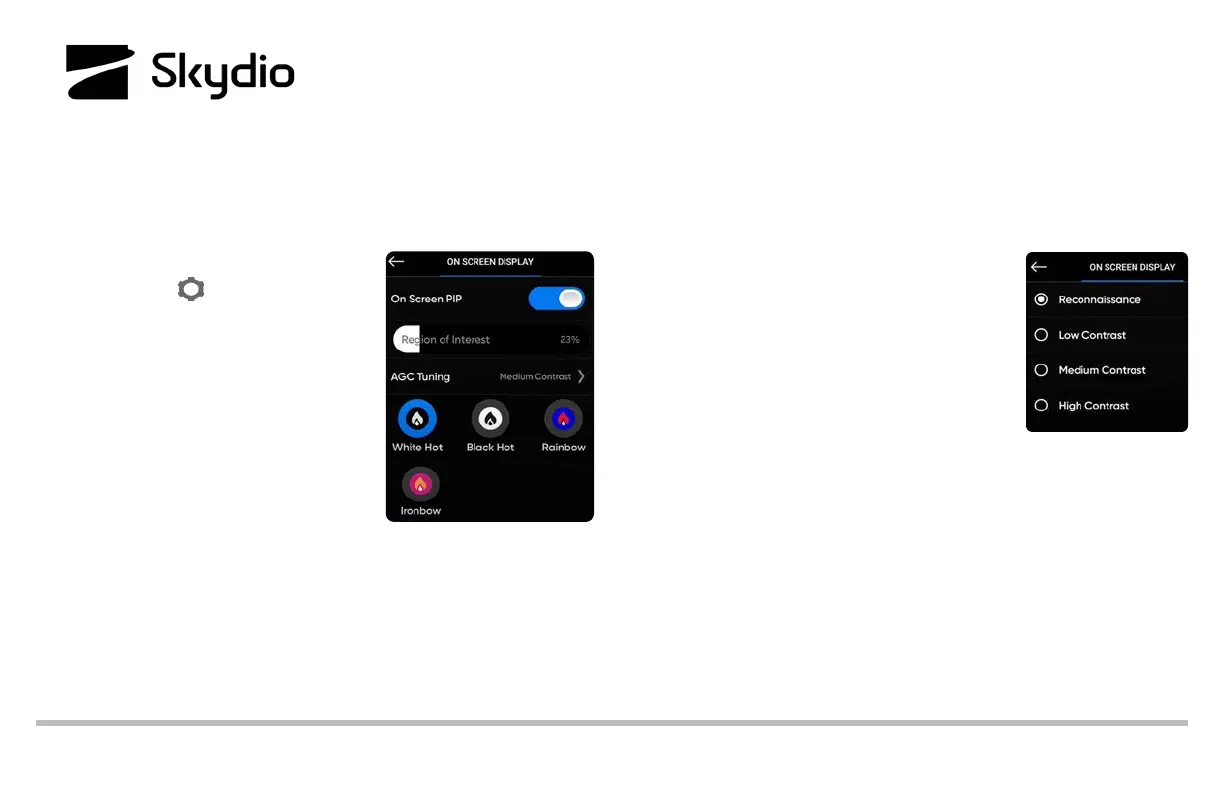
Step 3 - Select On Screen Display
Step 4 - Select Thermal
Step 5 - Define the Region of Interest (ROI
• set ROI to 100% while conducting
surveillance flights
• narrow the ROI when you are actively tracking a subject to take the
surrounding environment out of the heat signature calculations
Step 6 - Apply AGC Tuning to the ROI
• select Reconnaissance
• to sharpen a subject set to High Contrast
Step 7 - Select Thermal Pallet
• Black Hot: displays body heat in a clear, lifelike image when the
subject is located in a clear area
• White Hot (default): displays body heat in a clear, lifelike image in
shifting landscapes
• Rainbow and Ironbow: to detect subtle variations in heat signatures
© 2022 Skydio, Inc. All rights reserved.



 To Next Page