Skydio X2D How to Load Updates
Software updates from Skydio contain new features, important enhancements, and fixes designed to improve performance and optimize flight
for your Skydio X2D and Enterprise Controller.
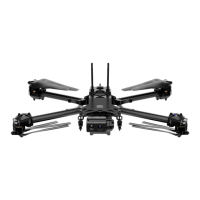
Load software updated to X2D
Step 1 - Insert the flash drive into the
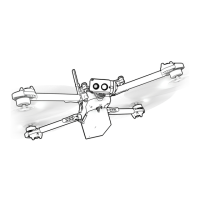
USB-C port on X2D
Step 2 - Power on X2D
• update will begin automatically
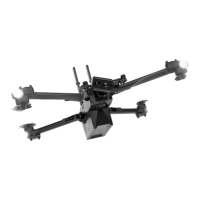
• the lights on your drone will pulse
blue
• the camera gimbal will disengage and go slack
• the process may take several minutes
• when the update is complete, the camera gimbal will
re-engage
Step 3 - Remove the USB-C flash drive
Verify you have correctly installed the update
Step 4 - power on your X2D and
controller and connect
Step 5 - Select the INFO menu
Step 6 - Select Paired Drone
Step 7 - Verify that the software
version listed matches the version
provided by Skydio
© 2022 Skydio, Inc. All rights reserved.
Load update to Enterprise Controller
Step 1 - Power on your controller
Step 2 - Select the INFO menu
Step 3 - Select Controller Update
Step 4 - Insert the flash drive into
the USB-C port on your controller
Step 5 - Select Update
Step 6 - Navigate to the flash drive or memory card root folder
Step 7 - Select the update .tar file
Step 8 - Select Done
• the update will begin automatically
• allow up to five minutes for the update to complete
• during this process, your controller may restart multiple times
Step 9 - Verify that the software version listed matches the version
provided by Skydio



 To Previous Page