The Skystream Pro is an Android TV Box designed for streaming legal content through official applications, many of which may require a subscription. It offers a comprehensive set of features for media consumption, network connectivity, and device management.
Function Description:
The Skystream Pro serves as a media streaming device, allowing users to access a wide range of applications from the Google Play Store and other sources (with "Unknown Sources" enabled). It supports streaming of video content, provides access to social media apps, and integrates with Google Assistant for voice commands. The device is designed to be user-friendly, with a straightforward initial setup process and a remote control optimized for navigation and media playback.
Important Technical Specifications:
While specific hardware details like processor, RAM, and internal storage capacity are not explicitly listed in the provided text, the manual implies a capable Android TV Box. Key technical aspects include:
- Operating System: Android TV (as indicated by "Android TV Boxes" and "Android TV").
- Connectivity:
- Wi-Fi: Supports wireless network connections. The device scans for available networks and allows users to connect using their Wi-Fi password.
- Ethernet: Features an Ethernet port for a hardwired internet connection, which is generally recommended for faster and more reliable speeds.
- Bluetooth: The remote control connects via Bluetooth, and the device supports pairing with other Bluetooth accessories.
- HDMI: Connects to a TV via HDMI cable for video and sound output. Supports HDMI CEC controls (though users unfamiliar with this are advised not to change settings).
- Audio Output: Supports PCM (default for direct TV connection) and HDMI Pass-through for surround sound systems.
- Video Output: Automatically detects the best screen resolution for the connected TV. Includes settings for Screen Position (zoom in/out) and HDR to SDR / SDR to HDR conversion (automatically set).
- Input: Comes with an airmouse remote control with a built-in microphone for Google Assistant voice commands.
- Power: Features a power button to turn the unit on and off, or put it to sleep.
Usage Features:
- Initial Setup:
- Remote Pairing: Pressing the OK button on the remote pairs it with the box.
- Language Selection: Users choose their preferred language.
- Google Account Integration: Can be set up using an Android phone/tablet or by manually entering Google/Gmail account information. A Google account is required to download apps from the Google Play Store.
- Wi-Fi Connection: Users select their Wi-Fi network and enter the case-sensitive password.
- Google Assistant Tutorial: Guides users through using Google Assistant with the remote's microphone button.
- Device Naming: Users can name their Skystream Device.
- Home Screen Customization: The device customizes the home screen and loads apps after initial setup.
- Navigation and Control:
- Airmouse Remote: The included remote acts as an airmouse, allowing users to move an on-screen cursor.
- Directional Pad: For navigating menus and apps.
- OK Button: Selects apps or items.
- Back Button: Returns to the previous screen or exits an app.
- Home Button: Returns to the Android TV home screen from any app.
- Cursor Lock Button: Toggles the airmouse cursor on/off, allowing for directional pad-only navigation.
- Volume Buttons (V- & V+): Adjusts the device's volume. Users are advised to set TV volume first, then adjust with the airmouse.
- Microphone Button: Activates Google Assistant for voice commands.
- Dedicated App Buttons: Includes buttons for Apps, Netflix, Google Play, and YouTube for quick access.
- Settings Management:
- Sound Settings: Control system sounds and surround sound output.
- App Management: View installed apps, open, uninstall, clear data, clear cache, and clear defaults for individual applications.
- Screen Saver: Customize screen saver settings.
- Storage & Reset: View storage usage and perform a factory reset (with a strong warning against doing so without tech support consultation).
- About: Provides device information and allows for device restart.
- Date & Time: Automatic or manual date/time settings, time zone selection, and 12/24-hour format toggle.
- Language: Change the device's display language.
- Accessibility: Turn on captions (though app support varies).
- Display Settings: Adjust screen resolution (auto-detected, not recommended to change), screen position (zoom), and HDR settings (auto-set).
- Droid Settings: Additional Android settings beyond the standard interface.
- Security & Restrictions: Enable/disable "Unknown Sources" for installing apps from outside the Google Play Store and "Verify Apps" for warnings about such installations.
- Add Account: Shortcut for managing Google and other app accounts.
- Add Accessory: For pairing Bluetooth devices.
- Power Management:
- Power Off: Completely powers down the unit.
- Sleep Mode: The device can be put into a sleep state.
Maintenance Features:
- Troubleshooting Guides: The manual includes detailed sections for Wi-Fi troubleshooting, covering:
- Correct Network Name: Guidance on identifying and selecting the correct wireless network (SSID).
- Wireless Password Entry: Tips for entering case-sensitive passwords correctly and advice on recovering forgotten passwords.
- Router Functionality Check: Recommends verifying router internet access with other devices.
- Signal Strength Improvement: Suggestions for improving Wi-Fi signal strength by moving the device or router, re-orienting antennas, or removing obstructions.
- Ethernet Option: Highlights Ethernet as a more reliable alternative for connectivity.
- Device and Router Restart: Instructions for restarting both the Skystream device and the router to resolve connectivity issues.
- Factory Reset: Available in the "Storage & Reset" section, but strongly advised against without consulting tech support due to data loss.
- Customer Support: Encourages users to join Facebook support groups for customization and app recommendations.
- Disclaimers: Emphasizes that Skystream does not condone piracy and does not provide support for illegal content or bypassing subscription services.

 Need help?
 General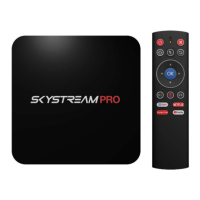

 To Next Page