3
4
Refresh Your Stations via USB or Wi-Fi
®
5
Support
Additional Help
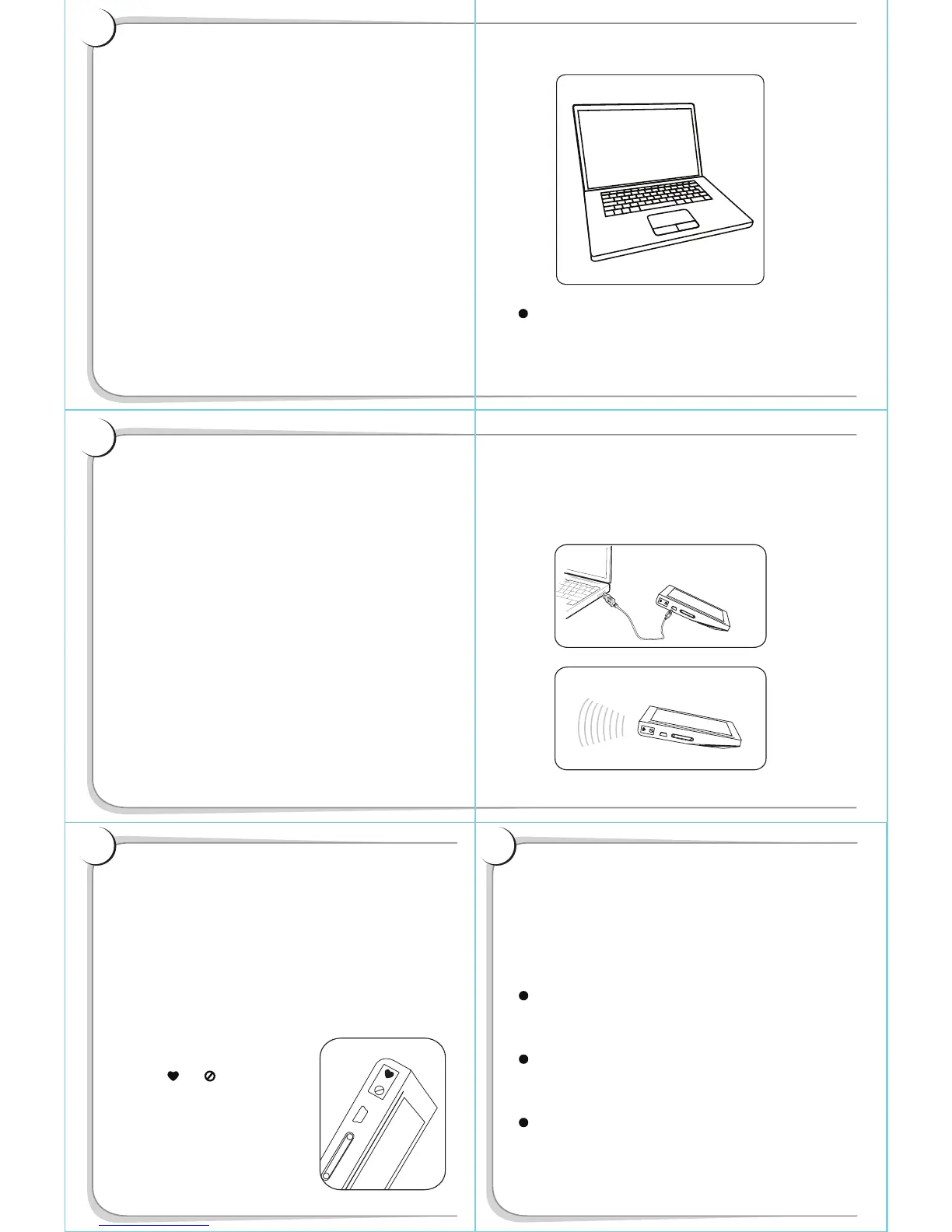
Go to www.slacker.com/install to download and
install the required software.*
Once installed, you’ll need to enter the Slacker
Portable ID into your account so we can refresh your
stations. To locate the ID on your Slacker Portable, go
to the Main Menu and select Settings>About.
On the Desktop Radio, select Options>Account>Manage
Account and sign in. Look for the Slacker Portable
section, click Edit, enter your Portable ID, and then
click Save.
Your Slacker Portable occasionally needs to refresh your stations to ensure you have the latest music. There are two
ways to refresh your stations:
After installing the Desktop Radio, connect your Slacker
Portable to your PC with the USB cable. This will enable you
to refresh your stations and charge your Portable at the same
time. This is also how you will be able to transfer songs from
the Desktop Radio library to your Slacker Portable.**
You can refresh your stations anywhere using built-in Wi-Fi.
Simply press Connect on the Main Menu and follow the
on-screen instructions.***
If you need help with the Slacker service or Slacker
Portable, please contact Slacker customer support at
support@slacker.com
Press and hold the scroll wheel to display menus
with additional features. You can exit without
making a selection by pressing the Home button.
To save battery life, your screen will time out if you
don’t press any buttons. To turn the screen back
on, press the Home button.
For additional information, open Desktop Radio,
and go to Options>Help>Help Index. Use the Search
tab to quickly locate answers to your questions. You
may also visit www.slacker.com/support to view
additional resources such as FAQs.
**Library content transfer is not supported on a Mac. Use Wi-Fi connection
to refresh stations.
***Requires access to a Wi-Fi network.
*Mac
®
owners should use the Web Player at www.slacker.com instead of
Desktop Radio to enter the Portable ID and to manage the Slacker Portable.
Install Slacker Desktop Radio
Refresh and charge via USB
2
Personalize your Slacker Portable
It is easy to personalize your Slacker Portable:
1. Using the Desktop Radio or Web Player, create custom
stations using the Create Station tool. Then send your
custom stations to your Slacker Portable by clicking the
Portable button.
2. Add your own personal music files (such as MP3s) saved on
your PC to your Slacker Portable
using the Desktop Radio.
††
3. Use the and buttons to
rate “favorite” songs and ban
unwanted songs. As you do, your
stations will play more of the
music you love. Your new
ratings will be reflected in the
Web Player and Desktop Radio.
††
Not supported on a Mac.
OR
Refresh stations anywhere via Wi-Fi
slacker.com/install
TIP: Visit slacker.com/install to get the latest
software and detailed product manual for your
new Slacker Portable.



 To Next Page
 Loading...