CHAPTER 3
USING APPS ON THE DISPLAY
29 smarttech.com/kb/171166
3.
Tap Player .
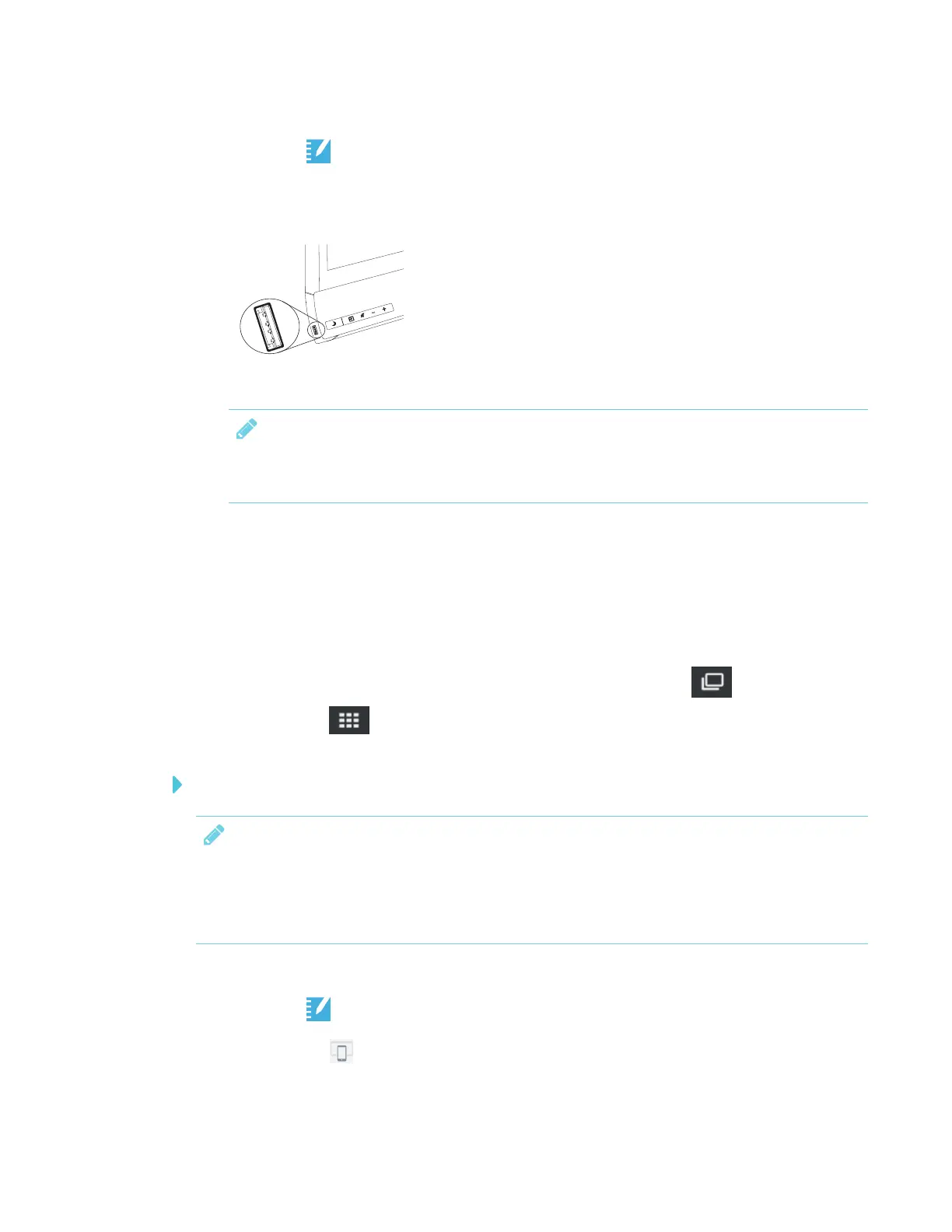
4. Insert the USB drive into the display.
NOTE
The USB receptacle may be covered with a dust cap. Remove the dust cap before inserting
the USB drive.
5. Tap USB Files.
6. SMARTNotebook Player Library shows all the .notebook files on the USB drive. The first page
of each file also appears.
7. Tap the file you want to open.
8. If the file is a SMART lab activity, you can play the activity.
Move between pages and documents by selecting the Page sorter or Notebook
Player Library buttons at the bottom of the screen.
To open SMARTNotebook files using Share To Board
NOTE
l Sign in is required to share content to the display. See SMARTNotebook 17 for more
information.
l Share to Board requires SMARTNotebook 17 software or later.
1. Open the launcher.
2.
Tap Player .
3.
Tap the Share button.
A four-digit code appears. You’ll need this code later in this procedure.










 To Next Page