PDF Button
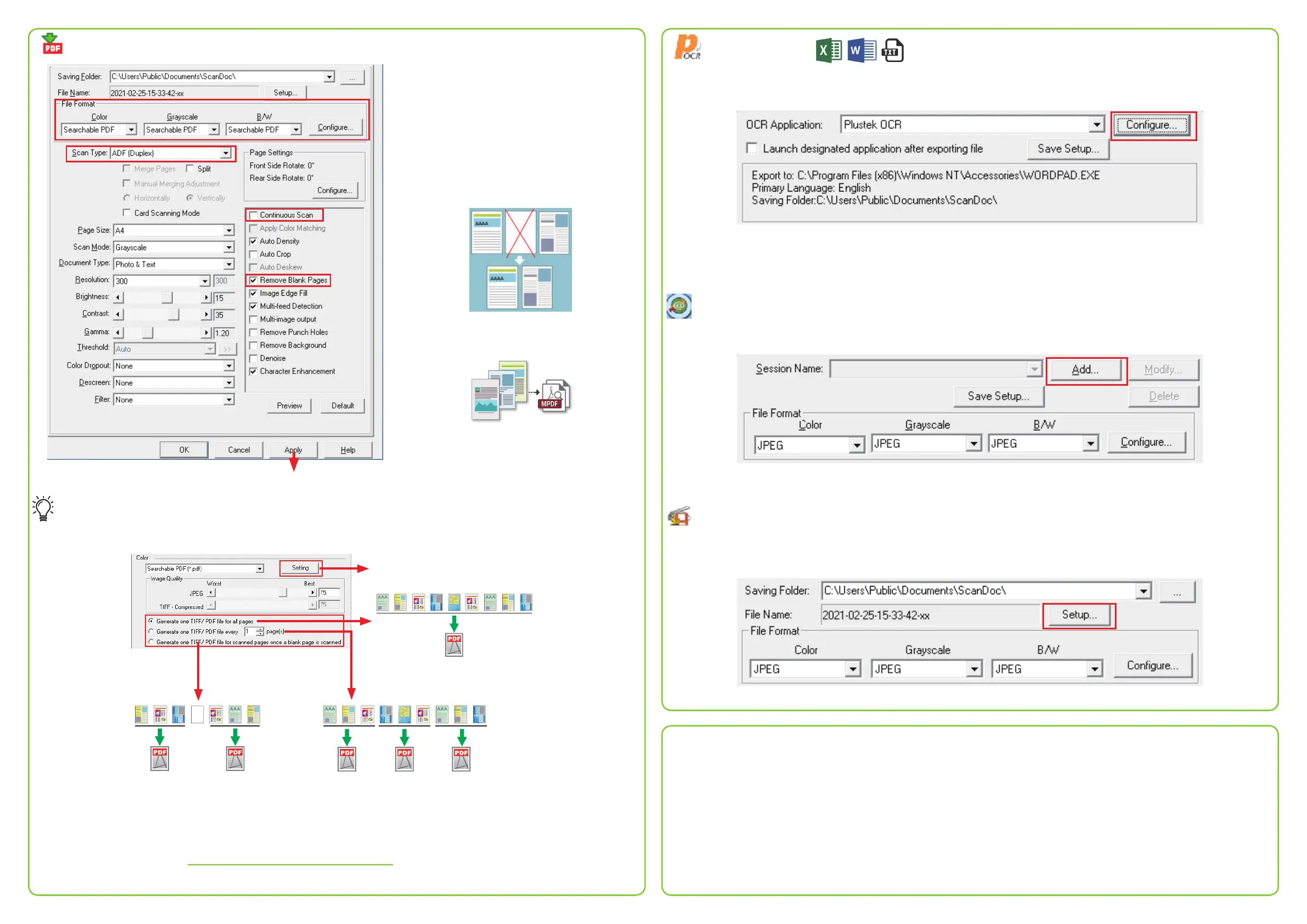
1. Select File Format. (If you don’t want to take
time for the OCR purpose, you may select
PDF from the dropdown list.)
2. If you want to scan long document, select
Long Paper from Scan Type dropdown list.
3. If you want to delete unnecessary blank
pages, please select Remove Blank Pages.
4. If you want to scan a batch of documents,
please select Continuous Scan.
Tips:
If you want to adjust PDF page settings, click Congure button in the File Format:
Select the desired OCR language.
• Generate one TIFF / PDF le
for all pages
• Generate one TIFF / PDF le
every “3” pages
• Generate one TIFF/ PDF le for scanned
pages once a blank page is scanned
P.S Please click “Apply” button to save settings EVERYTIME.
For more settings, please visit plustek.com/v/highspeed/
Or you may chat with our online technical support by zendesk on our ocial website.
OCR Button
1. Click Congure button behind the OCR Application.
2. Select desired le format and OCR language.
Note: You may select multi-languages to recognize your document. Selecting multiple languages will result in longer
recognition time.
FTP Button
Click Add button to add FTP server.
Note: This feature requires network connection.
File Button
Scans documents or images and saves them to specic folder.
Click Setup button to modify le name settings.
Technical Support
USA/CA
Service Hours (Except National Holiday):
Monday to Friday, 9AM to 5:30PM Pacic Time
Tel.: 714-670-7713
Web: https://plustek.com/us/support/technical-support-
form.php
United Kingdom
Service Hours (Except National Holiday):
Monday to Friday, 9AM to 4PM
Tel.: 0125-674-1513
Web: https://plustek.com/gbr/support/technical-support-
form.php
Click “Apply” button to save settings.
1
2
3
4


 To Previous Page
 Loading...