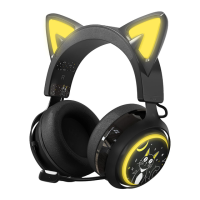
• On Desktop Computer: Connect 1 to 2 3.5 mm adapter cables
(attached).
• On PS4/PS5: Plug and Play. Enter "Settings"-find "Devices"-" Audio
Device"---click "Output to Headphone"---click "All Audio."
• On Xbox One: Plug and play. *Warmly Notice:For old Xbox one, a
Microsoft adapter is required (not included)
• On Xbox One S/X: Plug and Play Enter "Settings"- find "Display and
Sound" - click "Audio Output"- select HDMI audio and optical audio
"uncompressed stereo''.
• On Nintendo Switch: Plug and Play. If you want to use the headset
microphone, you will need to download the "Nintendo Switch Online"
app.
NOTE:
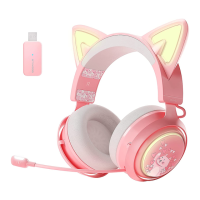
• The headset comes with White LED light effect (Only when using USB
plug).
• The headset is compatible with Microsoft Windows7/8/10, Apple IOS
and Mac OS systems and can be used on PC, Laptop, Smartphone,
Nintendo Switch, PS4/PS5/ New Xbox One controller.
• Microphone has noise(On PC)
:
1. Right click on the small speaker in the lower right corner of the
computer -- Recording device - right microphone -- Properties --Custom
(
Grade
)
2. Then adjust microphone volume to 100, adjust microphone enhance to
0, click “enhance”, choose “windows AEC”and “ANS”
•Microphone can't work(On PC):
1. Check out the mic of the headset were turn on.
2. Check whether the Mic permission is enabled:
"Start"-"Settings"-"Privacy"-"Microphone".
3. Press "Windows+R"-enter "Control"- click "Hardware and Sound"
4. Click "Realtek High Definition Audio Manager" and "Sound".
5. Open "Realtek High Definition Audio Manager" - adjust the AC97
front panel or select to disable the front panel detection.
6. Close "Realtek audio manager" - adjust "sound" option. Among them,
recording is adjusting the input device. Click "Record"- right-click
"Realtek microphone" -"Properties" - "Level".
★
Other problems please contact SOMIC support team.


 To Next Page
 Loading...