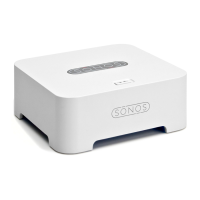
1. Download the Sonos controller on the device you will use to setup and control Sonos.
2. Place the Playbar or Playbase in the appropriate location and apply power.
3. Connect the supplied optical audio cable from the digital audio out (optical) of your TV to the
audio input of the Playbar or Playbase. Be careful not to twist or bend the cable.
If the Playbar or Playbase is the first Sonos component you are setting up, follow the
instructions below:
1. Open up the Sonos controller app on your device of choice.
2. Select “Set up a new Sonos system”.
3. Follow the in-app instructions to complete the setup. The Sonos app will walk you through
configuring your remote to work with the Playbar or Playbase, as well as adding any surround
speakers you may have.
The setup is now complete, you are ready to listen to your Playbar or Playbase.
If you are adding a Playbar or Playbase to an existing Sonos system, follow the instructions
below:
1. From your Sonos controller, select “Add a Player or Sub”.
o On iOS or Android: From the More tab, select Settings > Add a Player or Sub
2. Follow the in-app instructions to complete the setup. The Sonos app will walk you through
configuring your remote to work with the Playbar or Playbase, as well as adding any surround
speakers you may have.
The setup is now complete, you are ready to listen to your Playbar or Playbase.
No sound from the Sonos Playbar, Playbase,
or Beam
If you’ve reached this article because you’re not getting any audio out of your Playbar, Playbase,
or Beam, please check the following quick steps before proceeding with the rest of the article:
Ensure the Sonos home theater speaker has already been setup. It will not produce sound until
you’ve gone through the setup process using the Sonos app.
Check our TV compatibility list to see if your TV has any known issues with the Sonos home
theater speaker.


 To Next Page