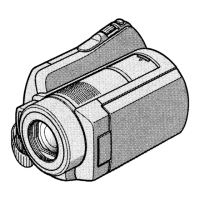
Sony DCR-SX65 – Quick Start Guide
1
To record a video:
1. Open LCD monitor.
2. Press Start/Stop button to start and stop recording.
To take a still picture:
1. Open LCD monitor.
2. Press Mode Button. The Still Picture Icon will light up in green on the mode indicator.
3. Press Still Picture Button.
To upload images to a computer:
1. Open LCD Monitor and attach camera to computer with USB cord.
2. Press on touch screen.
3. An AutoPlay window will open.
2
Click on Import Pictures and Videos.
4. Type in a “tag” to name images. The import wizard will import the images into a folder in “My Pictures” labeled with
the date and the tag.
5. Press END on the touch screen and unplug the USB cord.
To delete all images from the camera (clear the memory):
2. Press Playback Button .
3. Press MENU on touch screen.
4. Press DELETE.
5. Press to for videos or for still pictures.
7. Press image to be deleted.
8. Press YES.
9. Press YES again.
1
The full manual for this model can be found at: https://docs.sony.com/release/DCRSX45_EN_FR.pdf
2
If the AutoPlay window does not open, click on Start Menu Computer. Then right click on CAM_MEM and select Open AutoPlay.

 Need help?
 General

 To Next Page