•
Move the Wi-Fi® access point away from any potential obstructions or interference.
•
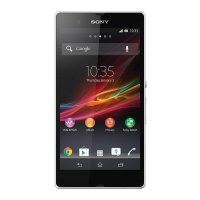
Don’t cover the Wi-Fi® antenna area of your device (the highlighted area in the
illustration).
Wi-Fi® settings
When you are connected to a Wi-Fi® network or when there are Wi-Fi® networks
available in your vicinity, it is possible to view the status of these networks. You can
also enable your device to notify you whenever an open Wi-Fi® network is detected.
If you are not connected to a Wi-Fi® network, your device uses a mobile data
connection to access the Internet (if you have set up and enabled a mobile data
connection on your device). By adding a Wi-Fi® sleep policy, you can specify when
to switch from Wi-Fi® to mobile data.
To enable Wi-Fi® network notifications
1
Turn on Wi-Fi®, if it is not already on.
2
From your Home screen, tap
.
3
Find and tap Settings > Wi-Fi.
4
Tap > Advanced.
5
Drag the slider beside Network notification to the right.
To view detailed information about a connected Wi-Fi® network
1
From the Home screen, tap .
2
Find and tap Settings > Wi-Fi.
3
Tap the Wi-Fi® network that you are currently connected to. Detailed network
information is displayed.
To add a Wi-Fi® sleep policy
1
From the Home screen, tap .
2
Find and tap Settings > Wi-Fi.
3
Tap , then tap Settings > Keep Wi-Fi on during sleep.
4
Select an option.
WPS
WPS (Wi-Fi® Protected Setup) is a wireless networking standard that helps you
establish secure wireless network connections. If you have little background
knowledge of wireless security, WPS makes it easy for you to set up Wi-Fi Protected
Access (WPA) encryption to secure your network. You can also add new devices to
an existing network without entering long passwords.
Use one of these methods to enable WPS:
•
Push button method – simply push a button on a WPS-supported device, for
example, a router.
37
This is an Internet version of this publication. © Print only for private use.














 To Next Page