Remote Button Function
[] o_ RETURN Returns to the previous
screen of any displayed
menu.
[] <-, "1_, ',1,,->, @ Selects a menu item and
enters the selection.
You can change the factory settings of the input
buttons to suit the components in your system.
For example, if you connect a Blu-ray Disc
player to the DVD jack on the system, you can
set the DVD button on this remote to control the
Blu-ray Disc player.
You cannot change the remote assignments for
TV and DMPORT.
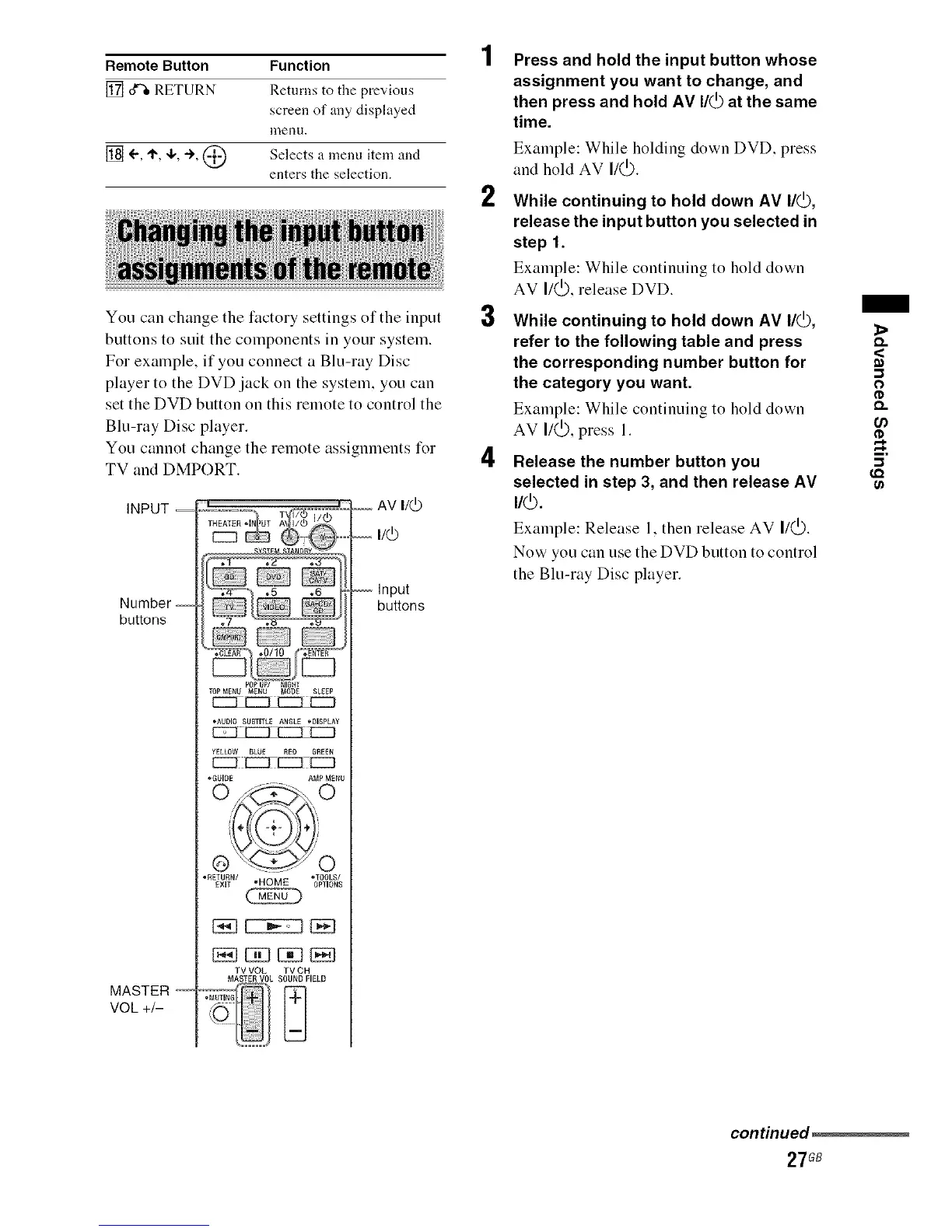
INPUT --
Number --
buttons
MASTER
VOL +/-
POPUP/ NIGHT
TOP MENU MENU MODE SL£EP
*AUDIO SUBTITLE ANGLE *DISPLAY
*GUIDE AMP MENU
*RETURN/ ,TOOLS/
EXIT "HOME OPTIONS
TV VOL TV CH
MASTER VOL SOUND FIELD
.MUTING
-- Input
buttons
2
3
4
Press and hold the input button whose
assignment you want to change, and
then press and hold AV I/(_ at the same
time.
Example: While holding down DVD. press
and hold AV Ii(_).
While continuing to hold down AV I/(_,
release the input button you selected in
step 1.
Example: While continuing to hold down
AV I/(_), release DVD.
While continuing to hold down AV I/(_,
refer to the following table and press
the corresponding number button for
the category you want.
Example: While continuing to hold down
AV I/(_), press 1.
Release the number button you
selected in step 3, and then release AV
I/(_.
Example: Release 1. then release AV I/_.
Now you can use the DVD button to control
the Blu-ray Disc player.
<
m
--1
O
Q.
u)
-.1
continued_
27GB


 To Next Page