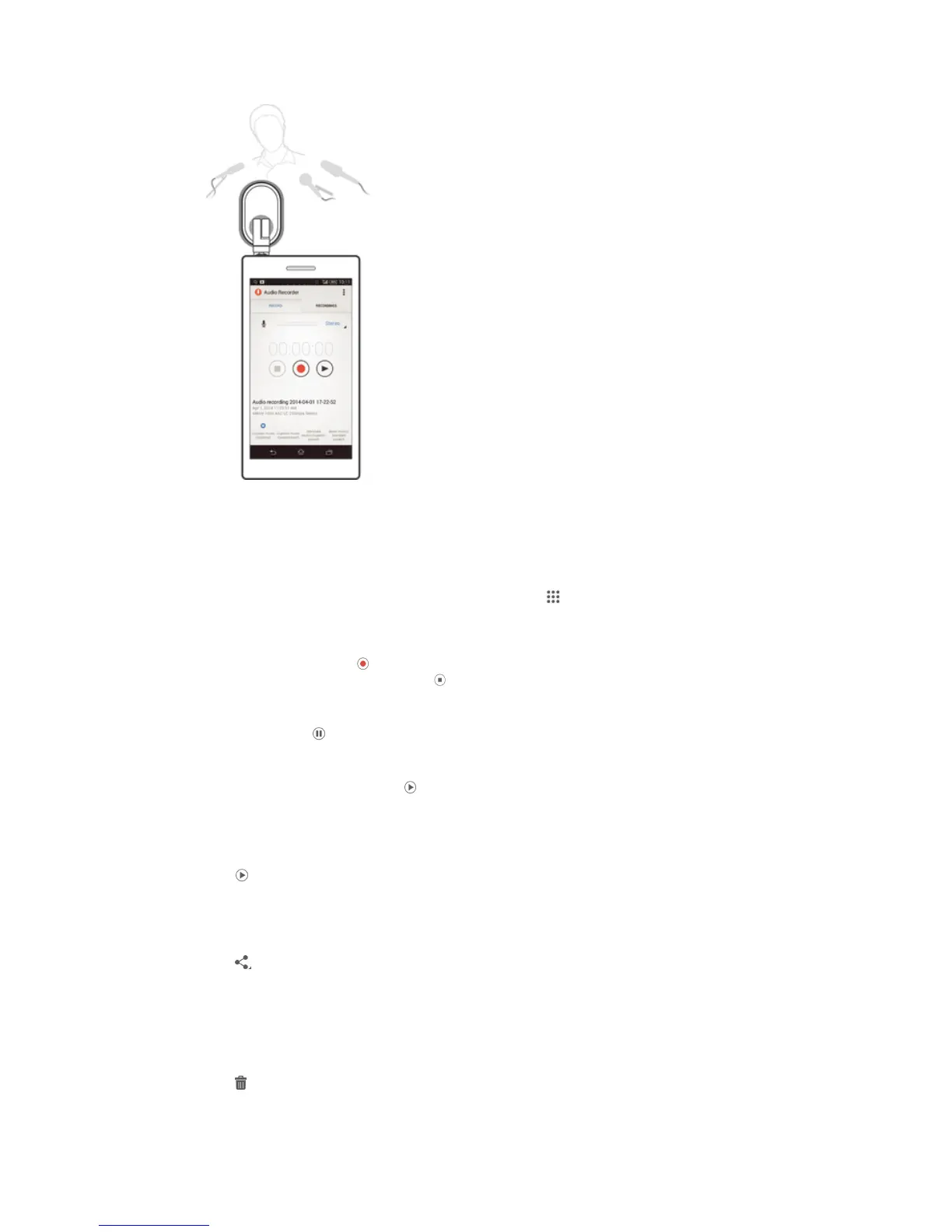
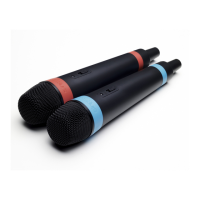
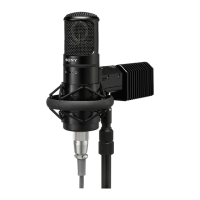
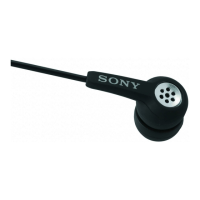
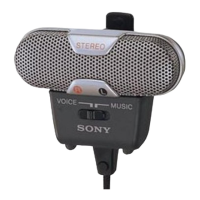
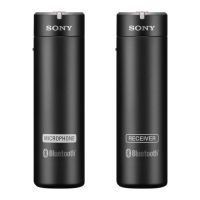
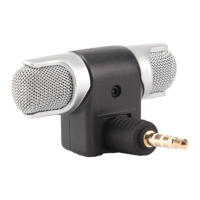
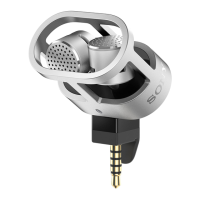
To record stereo sound
1
Make sure that the Audio Recorder application is successfully installed on your
Xperia™ device.
2
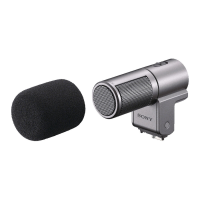
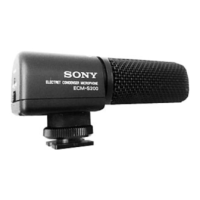
Connect the microphone to your Xperia™ device and position it in the correct
orientation.
3
Make sure that your microphone is activated or that a microphone sensitivity
level is selected.
4
From the Home screen of your Xperia™ device, tap
, then find and tap Audio
Recorder.
5
To select the sound quality for your recording, touch and hold one of the sound
quality options for 2 seconds.
6
To start recording, tap .
7
To stop recording, touch and hold
for 2 seconds.
To pause when recording
•
Touch and hold for 2 seconds.
To play back the current recording
•
After you finish recording, tap .
To play back a saved recording
1
In the Audio Recorder application, tap the RECORDINGS tab, then tap the
recording that you want to play.
2
Tap
to play the recording.
To share a recording
1
In the Audio Recorder application, tap the RECORDINGS tab, then tap the
recording that you want to share.
2
Tap , then tap the application that you want to use to share the selected
recording.
3
Follow the on-screen instructions to complete the procedure.
To delete a recording
1
In the Audio Recorder application, tap the RECORDINGS tab, then tap the
recording that you want to delete.
2
Tap
, then tap OK.
7
This is an Internet version of this publication. © Print only for private use.


 To Next Page