Sony Xperia M2
Sony Xperia M2 - Quick Start Guide: Page 3 of 3
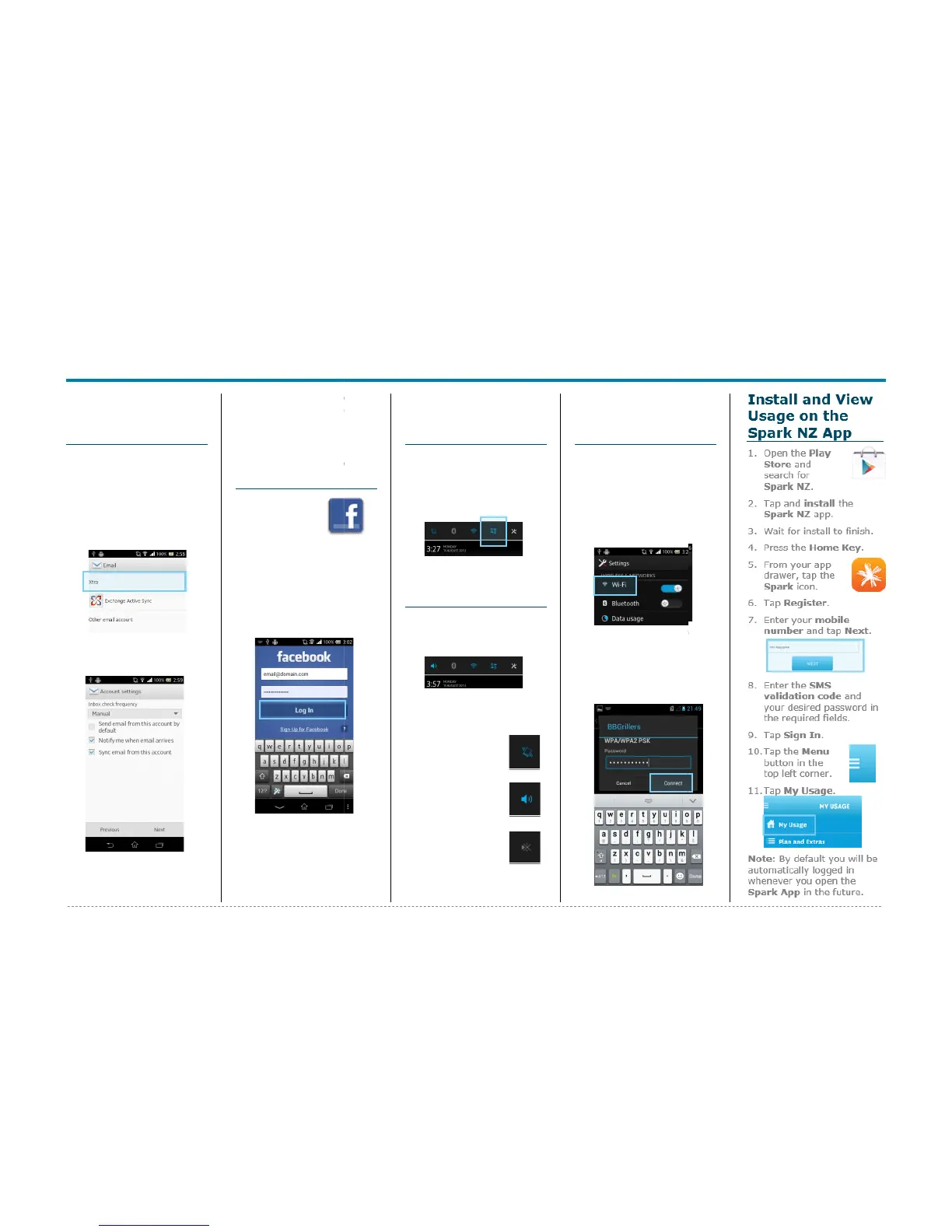
How to setup a
Yahoo Xtra email
account
1. From your Home screen,
tap Email.
2. Tap Xtra.
3. Enter your Xtra email
address.
4. Enter your Xtra
password.
5. Tap Next.
6. Set the desired Inbox
Checking Frequency.
7. Tap Next.
8. Amend Name fields then
tap Next.
9. Your email account will
Sync and you are now
ready to send and receive
email.
How to Connect
to Facebook
1. On your
Home
screen, tap
Facebook.
2. Enter your Facebook
email address.
3. Tap the Password field.
4. Enter your password
details.
5. Tap Log in.
6. Tap Skip.
7. Tap the Home Key to
exit.
How to Toggle
Mobile Data on or
off
1. From your Home screen,
swipe down the
Notification bar.
2. Tap Data Icon to turn
Mobile Data On or Off.
How to Toggle
the Sound Profile
3. From your Home screen,
swipe down the
Notification bar.
4. Tap Sound Icon to toggle
the sound.
Vibrate
Only
Sound on
No sound
or vibrate
How to Connect
to a Wi-Fi
Network
1. From the Home screen,
tap Settings.
2. Tap WiFi.
3. Tap the Wi-Fi slider so it is
switched to ON.
4. Tap the word Wi-Fi.
5. Tap the desired network
you wish to connect with.
6. If the network is secured,
enter the password.
7. Tap Connect.
Sony Xperia M
Sony Xperia M - Quick Start Guide: Page 3 of 3
How to setup a
Yahoo!Xtra email
account
1. From your Home screen,
tap Email.
2. Tap Xtra.
3. Enter your Xtra email
address.
4. Enter your Xtra
password.
5. Tap Next.
6. Set the desired Inbox
Checking Frequency.
7. Tap Next.
8. Amend Name fields then
tap Next.
9. Your email account will
Sync and you are now
ready to send and receive
email.
How to Connect
to Facebook
1. On your
Home
screen, tap
Facebook.
2. Enter your Facebook
email address.
3. Tap the Password field.
4. Enter your password
details.
5. Tap Log in.
6. Tap Skip.
7. Tap the Home Key to
exit.
How to Toggle
Mobile Data on or
off
1. From your Home screen,
swipe down the
Notification bar.
2. Tap Data Icon to turn
Mobile Data On or Off.
How to Toggle
the Sound Profile
3. From your Home screen,
swipe down the
Notification bar.
4. Tap Sound Icon to toggle
the sound.
Vibrate
Only
Sound on
No sound
or vibrate
How to Connect
to a Wi-Fi
Network
1. ,
From your Home screen,
swipe down the
Notification bar.
2.
Tap Settings.
3.
Tap the Wi-Fi slider so
it is
switched to ON.
Tap the word Wi-Fi.
5. Tap the desired network
you wish to connect with.
6. If the network is secured,
enter the password.
7. Tap Connect.
Sony Xperia M
Sony Xperia M - Quick Start Guide: Page 3 of 3
How to setup a
Yahoo!Xtra email
account
1. From your Home screen,
tap Email.
2. Tap Xtra.
3. Enter your Xtra email
address.
4. Enter your Xtra
password.
5. Tap Next.
6. Set the desired Inbox
Checking Frequency.
7. Tap Next.
8. Amend Name fields then
tap Next.
9. Your email account will
Sync and you are now
ready to send and receive
email.
How to Connect
to Facebook
1. On your
Home
screen, tap
Facebook.
2. Enter your Facebook
email address.
3. Tap the Password field.
4. Enter your password
details.
5. Tap Log in.
6. Tap Skip.
7. Tap the Home Key to
exit.
How to Toggle
Mobile Data on or
off
1. From your Home screen,
swipe down the
Notification bar.
2. Tap Data Icon to turn
Mobile Data On or Off.
How to Toggle
the Sound Profile
3. From your Home screen,
swipe down the
Notification bar.
4. Tap Sound Icon to toggle
the sound.
Vibrate
Only
Sound on
No sound
or vibrate
How to Connect
to a Wi-Fi
Network
1. From the Home scre
tap Settings.
2. Tap WiFi.
3. Tap the Wi-Fi slider
so it is
switched to ON.
4. Tap the word Wi-Fi.
5. Tap the desired network
you wish to connect with.
6. If the network is secured,
enter the password.
7. Tap Connect.






 To Previous Page