Step 1
Download and install the latest version
of the software from soundswitch.com
Step 2
CLOSE ALL APPLICATIONS INCLUDING SOUNDSWITCH
Connect the Control One via USB
to your computer
Step 3
Open SoundSwitch.
Follow the onscreen setup guide to congure the Control One
SOUNDSWITCH.COM/CONTROL
Connecting Lighting Hardware
Step 1: Connect your xtures to power and turn them on.
Step 2: Set the xtures to DMX Mode and then select the DMX
Address for each xture.
Step 3: Connect a DMX cable to the DMX Output labeled
“Universe One”.
Step 4: Connect the DMX cable to the rst xture’s DMX Input and
continue to connect cables from each light to the next.
This is called ‘daisy chaining’.
For additional instructions, follow the hardware setup tutorial at
soundswitch.com/getting-started
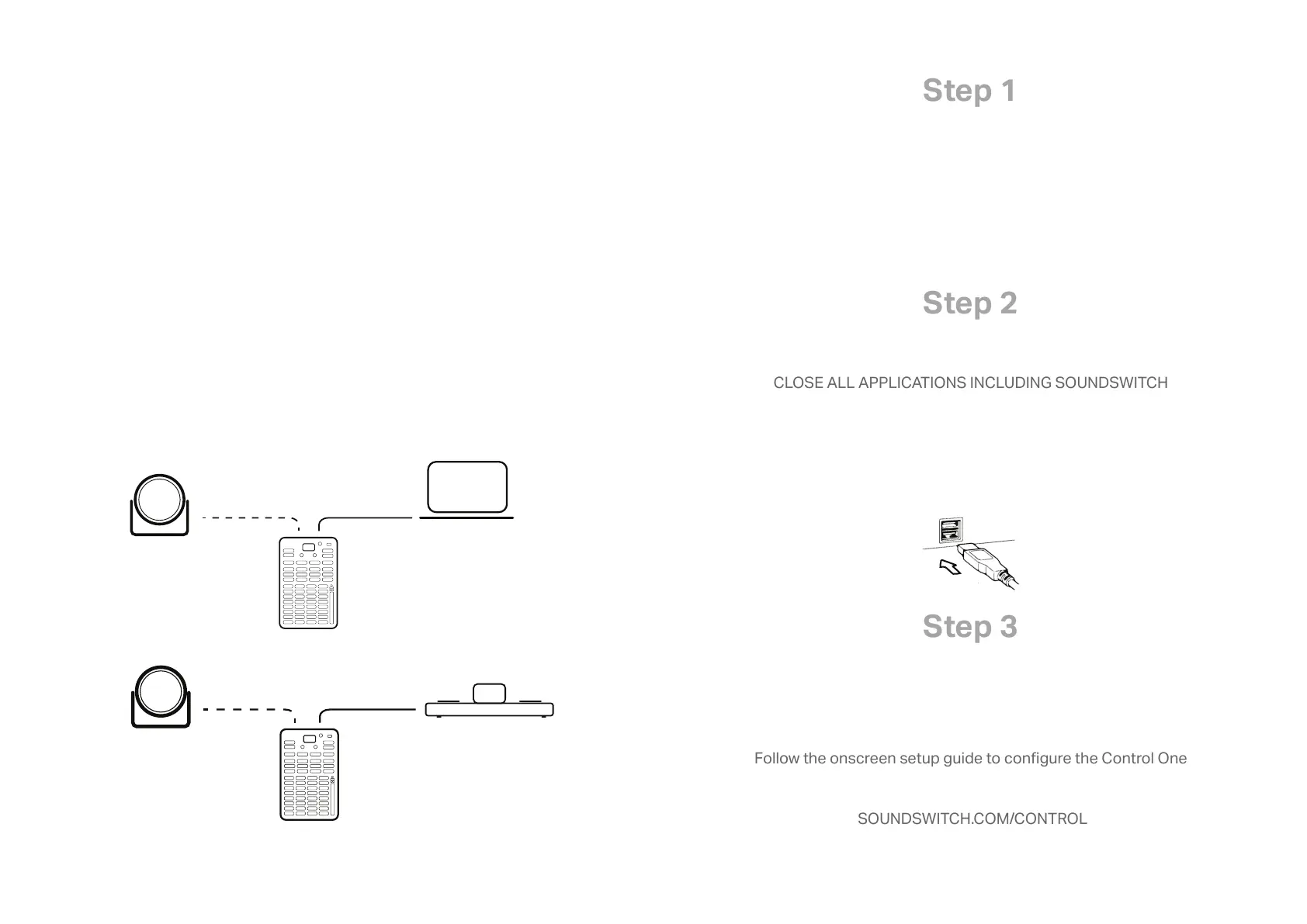
USBDMX 1 OUT
Lighting Hardware
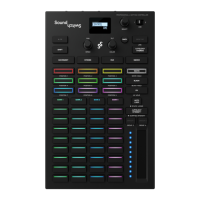
CONTROL ONE
Hardware Setup Illustrations
DJ/Lighting Laptop
Engine OS Hardware
USB
DMX 1 OUT
Lighting Hardware
CONTROL ONE


 To Previous Page
 Loading...