POINT CTRL
VIRTUAL REALITY CONTROL DEVICE
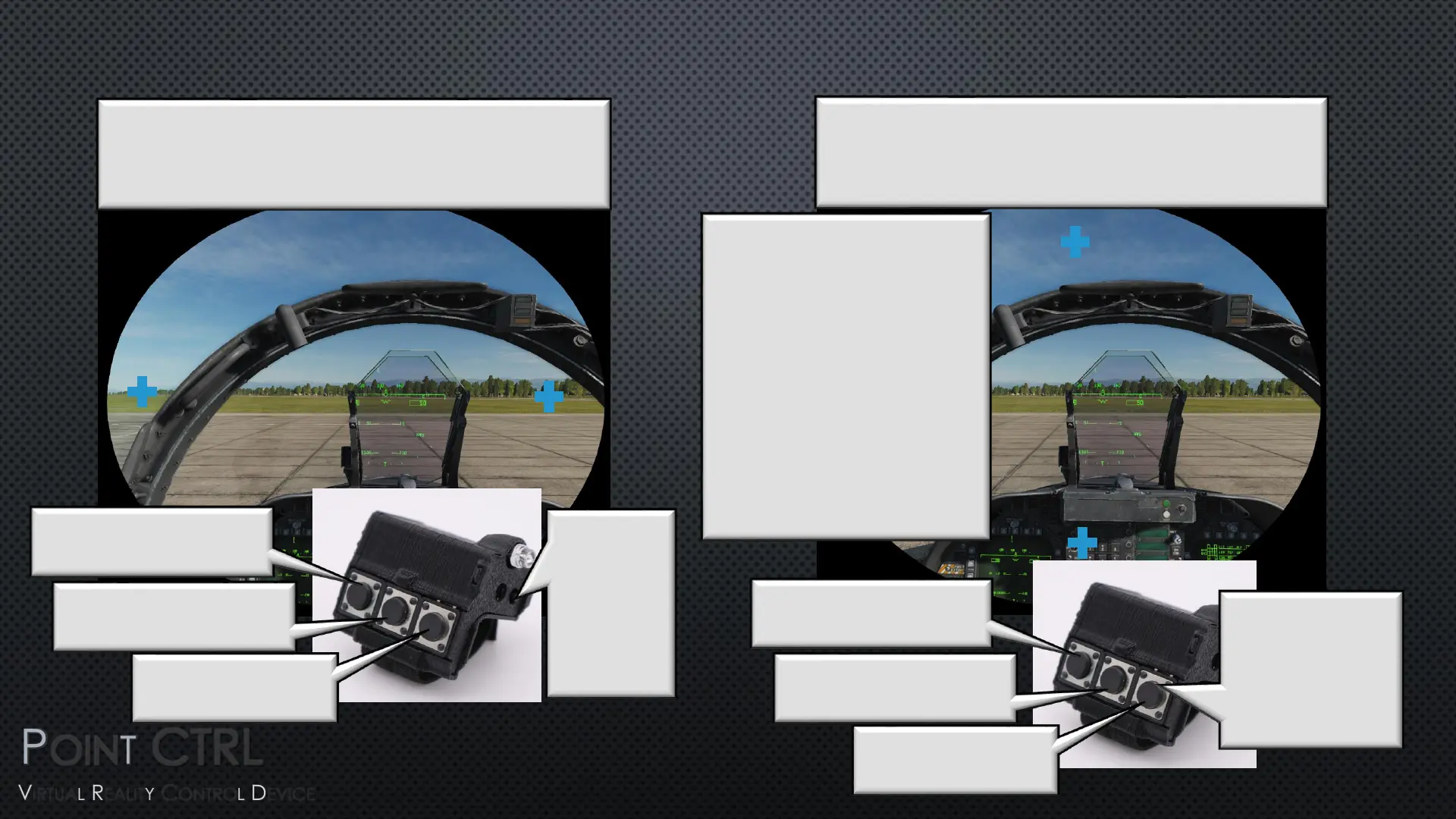
CALIBRATION (V/R HEAD SET VIEW) SET CURSOR TARGETS
Step 9
Two Cursor Targets will be Displayed. Use the
FCU Buttons to Position the Two Cursors as
Shown
V/R Head Set View
T1 = Move Cursors Left
T2 = Move Cursors Closer
T1 = Move Cursors Right
T2 = Move Cursors Wider
Toggles Between
T1 and T2
Step 10
Press the
ON/OFF
Button to
Advance to
the Vertical
FOV
Adjustment
Step 11
Two Cursor Targets will be Displayed. Use the
FCU Buttons to Position the Two Cursors as
Shown
T1 = Move Cursors Down
T2 = Move Cursors Closer
T1 = Move Cursors Up
T2 = Move Cursors Wider
Toggles Between
T1 and T2
Note:
Step 11 is usually not required,
and you can bypass it by
pressing the ON/OFF button
Setting the vertical cursor
targets different from factory
reset is only required for an
expanded vertical desktop.
Cursors can not be moved up
or down following a factory
reset, or while at normal max
height setting. They must be
made narrower first.
Step 12
Press the ON/OFF
Button to
Advance to the
Cursor Target
Presentations


 To Next Page
 Loading...