
 Need help?
Do you have a question about the Spire Payments SPc5 and is the answer not in the manual?
Troubleshoot issues related to the terminal display not turning on or showing any output.
Address problems with the terminal's printer not printing correctly or at all.
Resolve issues with the terminal's ability to connect and communicate.
Diagnose and fix problems when the terminal fails to read inserted or tapped cards.
Adhere to general safety guidelines including not disassembling, using damaged units, or exposing to wet environments.
Avoid use in proximity of flammable gases, ensure cables don't create trip hazards, and operate between 0°C and 40°C.
Disconnect power before cleaning with a dry or dampened soft cloth; do not use liquids or aerosols.
Dispose of parts in an environmentally sound manner according to local laws.
Declaration of conformity for radio equipment type SPc5 according to EU directives.
Information on PCI Notice and Installation Guidance availability.
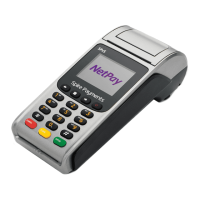
The Spire Payments SPc5 is a countertop terminal designed for processing various types of transactions, offering a user-friendly interface and robust connectivity options. This quick reference guide provides essential information for setting up, operating, and maintaining the device.
The SPc5 serves as a point-of-sale terminal capable of handling sales transactions, processing chip cards, and facilitating PIN entry. It is designed to communicate with an acquirer to approve or decline transactions automatically. Beyond basic sales, the terminal supports other transaction types, which are detailed in the comprehensive User Manual available online. It also incorporates end-of-day and shift change procedures, crucial for internal record-keeping and financial reconciliation. The device is equipped with a thermal printer for generating merchant and customer receipts, ensuring a physical record of each transaction. For connectivity, it supports both telephone line (PABX/prefix digit compatible) and network connections (DHCP enabled), offering flexibility in deployment environments. The terminal is designed to be pre-configured for standard networks, simplifying setup for most users.
Setting up the SPc5 terminal involves a series of straightforward steps. To begin, the terminal should be placed face down on a flat surface, allowing access to the rear cover by pushing two tabs upwards. Once the cover is removed, the cable tidy needs to be detached. The black power supply cable is then threaded to the right of the cable tidy recess and plugged into the rear of the terminal. For telephone line connectivity, the telephone cable is threaded through the cable tidy recess and inserted into the socket marked with a blue LINE label. Alternatively, for an Internet connection, the network cable is threaded to the left of the cable tidy recess and inserted into the LAN-identified socket. After all necessary cables are connected, the cable tidy and rear cover are refitted until a 'click' is heard, confirming secure closure. The telephone cable and network cable (if required) are then connected to their respective sockets at the Internet connection point.
Paper roll installation is equally simple. With the terminal facing up, the lever in the middle of the printer door is gently pulled upwards to open it. Any packing material from the new paper roll should be discarded. The roll is then fitted as shown in the diagram, with correct orientation being critical for proper printing. Approximately 10 cm of paper should be pulled out until it protrudes from the top of the terminal. It is important to ensure the printer roller is correctly installed. The printer door is then closed until a 'click' is heard. Excess paper is removed by pulling down and tearing along the serrated edge.
Turning on the terminal involves connecting the power supply to a nearby electrical outlet. The power button, located on the right of the menu buttons, is held down until the display illuminates and the terminal beeps. Any protective film on the display should be removed at this point.
For a sale transaction, the transaction amount is entered when prompted. The customer's Chip Card is inserted into the card slot with the chip facing upwards. The terminal is then passed to the customer for PIN entry. The terminal will automatically contact the acquirer to approve or decline the transaction. A merchant copy of the receipt will be printed, which should be torn off and retained for records. The display will prompt to print the customer receipt; for contactless transactions, only a merchant copy will print. Once printing is complete, the receipt is torn off and passed to the customer.
The SPc5 also supports contactless card transactions, requiring the card to be placed within 0 to 4 cm of the terminal display. Magnetic stripe cards are swiped in the correct orientation.
The terminal is designed for ease of maintenance, with specific guidelines for cleaning and troubleshooting. Before cleaning, the terminal must be disconnected from the electrical outlet. Only a dry or dampened soft cloth should be used for cleaning. Liquids, sprays, or aerosol cleaners should never be used, and the terminal should not be immersed in any liquid. Any spillages should be cleaned quickly.
Troubleshooting guidance is provided for common issues. If the display is not working, users should check if the terminal is switched on and verify the connection between the terminal, power supply, and mains supply. For poor printing performance, ensure the printer door is fully closed, an approved paper roll is installed correctly, and the printer roller is properly placed. If the roller has been accidentally removed, it should be put back into its original position.
Communication problems can be addressed by ensuring the communication cable is correctly connected. If using a telephone line, a separate telephone can be used to check for a dial tone. Resetting the terminal by powering it off and on can often resolve issues. For Internet connections, verify that the Internet connection is operational. If connecting to a broadband phone line, ensure the terminal is connected through a DSL filter. If cards cannot be read, confirm that the Chip Card is inserted in the correct orientation, the contactless card is placed correctly, and the magnetic stripe card is swiped in the correct orientation. Testing with another card of the same type can also help diagnose card reading issues.
The SPc5 is designed with safety in mind. Users are cautioned not to disassemble, service, or repair any part of the terminal. It should not be used if damaged or if there are signs of tampering. Only the supplied power adapter with an electrical outlet of the correct rating should be used. To avoid electrical shock, the terminal should not be used in wet environments or during an electrical storm. It should also not be used near potentially flammable gases or substances. Cables should be routed to prevent trip hazards or the device from being dropped. The terminal should not be exposed to excessive heat or cold, operating only between 0 °C and 40 °C. Any part of the terminal should be disposed of in an environmentally sound manner and in accordance with local laws. Spire Payments will not be held liable for damage resulting from user operation that does not comply with the stated guidance.
 General
| Model | SPc5 |
|---|---|
| Display Resolution | 320 x 240 pixels |
| Operating System | Linux-based |
| Device Type | Payment Terminal |
| Payment Methods | NFC |
| Connectivity | Wi-Fi, Bluetooth |
| Security | PCI PTS 5.x |
| Battery | Li-ion |
| Power Supply | Battery |

 To Next Page