Connect and Turn On the Scale
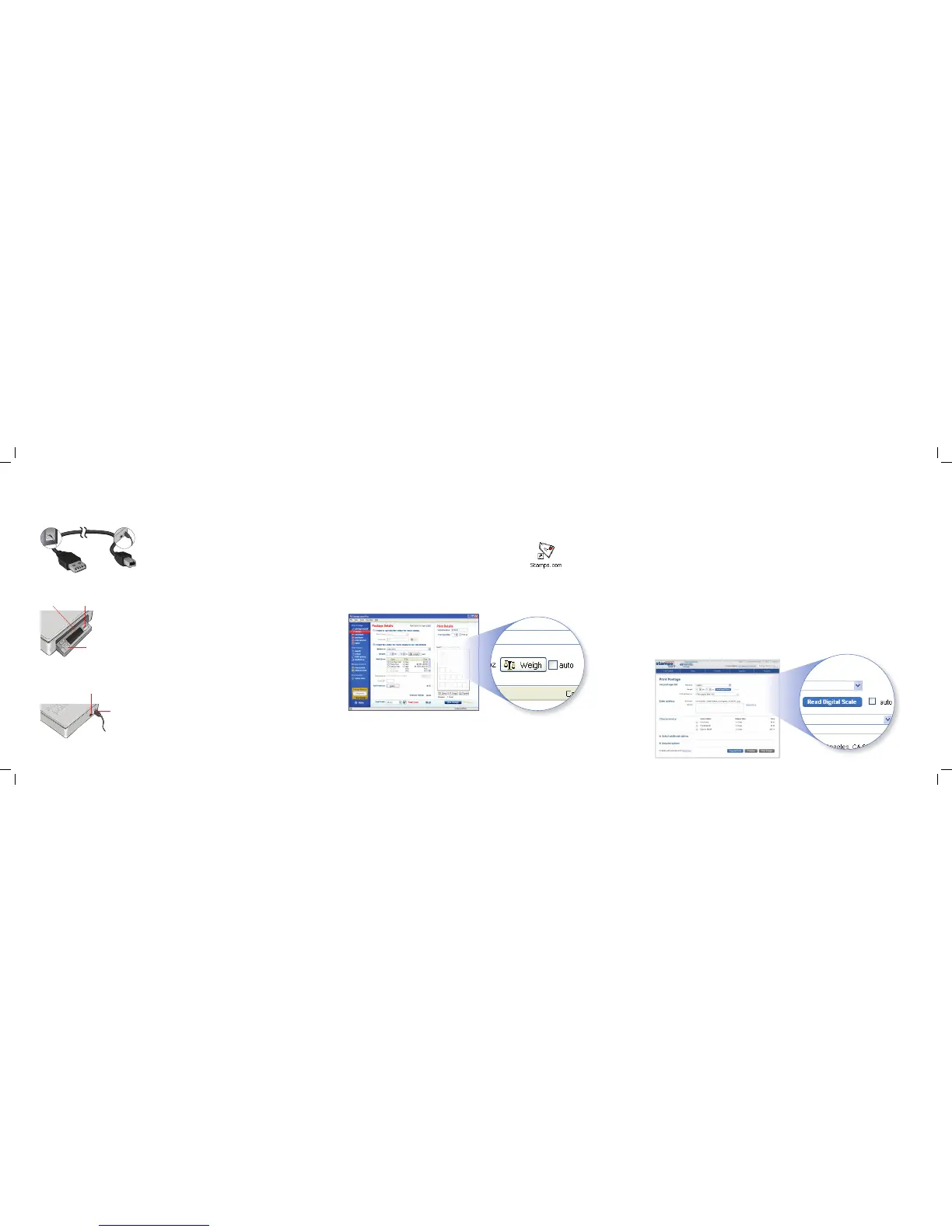
A. To get started, you will need to connect your
scale to your computer as shown at left.
B. Open the front panel by pushing it in.
C. Turn the scale on.
LCD screen ENTER Button
Hold, Tare, and On/O buttons
Computer Scale
on/o switch
USB connector
Your 25 lb. scale can be used with both Stamps.com software and the
Stamps.com website.
A. Launch the software from the desktop or the Start Menu.
B. Log in using your username and password.
C. Click the “weigh” button in the software to transfer the weight from the scale
once, or select the “auto” checkbox to transfer weight from the scale to the
software whenever the weight changes.
To connect your Stamps.com scale, you must follow the steps below in order. DO NOT
CONNECT THE SCALE UNTIL INSTRUCTED.
A. Go to www.stamps.com and sign in using your username and password.
B. You will need to install a small plug-in for the scale to communicate directly with
our website. To do so, click on the “Read Digital Scale” button in the Print Postage
tab, then follow the online instructions.
C. Connect the scale to your computer using the USB cable provided with your scale.
Finally, move the scale switch to the on position. The website should now be able to
read the weight from your scale.
D. Click the “Read Digital Scale” button to transfer the weight from the scale once, or
select the “auto” checkbox to transfer weight from the scale to the software
whenever the weight changes.
Weigh Your Mailpiece – Software Weigh Your Mailpiece – Online



 To Previous Page
 Loading...