- 16 -
3. Printer Features
3.1 Control Panel
3.1.1 Buttons
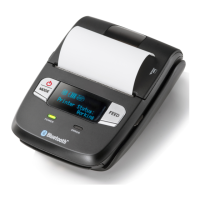
1) FEED button: When the printer is on, you can press FEED to feed the paper.
2) MODE button:
Youcanchangethecommunicationmodeandprintsettingsbyconguringtheprinter’smode
settings.YoucancongurethemodesettingsafteryoupressandholdMODEfor5secondsor
more and the ERROR LED ashes ve times.
(For more information about mode settings, see section 2.3, “Memory Switch Settings.”)
3.1.2 Panel LEDs
1) POWER LED (green): Lights when the printer is on. The printer can receive data when the POWER
LED is on.
2) ERROR LED (red): Lights when there is a printer error and when the printer is receiving data.
3.1.3 LCD
1) The 128 × 32 dot (16 × 2 line) display shows alphanumeric characters.
2) Content
Mode/Status
: Indicates the currently specied printer mode or error status.
Data communication status :
...
The image shown on the left indicates that the data com-
munication status is good.
Remaining battery power :
...
There is sucient remaining battery power.
...
The remaining battery power is low. Please charge the bat-
tery pack.
Flashing
...
The remaining battery power is extremely low.
Stop using the printer immediately, and charge the battery
pack.
Note: If you continue printing at the low remaining battery power sta-
tus, the printer cannot feed paper properly and may print with
condensed (narrow) line spacing.
Bluetooth connection status :
...
The mark on the left indicates that there is a Bluetooth con-
nection.
When there is no Bluetooth connection, the mark is not
displayed.
Bluetooth Mode
Datacommunicationstatus
Remainingbatterypower
Mode/Status
BluetoothConnectionStatus
ERROR LampPOWER Lamp
FEED Buttom
MODE Button
LCD



 To Next Page
 Loading...