support.starlink.comsupport.starlink.com
You can utilize the Starlink App to view statistics, access terminal settings and contact support. Configuration may be required
for the Starlink app to work with some 3rd party routers.
After you have set up your 3rd party router and connected to Starlink with the WAN port, open the Starlink app. If the app says
"Starlink unreachable", create a static route in your router configuration settings.
Please refer to your router's documentation for instructions on setting a static route.
Network destination: 192.168.100.0
Subnet Mask: 255.255.255.0
Gateway: 192.168.100.1
Interface: WAN
Note: These options may differ depending on your specific hardware and network configuration.
INSTALL
4 | Connect and Align Starlink
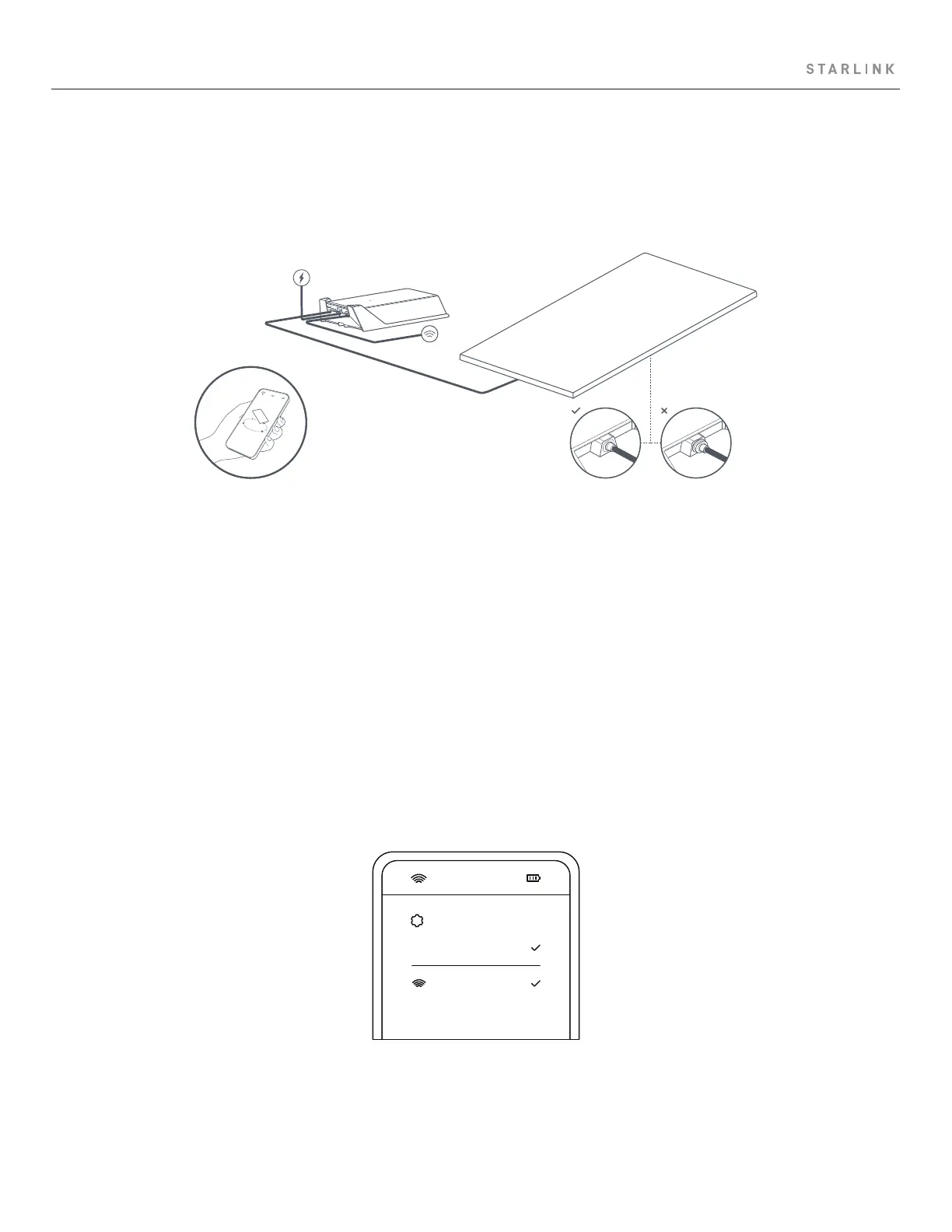
Follow the cable routing instructions for your chosen Starlink mount and plug one end of the Enterprise Cable into your Starlink.
Ensure the plug is fully inserted such that the plug face is flush with the surface. To remove the cable, pull firmly outward as there is
no release tab. Plug the other end of the Enterprise Cable to your Power Supply. Connect the Ethernet Cable to the power supply and
the other end to a router.
1. On your device, find and connect to the STARLINK network in your WiFi settings.
2. Once connected, a browser window will open prompting you to enter a new SSID (Network name) and password.
This step is optional but recommended.
3. You are now connected! Open the Starlink App to customize additional settings, check your connection, and more.
4:20
STARLINK
WiFi
5 | Connect to WiFi


 To Next Page
 Loading...
