EasyManua.ls Logo

Stem Audio Table1 - User Manual

Stem Audio Table1
12 pages
Print Icon
To Next Page IconTo Next Page
Loading...
Speaker
Volume Up
Speaker
Volume Down
All Stem endpoints can be used as solo standalone devices
or in unison with other devices within the Stem ecosystem.
If you plan on using this device as an individual unit, then
follow the standalone setup instructions. If you plan on
using multiple Stem devices in your room, then skip ahead
to the multiple device setup instructions.
LED
Light Ring
Speaker
9 Beamforming
Microphones
Mute
To mute Tables microphones during a call, press
located on the top of the device. When muted, the
light ring on the device will slowly pulse red. To
unmute, just press again.
Ethernet
Kensington Lock
USB
Microphone
Mute
User Manual
Table
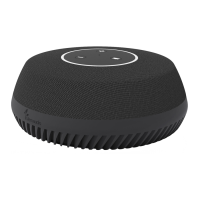
Optimized for tabletops and flat surfaces, the Stem Table is
a high-quality conference speakerphone that turns any
environment into a professional conference room. Equipped
with nine microphones that perform real beamforming and
an innovative downward-facing speaker for amplified
performance, Table takes the quality of your meetings to the
next level.
Overview
Standalone Setup (option 1) Multi-Device Setup (option 2)Setting Up
1.
Place the device in the desired location in the room.
Using an Ethernet cable, connect the device to a network
that supports PoE+.
Note: If your network doesnt support PoE+, you should
purchase a separate PoE+ injector or PoE+ enabled switch.
This connection provides the device
with power, data, and other IoT and SIP capabilities.
If you need video conferencing capabilities, use the USB
type B cable provided and connect the device to your PC.
Lastly, we recommend you complete setting up your
room via the Stem ecosystem platform.For more
information on setting up your room, you can visit
stemaudio.com/manuals or stemaudio.com/videos
Note: The ecosystem platform is available on the Stem
Control or in iOS, Windows, and Android apps. You can
also access the platform through your web browser by
typing in the products IP address.
Thats it! Table is all set up to work as a standalone device.
2.
3.
4.
5.
Place the device in the desired location in the room.
Using an Ethernet cable, connect the device to a network
that supports PoE+.
Note: If your network doesnt support PoE+, you should
purchase a separate PoE+ injector or PoE+ enabled switch.
This connection provides the device
with power, data, and other IoT and SIP capabilities.
You must complete setting up your room via the Stem
ecosystem platform.For more information on setting up
your room, you can visit stemaudio.com/manuals or
stemaudio.com/videos
Note: The ecosystem platform is available on the Stem
Control or in iOS, Windows, and Android apps. You can
also access the platform through your web browser by
typing in the products IP address.
Thats it! Table is all set up to work within the Stem
ecosystem.
1.
2.
3.
4.
5.
The Directional Array
During a call, Table uses proprietary beamforming
technology to locate a legitimate voice source and to
steer an array towards it. This allows Table to focus on
the speaker in the room and cancel out all other noise.
The beamforming process is dynamic as it adjusts the
direction of the array when the source of sound changes
or moves. In a call, when a voice is detected in the room,
one or multiple blue lights located in the light ring will
indicate which direction Tables audio beam is focusing
on. This is the direction that will be heard best by the far-
end of the call (the person you are talking to).
Using Table
Volume Control
Speaker
Change the speaker volume by using to increase,
or to decrease the volume.
+
-
model: table1
When setting up multiple Stem devices in a room, make
sure you have a Hub. All communications between the
device and the far-end will be done through the Hub, so
no USB connection is needed.

Question and Answer IconNeed help?

Do you have a question about the Stem Audio Table1 and is the answer not in the manual?

Overview

The Stem Table (model: table1) is a high-quality conference speakerphone designed for tabletops and flat surfaces, transforming any environment into a professional conference room. It is part of the Stem ecosystem, which includes other devices like Ceiling, Wall, Hub, and Control, allowing for flexible setup options either as a standalone unit or as part of a multi-device system.

Function Description:

The Stem Table is optimized for clear audio capture and playback in conference settings. It features nine beamforming microphones that perform real beamforming, focusing on the speaker in the room and canceling out other noise. An innovative downward-facing speaker provides amplified performance. The device is equipped with a directional array technology that dynamically adjusts to locate and steer towards a legitimate voice source, ensuring that the speaker's voice is heard best by the far-end of the call. During a call, blue lights on the light ring indicate the direction the audio beam is focusing on.

Important Technical Specifications:

  • Connectors:
    • USB: USB Type B
    • Ethernet: RJ45 connector (requires PoE+)
  • Audio Performance:
    • Frequency response: 50Hz – 16KHz
    • Broadcast level (peak): 90dB SPL @ 1Khz from 1m (5 watts RMS)
    • Noise cancellation: > 15dB (without pumping noise)
    • 100% full duplex – no attenuation (in either direction) during full duplex
    • High-end performance conforms to ITU-T G.167
    • Acoustic echo cancellation: > 40dB with conversion speed of 40dB/sec
    • Residual echo is suppressed to the environment noise level, preventing artificial ducking of signal
  • Microphones: Nine high-quality beamforming microphones
  • Speaker: One speaker, 4 watts (RMS)
  • Algorithms:
    • Direction-finding algorithm (determines the presence and direction of a speaker)
    • Beamforming algorithm (forms and directs audio beams towards a defined direction)
    • Automatic voice-level adjustment (AGC)
  • Physical:
    • Weight: 2.5 lbs. (1.1 kg)
    • Dimensions: Diameter: 7.75 in. (19.7 cm), Height: 3 in. (7.6 cm)
  • Power Consumption: PoE+ 802.3 at Type 2
  • Operating Systems: Windows 98 and up / Linux / MacOS.
  • Compliance: AS/NZS CISPR 32:2015, EN 55032:2012/AC:2013, VCCI 32-1, FCC 15.109:2019, FCC 15.109(g):2019, ICES-003:2016 updated April 2017.

Usage Features:

  • Standalone Setup (Option 1):
    1. Place the device in the desired location.
    2. Connect to a PoE+ enabled network via Ethernet for power, data, IoT, and SIP capabilities. If PoE+ is not supported, a separate PoE+ injector or switch is required.
    3. For video conferencing, connect the device to a PC using the provided USB type B cable.
    4. Complete room setup via the Stem ecosystem platform (accessible via Stem Control, iOS/Windows/Android apps, or web browser by typing the product's IP address).
  • Multi-Device Setup (Option 2):
    1. Place the device in the desired location.
    2. Connect to a PoE+ enabled network via Ethernet.
    3. Ensure a Stem Hub is present in the room, as all communications between devices and the far-end will be routed through the Hub, eliminating the need for a USB connection.
    4. Complete room setup via the Stem ecosystem platform.
  • Controls:
    • Microphone Mute: A dedicated button on the top of the device. When muted, the light ring slowly pulses red. Press again to unmute.
    • Speaker Volume: Buttons on the top of the device allow for increasing (+) or decreasing (-) the speaker volume.
  • Light Ring Guide: The LED light ring provides visual feedback on the device's status:
    • Slow red pulsing: Device is muted.
    • Rapid red pulsing (approx. two seconds): Device is being pinged.
    • Solid red ring: Device error.
    • Single blue light circulating counterclockwise: Device is booting up.
    • Full blue ring turning off clockwise: Device is restarting.
    • Partial blue ring shifting: Device is adapting & testing the environment.
    • Directional blue light: Direction of voice pickup in progress.
  • Kensington Lock: Provides a security option to physically secure the device.

Maintenance Features:

  • Warranty: A two-year warranty is provided for defects in materials and workmanship, effective May 1st, 2019. The end-user must provide proof of purchase and return the product to Stem Audio or an authorized dealer. Inbound shipping costs are the responsibility of the end-user, while outbound shipping costs are covered by Stem Audio.
  • Product Return and Repair Policy:
    • If purchased through an authorized dealer, return to the seller with proof of purchase. The seller may exchange, repair, or return the unit to the manufacturer.
    • For returns to the manufacturer, an RMA number must be obtained from Stem Audio, and the product must be returned with proof of purchase and the RMA number displayed on the shipping package.
  • Warranty Void Conditions: The warranty is void if the product has been damaged by negligence, accident, act of God, mishandling, or not operated according to instructions; altered or repaired by unauthorized personnel; adapted with non-manufacturer accessories; or if the original serial number has been modified or removed.
  • Support: For more information, technical support, quickstart guides, and setup videos, users can visit stemaudio.com/manuals or stemaudio.com/videos, email customerservice@stemaudio.com, or call (949) 877-STEM (7836).

Stem Audio Table1 Specifications

General IconGeneral
BrandStem Audio
ModelTable1
CategoryTelephone
LanguageEnglish