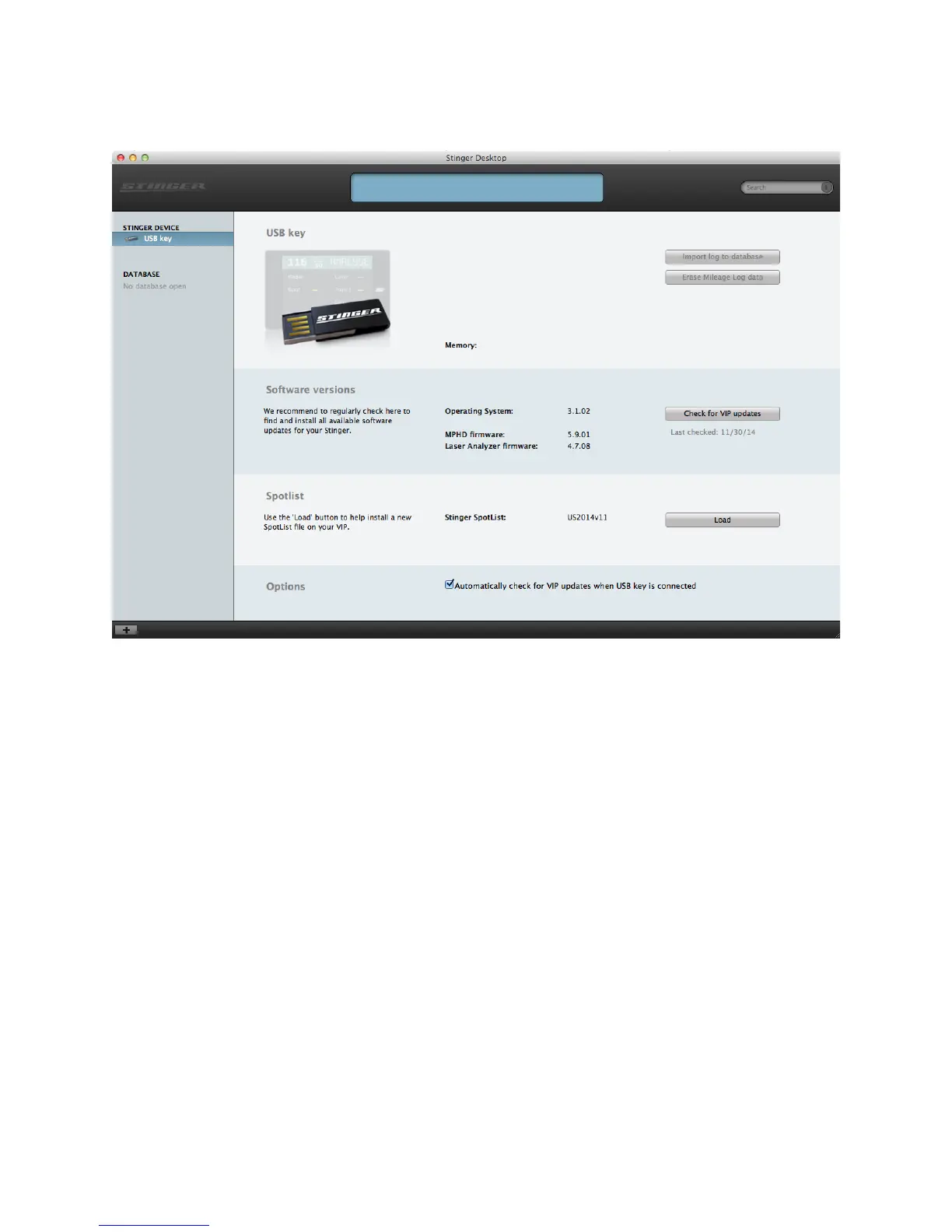
Next, connect your Stinger USB drive to your computer’s USB port. The Stinger Desktop
software should recognise the presence of the device and display the following screen. To
check for updates, simply click the ‘Check for VIP Updates’ button.
!
After the appropriate updates have been downloaded and installed to your Stinger USB
drive, eject the drive from your computer. Take the USB drive with you into your car and
power on the Stinger. Connect the USB drive to the Stinger, and after a few seconds the
display should alert you that an update has been detected and will prompt you to install
the update. Confirm the install, and wait for the update to install on your Stinger VIP. DO
NOT UNPLUG THE USB DRIVE WHILE THE STINGER IS UPDATING. Only remove the USB
once the Stinger has finished installing the update and has rebooted.
!
!
!
!
!
!
!
!
!
!
!
!
!
!


 To Next Page