Reading tips:
Warning
SUNLY FLY App requires Android 4.3 or higher versions;iOS 8.0 or higher versions.
2、Watch the introduction and tutor video.
Please scan the two-dimensional code to visit the
official website of SUNLY TECH: www.sunlytech.com
and click the Video Center to view.
3、Charging
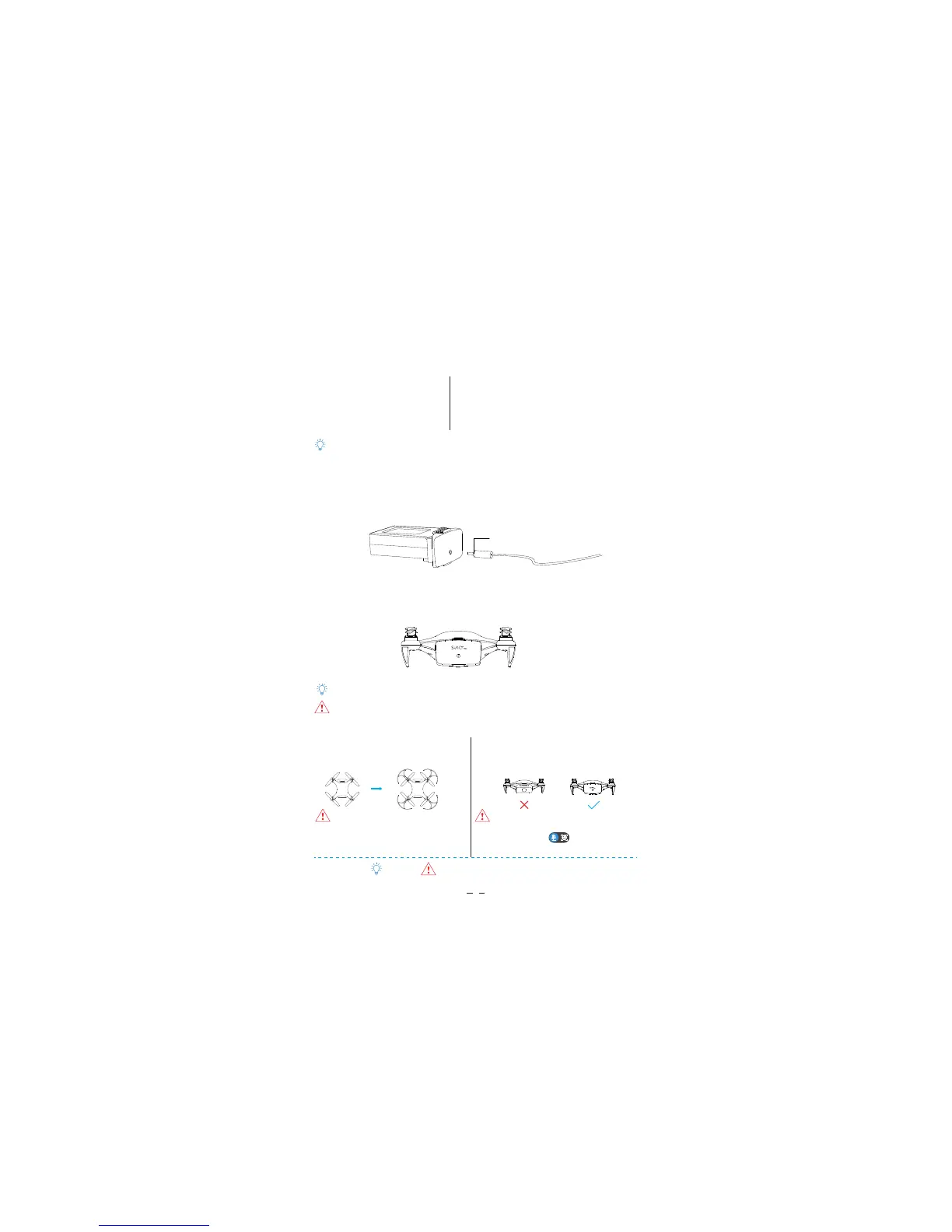
Insert the original charging cable into the charging port of the battery. The indicator LED
keeps on red when charging. It will turn to green when charging is completed. Unplug the
cable when the LED turns to green.
4、Install battery
Please note the front and back side of the battery to ensure that the battery is correctly
inserted into the fuselage.
About the battery safe use method, see "Alpha CAM disclaimer and safety guidelines".
Battery tail LOGO font up shows battery installed correctly.
3
Instruction
Use your Alpha CAM
1、Download SUNLY FLY App
Before using this product, please go
to APP store to download and install
SUNLY FLY App.
5、Preparing to take off
The working propellers may cause serious
damage to the approaching objects, please
keep more then 2 meters distance from the
drone to ensure safety.
To avoid any danger, please fit on the
propeller before.
Indicator LED
Before flying place the drone horizontally
on the ground and turn the tail of drone to
yourself.
Default is scenery mode: camera direction is the
head of drone; you can adjust the flight interface
"Shooting mode" button to the selfie
mode: camera direction is the tail of the drone.



 To Next Page