2 www.supercircuits.com © 2011 Supercircuits, Inc. All rights reserved.
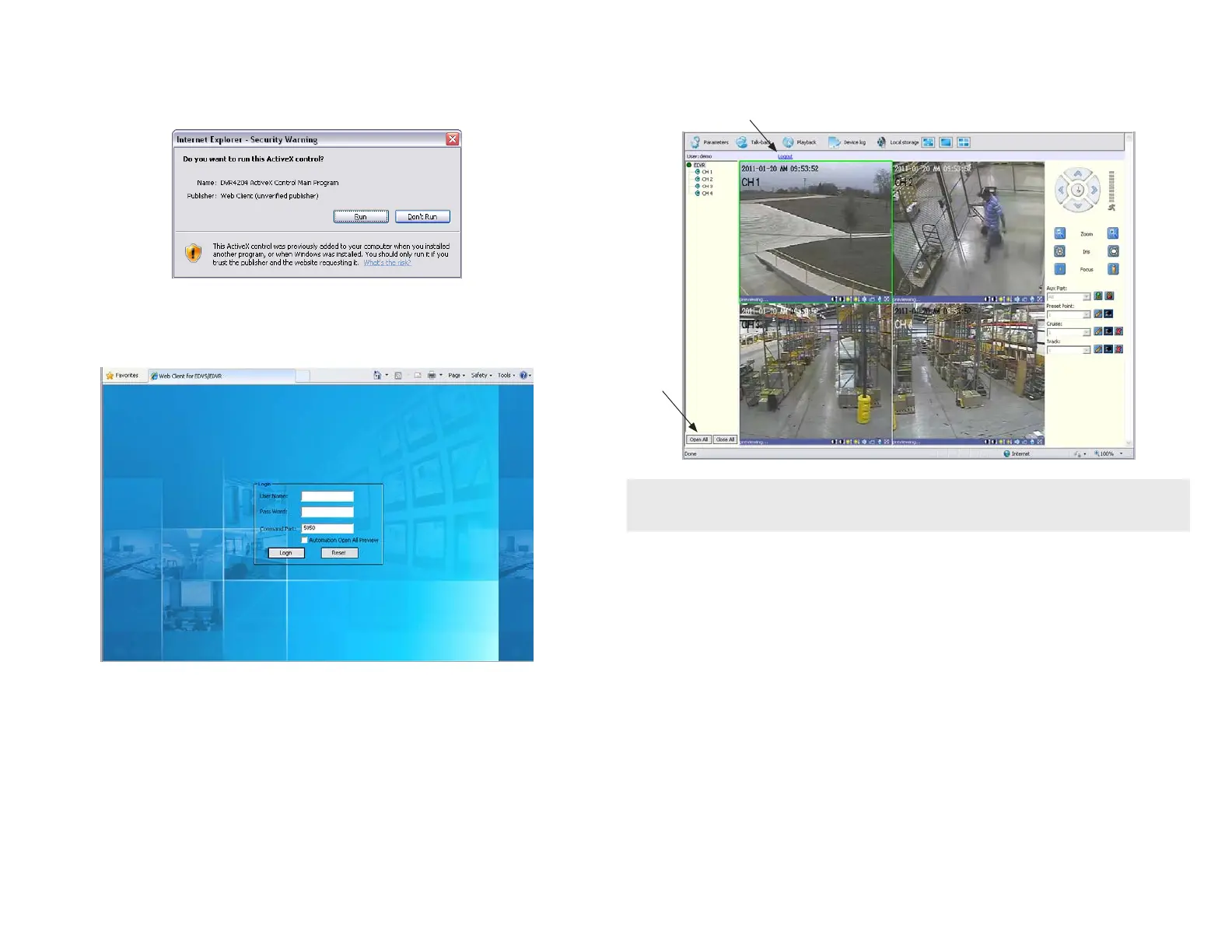
11. After login, the DVR web display will appear. To see images from the cameras connected to your DVR, click
the Open All button in the lower left corner of the screen.
Logout
Open
All
NOTE
When viewing the DVR network browser interface, if the webpage appears normal but the camera
images are scrambled, check your computer’s video adapter settings, or call Supercircuits Support at
1.800.335.9777 for assistance.
12. To close the your connection to the DVR, click Logout (above the CH 1 window).
For specic instructions for using the DVR network browser interface, refer to the DVR User manual.
If a message appears to load an ActiveX control, right-click on the message, then click Run Add-on in
the popup window. Follow the prompts to Install the program, even if a warning message appears that the
publisher cannot be veried.
10. When the Login screen opens in the browser, enter the User Name and Pass Word, then click Login. For
the Web Demo system, he User Name is “demo”, and Pass Word is “1111”. Click Login. (Do not change
the Command Port entry (5050)).



 To Previous Page