1. Charging
To turn on your 200X On or Off, press and hold the
POWER/ BACKLIGHT button.
1. Gently pull back the rubber cover located on the
back of the 200X to gain access to the Mini-USB
Port. Use the cable that is included in the box and
insert the Mini-USB connector into the open port.
2. Make sure your computer is powered on.
3. Insert the other end of the cable into an open USB
port on your computer.
NOTE: It is recommended that the battery is recharged
after every round of Golf. A full charge should provide
up to 8 hours.
2. Register
It is recommended that you register your sureshotgps
200X for warranty purposes. Follow the easy steps at
www.sureshotgps.com
3. Main Menu
PLAY GOLF
Front, centre and back of green yardages*, measure
shot distances* and track your score.
HISTORY
Keep track of your scoring history.
DEMO
Demonstrates the GOLF features without being on a
course.
SETTINGS
Adjust various settings for your 200X.
5. Playing Golf
Make sure you are outside and near the course
you are going to play.
1. Press and hold the POWER button to turn
On your 200X.
2. Highlight PLAY GOLF using the UP/DOWN buttons
and press the MENU/ENTER button to confirm.
3. The 200X will activate the GPS and auto-search
for nearby courses. It may take a few minutes for
the 200X to acquire a GPS signal. When the search
is completed, a list of nearby courses will display.
4. Highlight the correct course using the UP/DOWN
buttons and press the MENU/ENTER button
to open the highlighted course.
With your 200X you can view real-time, distances
to the front, center and back of the green including
hazards, plus Tee shot fairway targets and Layup
targets. Enter and track your score as you play your
round and measure how far you hit each of your clubs,
view how far you’ve walked, and track the elapsed
time since beginning your round.
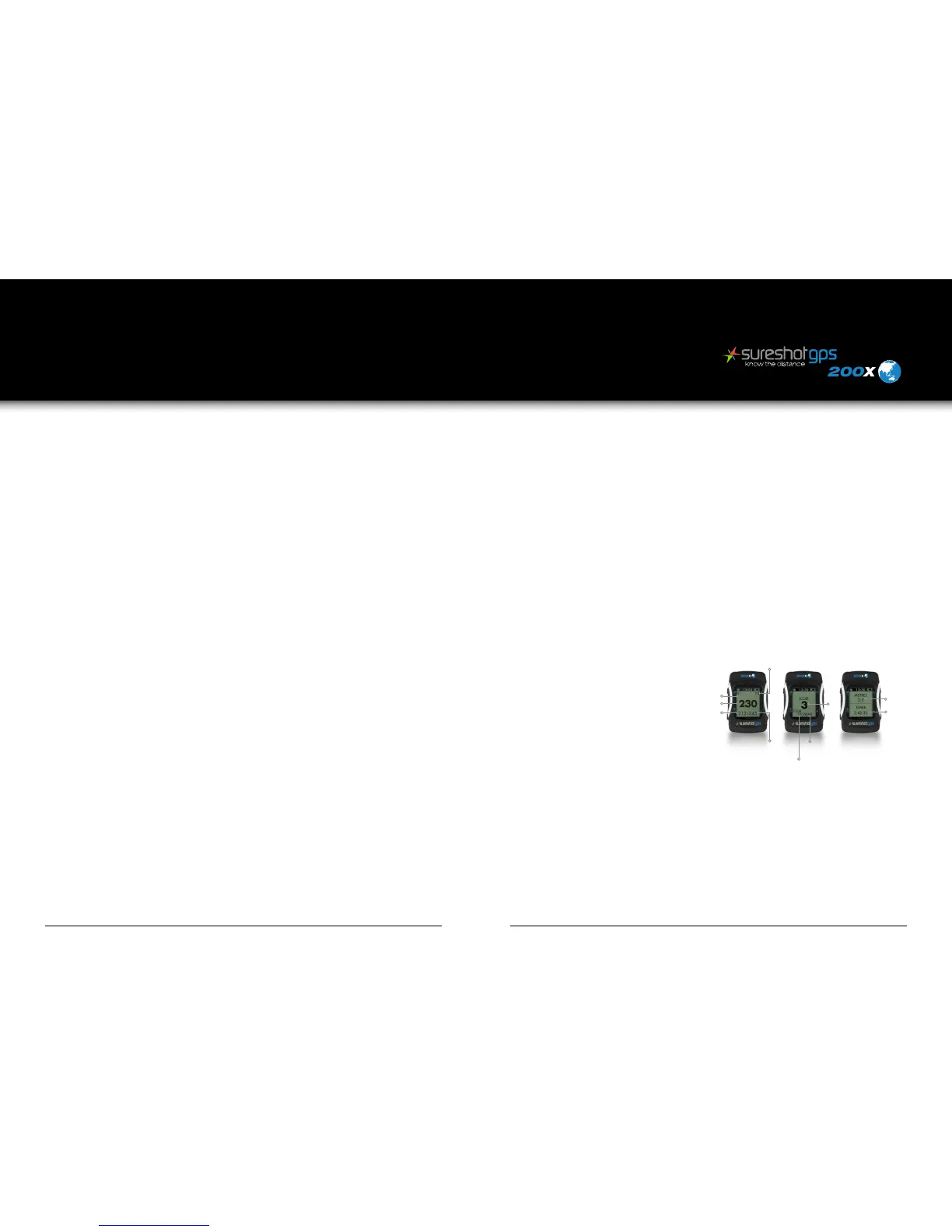
The GREEN View will show you distances to the
Front, Centre and Back of the green.
The HAZARD View will show you distances
to hazards if available.
The STATS View displays how far you’ve walked
as well as the elapsed time since starting your round.
The SCORE View allows you to enter your score.
To adjust your score, press the UP/DOWN buttons.
To save your scorecard at the end of your round, hold
MENU/ENTER and select SAVE SCORE. Your score
will be automatically reset when you start a new round.
The MARK View allows you to measure how far you
hit each of your clubs.
4. Settings Menu
SET TIME
Adjust time zone and date/time formats.
UNITS
Select Standard Meters or Yards.
LANGUAGE
Set the Language displayed on your 200X.
BACKLIGHT
Adjust when the backlight turns off.
SOUND
Turn the Sound On or Off.
DST
Daylight Savings Time – on or off
AUTO HOLE
Turn the Auto Hole Advance feature On or Off.
6. Measure Any Shot
Distance
Mark the location from where you hit your ball:
1. From any GOLF View, press the MENU/ENTER
button until the MARK View appears.
2. Press the UP button to mark your location.
3. Press MENU/ENTER again to change
to a different View.
At the place where your ball landed:
1. From any GOLF View, press the MENU/ENTER
button until the MARK View appears.
2. The MARK View will display the distance
from your last mark.
3. If you want to mark again, press the UP button again.
4. Press MENU/ENTER again to change
to a different View.
User Manual
VERSION 1.0
4 sureshotgps 200X User Manual VERSION 1.0 User Manual VERSION 1.0 sureshotgps 200X 5
GREEN SCORE STATS
HOLE
PAR
BACK RELATIVE
TO PAR
TOTAL
SCORE
CENTRE
FRONT TIME
PLAYED
DISTANCE
WALKED


 To Next Page
 Loading...