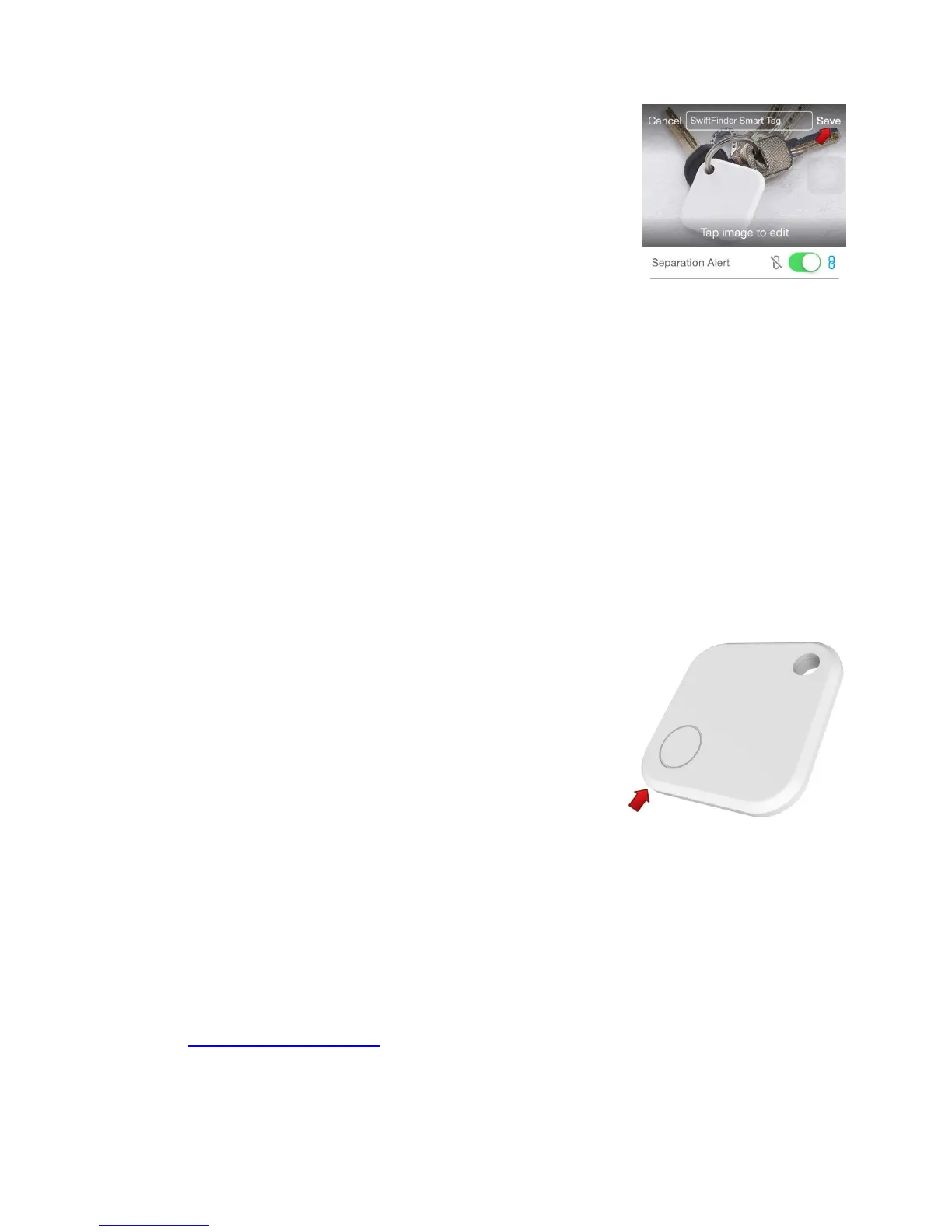
3. Tap the save button on upper right corner
of the app
4. Optionally you can take a picture of the
thing that the smart tag is attached to
and name it
5. Be happy because now you can always find
your stuff!
Replacing Battery
The pre-inserted CR2032 button cell battery is user replaceable. In
case your smart tag runs out of power, please follow the following
instructions to replace the battery.
1. Open the case from the corner as shown in
the image illustrated
2. Remove old battery and insert new battery
with + sign facing up
3. Close the case
Support
For technical support, advanced features, and usage tips, please send
email to: cs@swiftfinder.net



 To Next Page