9
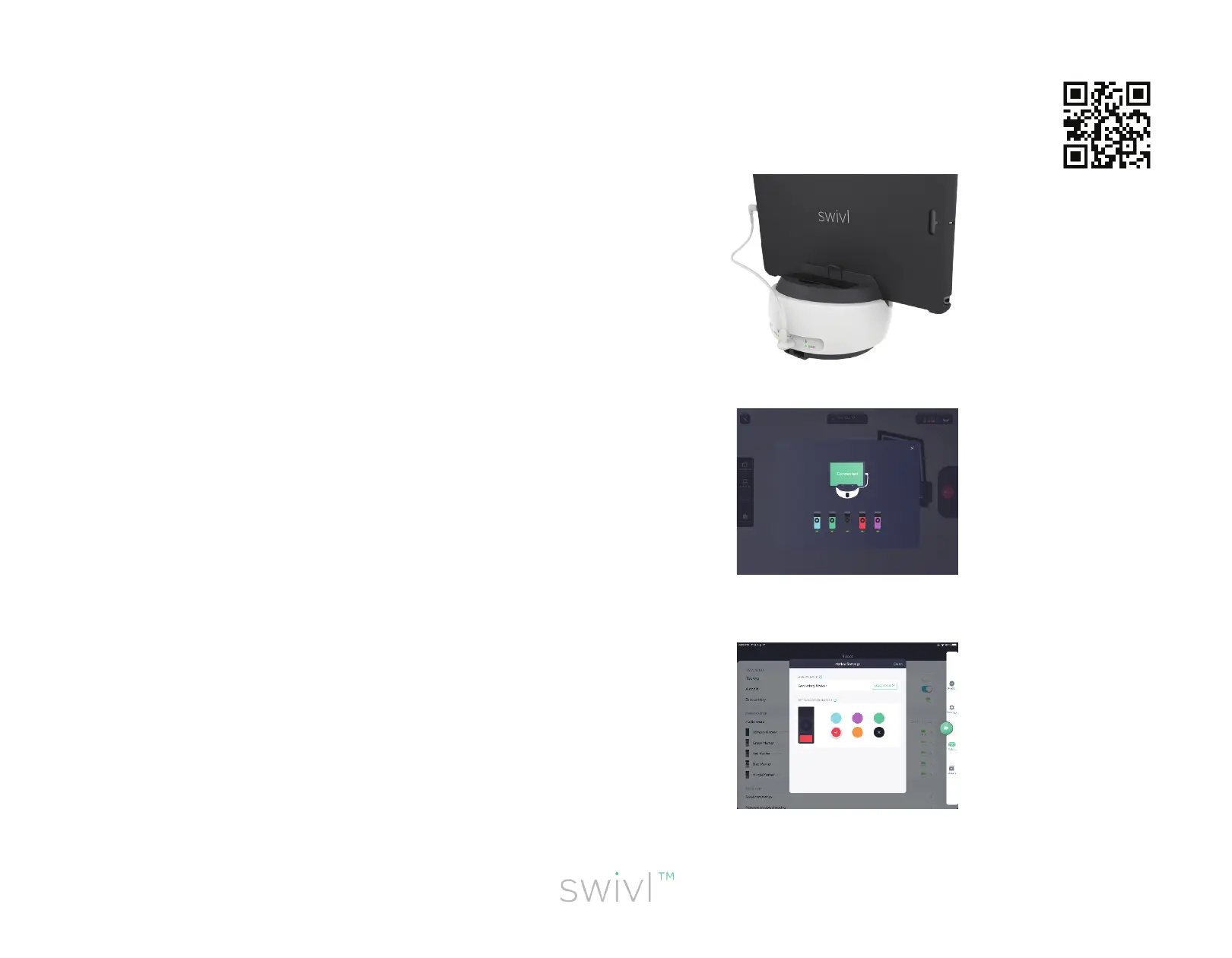
1. Connect your mobile device to the robot
using the appropriate cable. Press and hold
the power button on the robot to turn on.
Launch the Swivl app on your device.
2. Press and hold the power buttons on the
Primary and each of the Secondary markers
to turn them all on. Conrm connection status
in the Swivl App.
*To pair a new Secondary
marker, simply turn it on and
dock it in the base. (See pair-
ing LED Indicators on page 9)
Connecting your device
3. If you are pairing* any new Secondary mark-
ers, assign them each a color in the Swivl App in
the Robot Menu. Apply a sticker to the marker
with the matching color.
Scan me to watch
the video tutorial!



 To Next Page