To download the latest version of SymNet designer, the Windows application that
controls SymNet hardware go to www.symetrixaudio.com/Products/symnet.htm.
Quick Start
SymNet
™
Revision A.04
To download the latest version of SymNet designer, the Windows application that
controls SymNet hardware go to www.symetrixaudio.com/Products/symnet.htm.
Quick Start
SymNet
™
Revision A.04
Hardware Installation ... continued 5 of 9
DIP Switch Settings
An eight-position DIP switch is located in the middle of the rear panel of the
SymNet™ hardware. It determines serial port speed, master/slave mode,
unit address, and factory rmware enable. The ON setting is to the left as
you face the rear of the unit.
Note: after changing any DIP
switch setting, reboot the
hardware by disconnecting it from
AC power and then reconnecting
it.
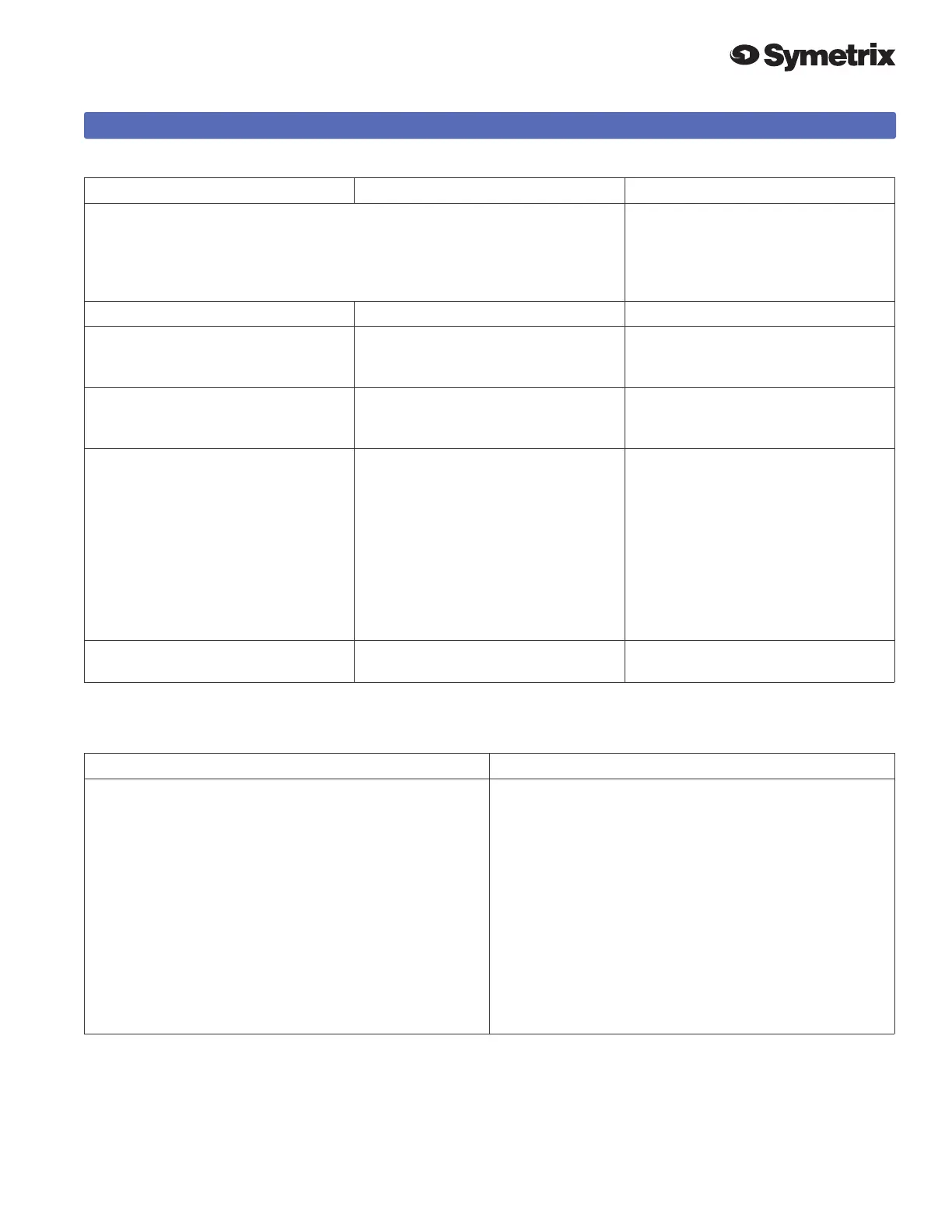
Switch Number, bottom to top What does it do? Remarks
1 - BAUD Sets baud rate of front panel RS232
Serial Port.
Off=115200 baud, On=57600 baud.
Must match setting in SymNet
Designer.
2 - MASTER / SLAVE Off = MASTER, On = SLAVE Unit with ADDR = 1 must be the
MASTER. All other units must be
SLAVES.
3-7 - ADDR (Device Address) Each unit must have a unique
address. These switches set that
number, in binary form, using the bit
values labeled on the equipment.
On = 1, Off = 0.The device address
equals the number programmed via
SW3-7.
SW3 - 1
SW4 - 2
SW5 - 4
SW6 - 8
SW7 - 16
All switches OFF = device address 0
(zero).
All switches are ON = device address
31.
8 - Use Factory Firmware On = Use Factory OS
Off = Use upgraded OS
Set to OFF unless instructed
otherwise by tech support.
RS-232 Settings
The rear panel DIP switch determines the baud rate
(speed) of the front panel RS-232 connector. After
changing the setting of the DIP switch, you must reboot
the hardware by removing and restoring AC power to
the unit.
The cable connecting to the host PC is a simple DB-9
extension cable, with like pins wired to like pins, with
male and female connectors at the ends. You can
purchase this at any computer store. Generally all
pins are wired, which is permissible. At a minimum,
you need pins 2, 3, 7, and 8 wired. Pin 5 (ground) is
optional.
You may connect your host PC to either the front or
rear panel RS-232 port.
Test your RS-232 connection by trying to download to
the hardware. You should see the yellow RS-232 LED
on the front panel blink.



 To Next Page