TPMS TT02 User Guide
Sysgration Confidential 21
Note :
If you haven’t installed nrfutil-tools in your computer, please go to the section of page 20 about
how to install Python & nrfutil for reference.
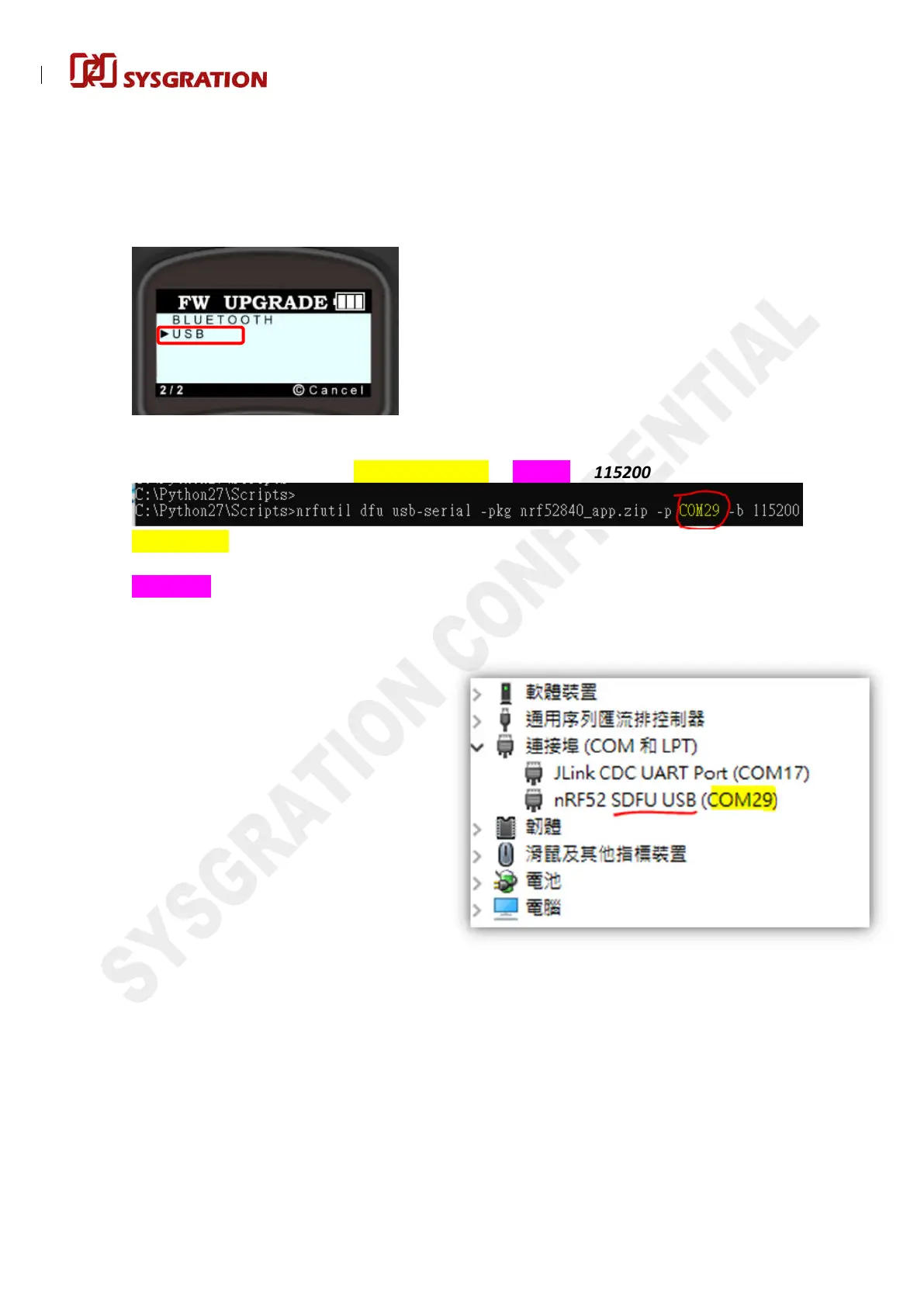
2-2. Turn on the TT02, confirm it works and USB is plugged in as well, then use the arrow buttons to
navigate the UI menu and select the ROOT -> “SETTINGS”-> “FW UPGRADE” -> “USB” item then
press the "OK" button.
The display of TT02 will be in blank status when it enter into the DFU-mode.
2-3. Please connect TT02 with your computer via USB and typing the command line as below :
=> nrfutil dfu usb-serial -pkg nrf52840_app.zip -p COM29 -b 115200
Yellow string is DFU file, you need put the updated firmware file under the route of C:\Python27\
Scripts.
Pink string is DFU COM-Port, make sure TT02 is going into DFU Mode first and then check TT02’s
com-port number on computer, next input the com-port number you see into the command-line
correspondingly.
For example: The COM29 means using
number 29 of COM-Port as the picture
showed on right.
Note:
The display of TT02 will be in blank
status when it enter into the
DFU-mode. You can check the COM
port number which shows on the PC
monitor.


 To Next Page