EasyManua.ls Logo

TANDBERG RDX QuikStation - User Manual

TANDBERG RDX QuikStation
130 pages
Print Icon
To Next Page IconTo Next Page
Loading...

Table of Contents

Questions and Answers

  • B
    Brenda MartinezAug 16, 2025
    What to do if I can’t connect to an iSCSI target on TANDBERG RDX QuikStation?
    • D
      deborahfullerAug 16, 2025
      If you can’t connect to an iSCSI target with your TANDBERG Network Hardware, ensure that another host isn't already connected, as the RDX QuikStation allows only one active host connection per iSCSI target. Check if iSCSI security is enabled. If the target uses CHAP authentication, verify that the CHAP secret in the Remote Management Console matches the one in your iSCSI initiator software. Finally, refresh the discovered targets in your iSCSI initiator software.
  • M
    Melissa MaxwellAug 18, 2025
    Why does TANDBERG Network Hardware Remote Management Console have a “session timeout” error message?
    • B
      brandihortonAug 18, 2025
      If the Remote Management Console for your TANDBERG Network Hardware shows a “session timeout” error message, it means the console has timed out due to 30 minutes of inactivity. To resolve this, click [OK] on the error message. This will return you to the sign-in page. Then, re-enter your username and password to reconnect to the Remote Management Console.
  • C
    Christine WilliamsonAug 21, 2025
    What to do if RDX dock reports as “empty” in the Remote Management Console when an RDX cartridge is loaded in TANDBERG Network Hardware?
    • M
      Misty ByrdAug 22, 2025
      If your TANDBERG Network Hardware RDX dock reports as “empty” in the Remote Management Console when an RDX cartridge is loaded, it might not be seated properly. Push the cartridge into the dock until you hear a click, ensuring it’s correctly in place.
  • C
    Charles ValentineAug 25, 2025
    What to do if TANDBERG RDX QuikStation Network Hardware RDX dock is offline?
    • A
      Adam LoveAug 26, 2025
      If your TANDBERG Network Hardware RDX dock is offline and unavailable, reboot the system. It is important to ensure that the system is not performing cloning or diagnostic operations before you reboot the RDX QuikStation.
  • C
    cschwartzAug 27, 2025
    What to do if TANDBERG RDX QuikStation Network Hardware has an unknown error?
    • S
      Shannon ChambersAug 28, 2025
      If you encounter an unknown internal system error with your TANDBERG Network Hardware RDX dock, reboot the system. If the error persists after rebooting, contact Tandberg Data technical support for further assistance.
  • A
    Amber BrownAug 30, 2025
    What to do if eject failed on TANDBERG Network Hardware?
    • D
      David KnightAug 31, 2025
      If the RDX cartridge fails to eject from the dock on your TANDBERG Network Hardware, retry ejecting the cartridge. If the problem continues, reboot the system. Should the issue persist after rebooting, use the emergency-eject keyhole to remove the cartridge.
  • E
    eblackSep 3, 2025
    How to fix communication error between the RDX QuikStation and the RDX dock on TANDBERG Network Hardware?
    • K
      Karen JacksonSep 3, 2025
      If you are experiencing a communication error between the RDX QuikStation and the RDX dock on your TANDBERG Network Hardware, reboot the RDX QuikStation to resolve the issue.
  • E
    Edward HarveySep 6, 2025
    What to do if there is link down error on TANDBERG RDX QuikStation?
    • V
      Victor PrestonSep 6, 2025
      If you are experiencing a communication link error between the RDX cartridge and RDX dock on your TANDBERG Network Hardware, eject and re-insert the RDX cartridge. If the error continues, reboot the system.
  • A
    Amanda SalazarSep 8, 2025
    How to fix internal system error associated with the RDX dock on TANDBERG Network Hardware?
    • M
      Michael GlassSep 9, 2025
      If you encounter an internal system error associated with the RDX dock on your TANDBERG Network Hardware, reboot the RDX QuikStation.
  • B
    Brendan GonzalezSep 12, 2025
    How to fix POST failed error on TANDBERG RDX QuikStation?
    • H
      howardcameronSep 12, 2025
      If the POST failed on your TANDBERG Network Hardware, which indicates an internal system error with the RDX dock, reboot the RDX QuikStation.

Summary

Product Overview

RDX QuikStation Features

Overview of the RDX QuikStation's capabilities and configurations.

Configuration Flexibility

Describes various device types and hybrid configurations for the RDX QuikStation.

RDX Removable Disk Technology

Explains the benefits of RDX data cartridges for archiving.

Performance and Capacity

Details the data transfer rates and storage capacity of the RDX QuikStation.

Backup Software Compatibility

Lists compatible major backup software applications for the RDX QuikStation.

Integrated Web-based Management

Describes the remote management console for controlling and configuring the device.

Dual Gigabit Ethernet

Explains the use of dual Gigabit Ethernet ports for failover and high availability.

Compact Design

Mentions the device's 2U rack space footprint.

RDX QuikStation Components

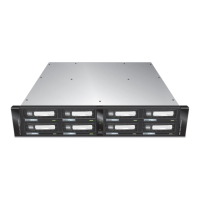
Details the front panel components of the RDX QuikStation.

Back Panel Components

Identifies and describes the rear panel connectors and controls of the RDX QuikStation.

RDX Dock LCD Panels

Explains the information displayed on the RDX dock LCD panels under various conditions.

LED Indicators and Controls

Describes the functionality of the Eject Button/Power LED and the front panel LED indicator panel.

Installation and Setup

Preparing for Installation

Guides on system requirements, location selection, power, and ESD precautions before installation.

Verifying Accessory Kit Contents

Provides a checklist to verify all included accessory items for the RDX QuikStation.

Rackmount Installation

Details the process of installing the RDX QuikStation into a standard 4-post, 19-inch rack.

Assembling Outer Rails

Instructions on how to assemble the outer rack rails for mounting the RDX QuikStation.

Installing Outer Rails into Rack

Steps for securely attaching the outer rails to the server rack posts.

Attaching Inner Rails

Guide on how to attach the inner rails to the RDX QuikStation appliance.

Installing QuikStation into Rack

Steps for sliding the RDX QuikStation with inner rails into the mounted outer rails.

Connecting Network and Power Cables

Instructions for connecting Ethernet and power cables to the RDX QuikStation.

Configuring Network Information

Steps to set up host name, search domain, IP address, and DNS server settings.

Connecting to Remote Management Console

Guide on accessing the RDX QuikStation's web-based management interface.

Configuring Logical Device Type

Steps to select and configure the RDX QuikStation's logical device type (disk, tape, hybrid).

System Settings Overview

Overview of system settings available in the Remote Management Console.

iSCSI Configuration

iSCSI Configuration Overview

Explains iSCSI connections between host computers (initiators) and the RDX QuikStation (targets).

Connecting to iSCSI Targets Without Authentication

Steps to establish iSCSI connections for Windows, Linux, and Macintosh without authentication.

Connecting iSCSI Targets with CHAP for Windows

Detailed steps for establishing CHAP authenticated iSCSI connections on Windows.

Connecting iSCSI Targets for Linux

Instructions for connecting iSCSI targets using Linux Open-iSCSI Initiator.

Connecting iSCSI Targets for Macintosh

Guide for connecting iSCSI targets on Macintosh systems using Xtend SAN initiator.

Setting iSCSI Security

Explains the two iSCSI security types: CHAP Authentication and Host Authentication.

Setting iSCSI Security in Remote Management Console

How to configure iSCSI security settings via the RDX QuikStation's management console.

Enabling CHAP Authentication

Steps to add CHAP users (hosts) to an iSCSI target for secure authentication.

Enabling Host Authentication

Steps to allow specific hosts to connect to an iSCSI target using host authentication.

System Configuration

System Settings Overview

Overview of system settings available in the Remote Management Console.

Setting Date and Time

How to configure the system date, time, and time zone for accurate information.

Configuring Network Information

Steps to set up host name, search domain, IP address, and DNS server settings.

Setting Email Notifications

Configure email addresses for system alerts, error reports, and password recovery.

Setting RDX QuikStation Options

Accessing and configuring system, removable disk, automation, and diagnostic options.

Setting Removable Disk Options

Enables or disables the "Unsafe Eject" mode for RDX cartridges.

Setting Auto-Insert Option

Controls how the RDX QuikStation handles tape library import/export slot functionality.

Managing User Groups

Explains how to set up and manage administrator, manager, and user groups.

Group Permissions Overview

Details the functionalities accessible by User, Manager, and Administrator groups.

Adding Users to a Group

Step-by-step guide to adding new users and assigning them to specific groups.

Editing User Information

How to edit user names, group assignments, descriptions, and passwords.

Password Management and Recovery

Procedures for recovering the built-in administrator password via email or USB.

Logical Device Management

Logical Device Type Overview

Compares different logical device types the RDX QuikStation can emulate.

Choosing a Logical Device Type

Factors to consider when selecting the best logical device type for data storage needs.

iSCSI Device Overview

How to view iSCSI target information from the Remote Management Console.

Customizing iSCSI Devices View

Options to sort and select visible columns in the iSCSI Devices view.

Managing Disk and Tape Drive Configurations

Tasks related to disk and virtual tape drive configurations in the Logical Device interface.

Managing Tape Library and Autoloader Configurations

Tasks for managing virtual tape libraries and autoloader configurations.

Physical Device Management

Viewing Physical Device Properties

Displays physical device properties for the RDX QuikStation and its docks.

Cartridge Ejection and Erasing

Procedures for ejecting and erasing RDX cartridges via the Remote Management Console.

Cloning Data

How to copy data from one RDX cartridge to another using the cloning feature.

System Maintenance

System Maintenance Overview

Overview of system maintenance functions available in the Management Console.

Performing LCD Diagnostic Test

Verifies the functionality of the RDX QuikStation's LCD/LED pixels and backlighting.

LCD Diagnostic Test Sequence

Describes the step-by-step sequence of the LCD diagnostic test.

Performing Dock Diagnostic Test

How to conduct a diagnostic test on an individual RDX dock with a cartridge inserted.

Generating System Logs

Instructions on how to generate and save system log files for troubleshooting.

Restarting and Shutting Down

Procedures for safely restarting or shutting down the RDX QuikStation.

System Configuration File Management

Guides on exporting and importing system configuration files for backup and restoration.

Manually Updating Firmware

Steps to manually download and update the RDX QuikStation's firmware.

Safety Guidelines

General Safety Precautions

Guidelines for maintaining a safe operating environment around the RDX QuikStation.

Electrical and ESD Precautions

Precautions related to electrical safety and protecting against electrostatic discharge (ESD).

Operating Precautions

Safety guidelines and warnings related to operating the RDX QuikStation, including battery handling.

TANDBERG RDX QuikStation Specifications

General IconGeneral
BrandTANDBERG
ModelRDX QuikStation
CategoryNetwork Hardware
LanguageEnglish