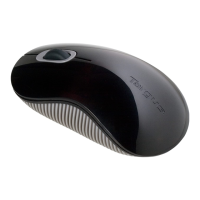
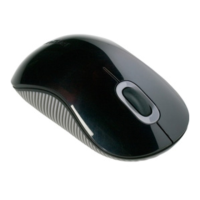
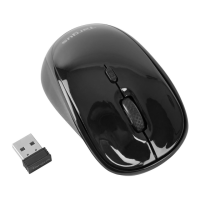
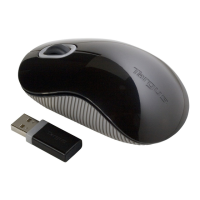
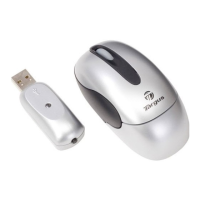
Targus Wireless Mouse
4 5
folding linefolding line
Targus Wireless Mouse
(UG) AMB582GL-50_410-4168-001A
Open size: 9”W x 4.5”H Folded Size: 4.5”W x 4.5”H Material: 80gsm woodfree paper Color: Grayscale
Diecut
Establishing the Connection of 2.4G Wireless
(A) Remove the USB receiver from the mouse. (B) Plug the USB A receiver into an available
USB A port on your computer.
(C) Click the wireless channel selection
button to select first 2.4G channel, then
the white LED indictor will light up and
pair automatically.
Establishing the Connection of Bluetooth
Establish Pairing
1. Turn on the mouse by sliding the power button to the ON position.
2. Switch ON the Bluetooth function of your device and turn on the
Bluetooth search mode.
3. Press the connect button on the bottom of the mouse to select one
of the 2 Bluetooth channel first , then hold down the button for 3
seconds to enable Bluetooth pairing mode, the white indicator light
will flash for up to 2 minutes when the mouse is in paring mode.
4. Tap “Targus AMB582” in the Bluetooth search menu on your
device.
5. The pairing will start automatically. Press the Bluetooth channel
button to switch between devices once multiple devices have been
connected.
6. The Targus AMB582 is now connected to your device and the white
light will stop flashing.
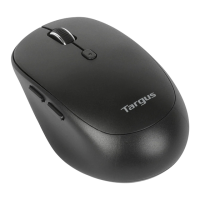
Power button
Channel switch
button
DPI Switch
The switch is under scroll wheel, press to
select: 1000 DPI / 1600 DPI / 2400 DPI.
Forward
Press this button to view the
next page in your Internet
browser.
Backward
Press this button to view the
previous page in your Internet
browser.
Power Saving mode:
After an extended period of time, if the
mouse is not used after 30 minutes, it
will automatically enter power saving
mode to conserve power and increase
battery life. Click on any mouse button
resume the normal operation. The
mouse may take a few seconds to
reconnect with your computer.


 To Next Page