13 14
1�3�4 Lock/Unlock your screen
To protect your phone and privacy, you can lock the phone screen by creating a variety of patterns,
PINs, or passwords etc.
To lock the phone screen
• If your phone remains inactive for a period of time, it will automatically lock the screen and enter
sleep mode to save power. Go to Settings > Display > Screen timeout and select a screen
timeout period.
• You can also manually lock the screen by pressing the Power key once.
To unlock the phone screen
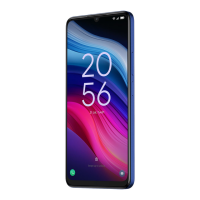
Press the Power key once to light up the screen, swipe up and unlock the screen with the method
you have set.
• Enter a password to unlock the screen
Once the screen is turned on, swipe up from any position on the screen to display the password input
panel. Then enter your lock screen password.
• Use pattern unlock
Draw the same pattern you have set to unlock the screen.
• Use Face unlock
From the app list, touch Settings > Security & privacy > Device unlock > Face unlock. Before
using the face unlock feature, you need to set a pattern/PIN/password�
Hold your phone 8-20 inches from your face. Position your face in the square shown on the screen.
For best results, we suggest that the face key is enrolled indoors and away from direct sunlight.
NOTE: you need to set a pattern, PIN, or password before using Face unlock.
• Use Fingerprint unlock
Touch the fingerprint sensor (Settings > Security & biometrics >Device unlock > Face &
fingerprint unlock > Fingerprint) with an enrolled finger to unlock the screen.
1�3�5 Personalize your Home screen
Add
You can touch and hold a folder, an application, or a widget to activate the Move mode and drag the
item to any Home screen as you prefer.
Reposition
Touch and hold the item to be repositioned to activate the Move mode, drag the item to the desired
position and then release. You can move items both on the Home screen and the favorite tray. Hold
the icon on the left or right edge of the screen to drag the item to another Home screen.
Remove
Touch and hold the item to be removed to activate the Move mode, drag the item up to the top of
the Remove icon.
Create folders
To improve the organization of items (shortcuts or applications) on the Home screen and the favorite
tray, you can add them to a folder by stacking one item on top of another. To rename a folder, open
it and touch the folder’s title bar to input the new name.
Wallpaper customization
Touch and hold the Home screen then touch Wallpaper & style
to customize wallpaper.
1�3�6 Widgets and recently used applications
Consult widgets
Touch and hold the Home screen then touch Widgets
to enter widgets list.
To return to the Home screen, touch the Home button
.



 To Next Page
 Loading...