9
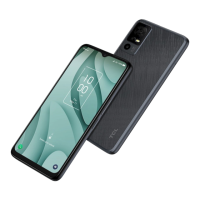
The Home screen is provided in an extended format to allow more space
for adding applications, shortcuts etc. Slide the Home screen horizontally
left and right to get a complete view.
Using the touchscreen
Tap
To access an application, tap it with your finger.
Press and hold
To enter the available options for an item, press and hold the item. For
example, press and hold a contact in Contacts and an options list will then
appear.
Drag
Place your finger on the screen to drag an object to another location.
Slide/Swipe
Slide the screen to scroll up and down the applications, images, and web
pages. You can slide the screen horizontally too.
Flick
Similar to swiping, but flicking makes it move quicker.
Pinch/Spread
Place two fingers on the screen surface and draw them apart or together
to scale an element on the screen.
Rotate
Automatically change the screen orientation from portrait to landscape
by turning the phone sideways to have a better screen view.



 To Next Page
 Loading...