EasyManua.ls Logo

TCP Smart WiFi Plug - User Manual

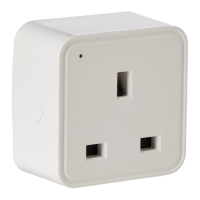
TCP Smart WiFi Plug
15 pages
Print Icon
To Next Page IconTo Next Page
Loading...
Smart Power
Quick start guide
WiFi Plug
Before you start
Thank you for purchasing this TCP Smart Plug.
This is a quick start guide for you to get your device connected to our
App and your home WiFi router device.
Before you get started you will need the following:
• Smart device such as a mobile phone or tablet
• Access to the Google or Apple App store, log on and passwords
• The name of your WiFi network and password to your WiFi
network
• Confirm your home WiFi router is set to 2.4 GHz and not
5 GHz.
• If you are unsure, please consult your broadband provider such
as Virgin Media, BT or Sky for details on how to change your
settings
• Turn off any WiFi extenders during set up
• Check you do not have any limitations of the number of devices
with your broadband provider
PLEASE NOTE: Our products do not work on 5 GHz only 2.4 GHz.
For more detailed instructions on how to connect to Amazon Alexa /
Google Home or use the different functionality such as setting
schedules and scenes and changing colour (if applicable) please visit:
https://www.tcpsmart.eu/product-group-power/
The first step is to download the TCP Smart App from the Apple App
store or from Google Play store. Search for “TCP Smart”. The App is free
to download.
If you have a QR scanner on your phone please Scan the QR code
below.
Common Trouble Shooting:
No Validation code
If you do not receive a validation code, please check that you have
entered the correct details.
No WiFi connection during the connection process
If your Plug will not connect please ensure your router is set to 2.4 GHz,
your WiFi connection is working correctly and your details are correct.
Try resetting your router and if you have WiFi booster devices make sure
they are turned off.
If the device still will not connect, you can use AP Mode. To start the
process press the Otherwise button in the top right hand corner of step
8 and choose AP Mode from the list. Follow the on screen prompts to
complete the process. Follow the on screen prompts to complete the
process. Further instructions on how to do this can be found at:
https://www.tcpsmart.eu/product-group-power/
Plug not flashing quickly
If the Plug does not flash quickly when starting the connection process,
reset it by turning it off for 10 seconds, then hold down the power button
for 5 seconds.
Not sure if I have 2.4 GHz or 5 GHz
Your home WiFi router needs to be set to 2.4 GHz and not 5 GHz.
If you are unsure, please consult your broadband provider such as Virgin
Media, BT or Sky for details on how to change your settings.
For more trouble shooting advice please visit our website
https://www.tcpsmart.eu/faq/
RED compliance
TCP hereby declares that the device is in compliance with the essential
requirements and other relevant provisions of directives 2014/53/EU,
2009/125/EC and 2011/65/EU. Full declaration can be viewed at
tcpi.eu

Question and Answer IconNeed help?

Do you have a question about the TCP Smart WiFi Plug and is the answer not in the manual?

Overview

This document is a quick start guide for the TCP Smart WiFi Plug, designed to help users connect the device to their home WiFi router and the TCP Smart App.

Function Description

The TCP Smart WiFi Plug is a smart power device that allows users to control appliances remotely through a dedicated mobile application. It integrates with smart home ecosystems like Amazon Alexa and Google Home, enabling voice control and automation. The plug operates on a 2.4 GHz WiFi network, making it compatible with most standard home routers.

Important Technical Specifications

  • Connectivity: WiFi (2.4 GHz only). It does not support 5 GHz WiFi networks.
  • App Compatibility: TCP Smart App, available on Apple App Store and Google Play Store.
  • Smart Home Integration: Compatible with Amazon Alexa and Google Home.
  • Power Requirements: Standard electrical outlet.
  • Reset Mechanism: Power button for 5 seconds to reset.
  • Compliance: Declared in compliance with directives 2014/53/EU, 2009/125/EC, and 2011/65/EU (RED compliance).

Usage Features

The TCP Smart WiFi Plug offers several features for convenient and automated control of connected devices:

Initial Setup and Registration:

  1. Download App: Users must first download the "TCP Smart" App from the Apple App Store or Google Play Store. A QR code is provided in the manual for easy scanning and download.
  2. Register Account: Upon opening the app, users need to register an account. This involves selecting "Register" from the opening screen, agreeing to a Privacy Policy, and then entering personal details on the registration page.
  3. Verification Code: A verification code will be sent to the user's email address, which must be entered into the app within 60 seconds to proceed.
  4. Set Password: Users are required to set a password that contains 6-20 characters, including a combination of letters and numbers.
  5. Create Family/Home: The app prompts users to create a "family" or "home" for their devices. This allows for organizing devices into different rooms (e.g., Living Room, Bedroom, Dining Room). Users can also enable location services for location-based app functionalities.

Adding the Smart Plug:

  1. Access Home Page: After registration, the app's home page is ready for adding smart devices.
  2. Add Device: Users can add a device by pressing the "+" button in the top right corner or by selecting "Add Device" on the home page.
  3. Select Device Type: From a list of different product types, users must select "Smart Plug."
  4. Plug In and Reset: The Smart Plug should be plugged into the desired socket. It should start flashing rapidly. If it doesn't, the user needs to turn it off for 10 seconds, then hold the power button down for 5 seconds to reset it.
  5. Connect to WiFi: Users must choose their home WiFi network (ensuring it's 2.4 GHz) and enter the password.
  6. Connection Process: The app will initiate the connection. The plug's light will stop blinking, and the connection wheel in the app will reach 100% upon successful connection.
  7. Rename Device: Once connected, the device can be renamed to reflect the appliance it controls (e.g., "bedroom fan"). This is important for smart home assistant integration.

Post-Setup Functionality:

  • Remote Control: The Smart Plug can be turned on or off remotely via the app.
  • Timers: Users can set timers for the plug to automatically turn on or off.
  • Schedules: Advanced scheduling allows for automated operation based on specific times or days.
  • Scenes: The app supports creating scenes, which are predefined actions for multiple smart devices.
  • Color Changing (if applicable): While this specific product is a power plug, the manual mentions "changing colour (if applicable)," suggesting that other TCP Smart products might have this feature.

Maintenance Features

  • Troubleshooting Guide: The manual includes a "Common Trouble Shooting" section to address common issues:
    • No Validation Code: Check entered details.
    • No WiFi Connection: Ensure router is set to 2.4 GHz, WiFi is working, and details are correct. Resetting the router and turning off WiFi boosters are suggested.
    • AP Mode: If direct connection fails, users can switch to "AP Mode" for an alternative connection process. Instructions for AP Mode are available on the TCP Smart website.
    • Plug Not Flashing Quickly: Reset the plug by turning it off for 10 seconds, then holding the power button for 5 seconds.
    • 2.4 GHz vs. 5 GHz: Emphasizes that the device only works on 2.4 GHz WiFi. Users are advised to consult their broadband provider (Virgin Media, BT, Sky) if unsure how to change their router settings.
  • Online Resources: For more detailed instructions on connecting to Amazon Alexa/Google Home, setting schedules, scenes, or other functionalities, users are directed to the TCP Smart website: https://www.tcpsmart.eu/product-group-power/ and https://www.tcpsmart.eu/faq/ for further troubleshooting advice.
  • RED Compliance: The device adheres to European directives, ensuring safety and environmental standards. Full declaration can be viewed at tcpi.eu.

TCP Smart WiFi Plug Specifications

General IconGeneral
BrandTCP Smart
ModelWiFi Plug
CategoryHome Automation
LanguageEnglish