10
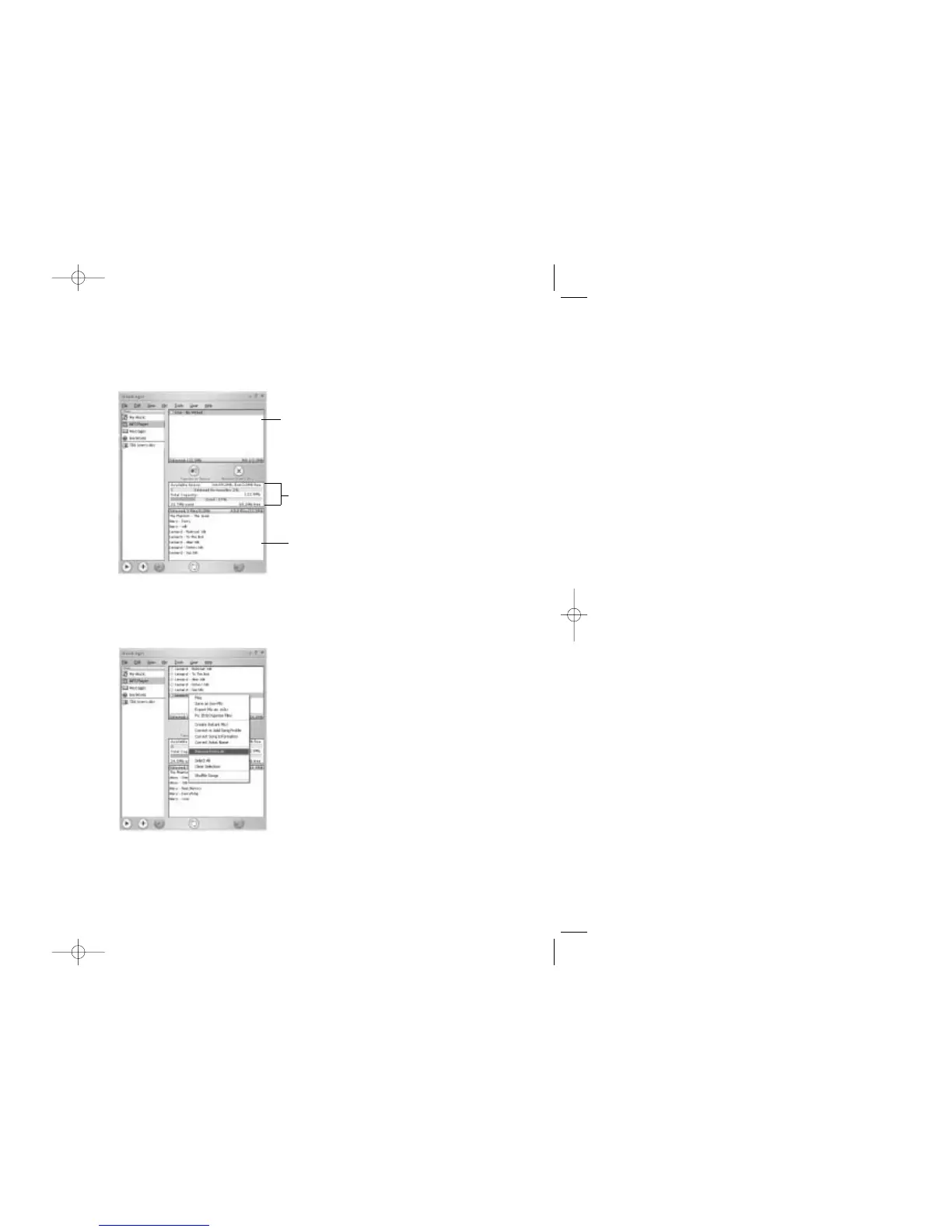
7. In the VIEW window, click on the MP3 PLAYER tab.
• The TRANSFER LIST (the top pane) and the MOJO 1 view (bottom pane) will open. The MOJO 1 view displays the tracks that
are currently stored on your connected MOJO 1 player.
8. To change the playback order of tracks, click and drag any track to the desired position in the TRANSFER LIST. The playback
order of tracks in the TRANSFER LIST matches the playback order the tracks will have when transferred to MOJO 1.
9. To remove a track(s) from the TRANSFER LIST click the track’s title in the TRANSFER LIST, right click and select
REMOVE FROM LIST.
MOJO 1 memory status
TRANSFER LIST
MOJO 1 view
9
5. In the TRACK LIST window, click a track title to select the track, or hold down CONTROL (CTRL) and click multiple track titles
to select multiple tracks.
• The titles of selected tracks will appear highlighted in the TRACK LIST window.
6. To add the selected track(s) to MoodLogic’s TRANSFER LIST, right click on a selected track and select SEND TO MP3 PLAYER
VIEW.
• Repeat until all desired tracks have been added to MoodLogic’s TRANSFER LIST.



 To Next Page