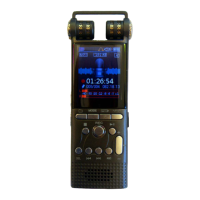
until after you have completely stopped the recording as this
could cause you to lose the file. You can access the recording
feature immediately no matter what setting or mode you are
currently browsing by pressing the Rec/Stop button once. If you
are in the MP3 area you will need to press it twice.
Recording Settings and Voice Activation:
The RadRecorder has various recording settings. For highest
quality recording at 384kbps select PCM setting. For medium
quality at 192kbps, select Fine REC. For slightly lower quality to
allow for more storage select Long REC.
RadRecorder features noise/voice activation technology. For
highest quality Voice Activation setting select PCM VOR setting.
For medium quality select Fine VOR. For slightly lower quality to
allow for more storage select Long VOR. To access these
recording settings from the boot screen use the FF button to
select “Setting Mode” and press M. Press FF button once and
then press M again to select “Record type”. Press FF button
until desired setting is highlighted and then press M again to
select. Press Rec/Stop if you wish to begin recording. It will stay
in the mode you select even after powering off, for all your
future use.
Playback:
To playback your recordings, from boot screen press M. Use the
FF/REW button to browse between recordings. When you find it,


 To Next Page