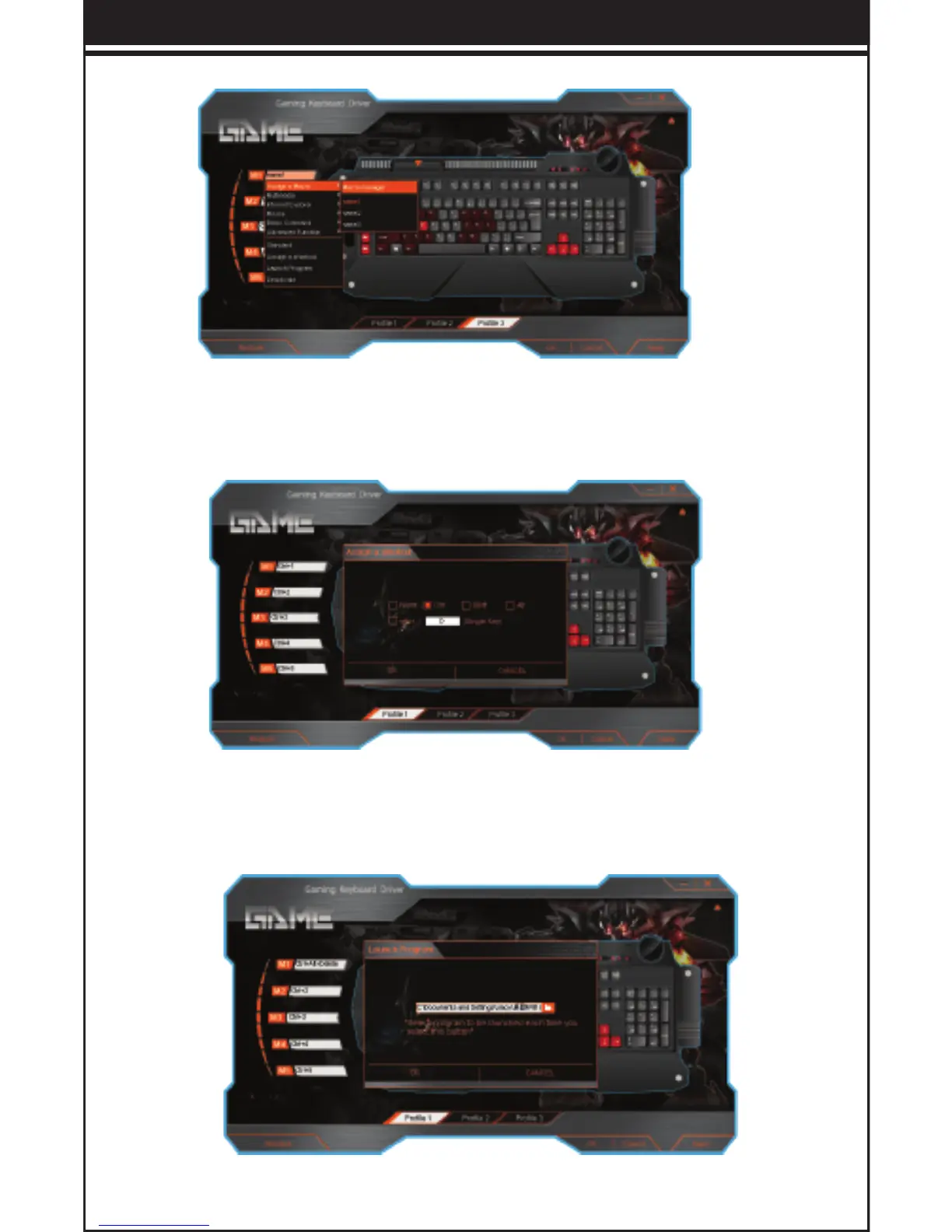
2). Choose a created name, click ”Start Record”, then input the combo
key and will show in Keypress Sequence (Such as below picture)
• Assign a Shortcut:
You can set up the key as Shortcut function in this dialog, for
example, Ctrl+C, Win+D, Ctrl+Alt+Delete, etc.
TeckNet T21
-- 7 --
• Launch Program:
In the dialog of ”Launch Program”, you can set up function lf opening
folders quickly. Click ”OK” and ”Apply” to save the setting for using.
• Other Function Setting:
You can set the key as below other functions, after setting ok, then
click ”Apply” to save the setting for using.
- Multimedia:
Mute, Volume up, Volume down, Open player, Previous track, Next
track, Play/Pause, Stop
- Internet Explorer:
Search, Home, Back, Forward, Stop, Refresh, Favorites, Email, My
computer, Calculator
- Mouse Function:
Left button, Right button, Middle button, Backward, Forward, Double
click, Fire Key
- Basic command:
Cut, Copy, Paste, Select All, Find, New, Print, Save, Undo.
- Advanced Function:
Switch window, Close window, Lock PC, Run, Show desktop.
4. Reset To Factory Defaults
If need to reset factory defaults for the all settings, then click
”Restore” and Apply it.


 To Next Page