MATRIX
®
430
ČeštinaItalianoPortuguês DeutschMagyarSvenska DanskLietuviškaiРусский Français EspañolPolskiУкраїнська
3
98-01493-EN R7
English
#1
SETUP GUIDANCE
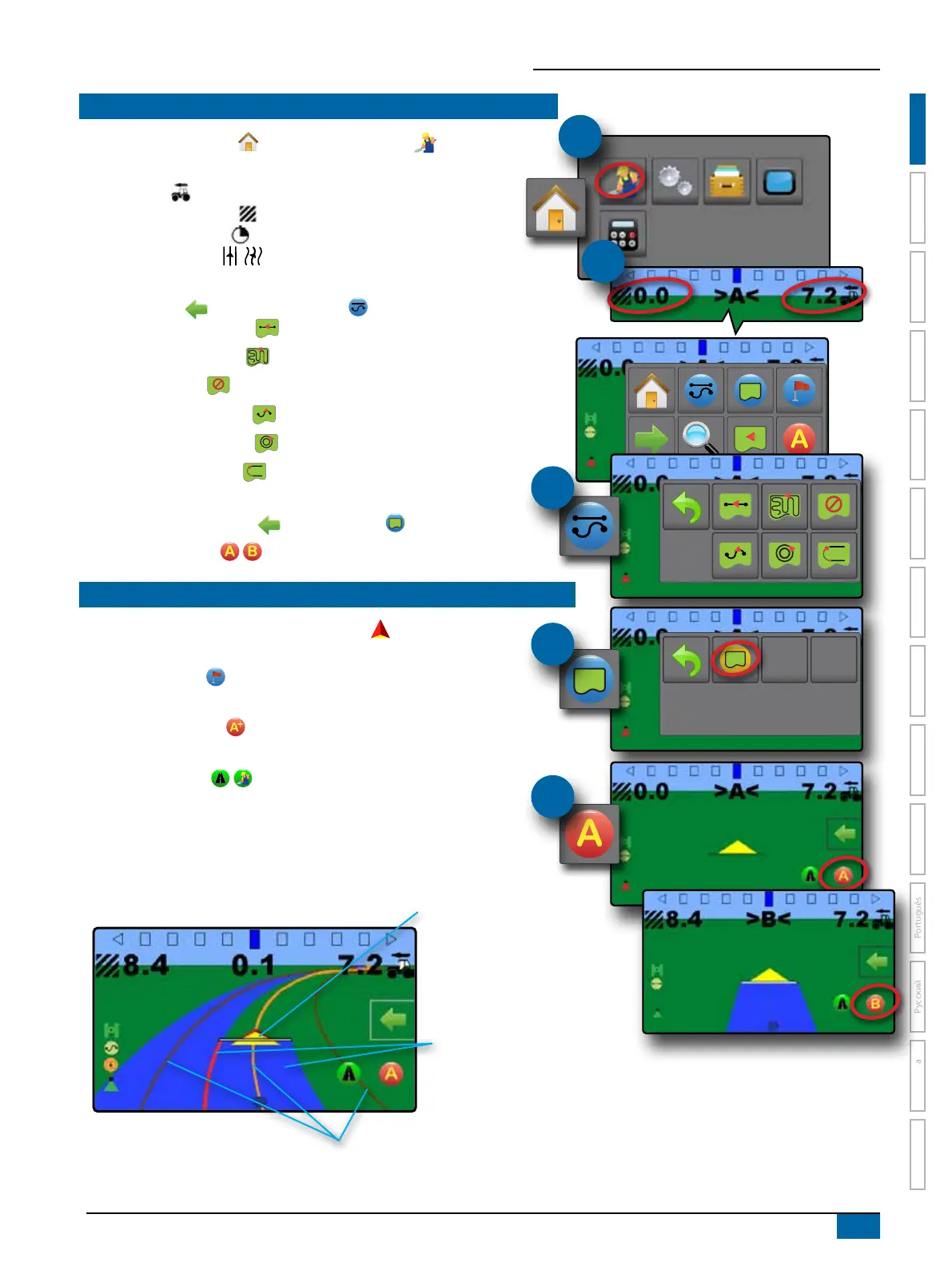
1. From the Home screen , press GUIDANCE button .
2. Establish desired Selectable Guidance Bar Information.
– Speed
– Total Applied Area
– Application Time
– Swath Number
3. On vehicle view guidance screen, from the NAVIGATION AND GUIDANCE
OPTIONS tab , select Guidance mode
– Straight AB guidance
– Last pass guidance
– No guidance
– Curved AB guidance
– Circle pivot guidance
– NextRow guidance
4. On vehicle view guidance screen, from the NAVIGATION AND
GUIDANCE OPTIONS tab , create boundary
5. Create AB guideline .
GUIDANCE SCREEN OPTIONS
X Application Mapping – press VEHICLE icon in the centre of the
guidance screen to turn on or off application mapping.
X Return to Point – set a return point to provide guidance back to the
established point.
X A+ Nudge Feature – allows the current guideline to be shifted to the
vehicle’s current location.
X Transport Mode / – recommended for use when traveling
between elds as this will improve accuracy in guidance functions.
#2
Status Bar
Guidance Bar
Coverage Area
W Blues – one application
W Reds – two or more applications
Vehicle with real-time representation of
active boom sections
W Empty box – inactive section
W White box – active section
Navigation and Guidance Options Tab
Navigation Guidelines
W Orange – active guidance line
W Brown – two guidance lines adjacent to the
left and right of the active guideline
#3
#4
#5



 To Next Page