English - 23 -
Select Type option to Favourites. Then highlight the
desired favourite list and press OK. In order to change
the position of a channel in the favourite list press the
Green button, then highlight the Move option and press
OK. Then use the Up and Down directional buttons
to move the channel to the desired position and press
OK. In order to delete a channel from the favourite
list press the Green button, then highlight the Delete
option and press OK.
Programme Guide
By means of Electronic Programme Guide (EPG)
function of your TV, you can browse the event schedule
of the currently installed channels on your channel
list. It depends on the related broadcast whether this
feature is supported or not.
Electronic Programme Guide is available in Live TV
mode. To switch to Live TV mode you can either press
the Exit button or highlight the Live TV app from the
Apps row on the Home Screen and press OK. For
some countries, the Live TV app will be situated in
the Home tab on the Home Screen and the row with
this app will be named as Favourite Apps. In order
to access the Electronic Programme Guide press the
Guide button on the remote.
Use the directional buttons to navigate through
the programme guide. You can use the Up/Down
directional buttons or Programme +/- buttons to
switch to previous/next channel on the list and Right/
Left directional buttons to select a desired event of
the currently highlighted channel. If available, the full
name, start-end time and date, genre of the highlighted
event and a brief information about it will be displayed
on the screen.
Press the BlueEXWWRQWR¿OWHUWKHHYHQWV'XHWRWKH
ODUJHYDULHW\RI¿OWHURSWLRQV\RXFDQ¿QGHYHQWVRIWKH
desired type quicker. Press the Yellow button to see
detailed information on the highlighted event. You can
also use the Red and Green buttons to see events
of previous day and next day. The functions will be
assigned to the coloured buttons on the remote when
they are available. Follow the on-screen information
for accurate button functions.
Press the Record button to add a timer for the
KLJKOLJKWHGHYHQW LQ WKHJXLGH <RX FDQ GH¿QH WKH
type of the timer by setting the Schedule type option
as Reminder or Record. When other parameters are
set press the Green button. The timer will be added
to the schedule list. You can access the schedule list
from the Record menu in Live TV mode.
Connecting to the Internet
You can access the Internet via your TV, by connecting
LWWRDEURDGEDQGV\VWHP,WLVQHFHVVDU\WRFRQ¿JXUH
the network settings in order to enjoy a variety of
streaming content and internet applications. These
VHWWLQJVFDQEH FRQ¿JXUHG IURP Settings>Network
and Internet menu. You can also highlight the Con-
nected/Disconnected icon on the Home screen and
press OK to access this menu. For further information
refer to Network and Internet section under the title
of Settings.
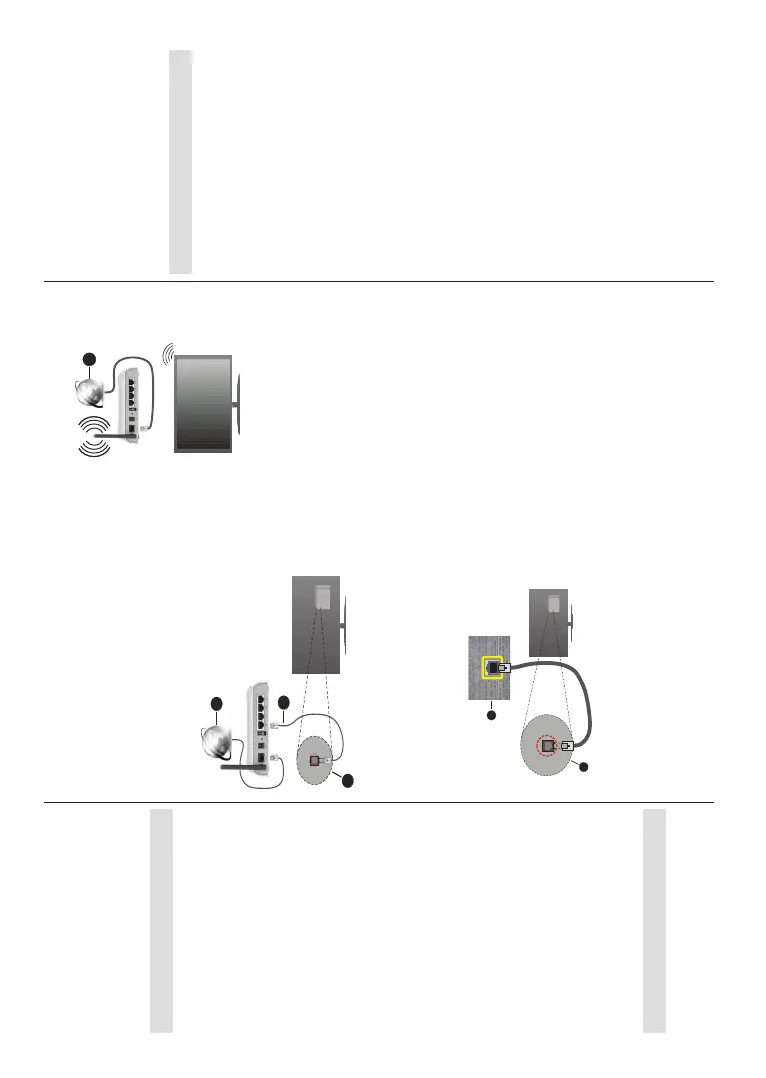
Wired Connection
Connect your TV to your modem/router via an Ethernet
cable. There is a LAN port on the rear side of your TV.
The status of the connection under the Ethernet
section in the Network and Internet menu will change
from Not connected to Connected.
1. Broadband ISP connection
2. LAN (Ethernet) cable
3. LAN input on the rear side of the TV
You might be able to connect your TV to a network
ZDOOVRFNHWGHSHQGLQJRQ\RXUQHWZRUN¶VFRQ¿JXUDWLRQ
In that case, you can connect your TV directly to the
network using an Ethernet cable.
1. Network wall socket
2. LAN input on the rear side of the TV
Wireless Connection
A wireless LAN modem/router is required to connect
the TV to the Internet via wireless LAN.
Highlight the Wi-Fi option in the Network and Internet
menu and press OK to enable wireless connection.
Available networks will be listed. Select one and press
English - 24 -
OK to connect. For more information refer to Network
and Internet section under the title of Settings.
1. Broadband ISP connection
A network with hidden SSID (network name) can not
be detected by other devices. If you want to connect
to a network with hidden SSID, highlight the Add new
network option in the Network and Internet menu and
press OK. Add the network by entering its name and
selecting the security type manually.
Some networks may have an authorisation system
that requires a second login as such in a work
environment. In this case, after connecting to the
wireless network you want to connect to, highlight
1RWL¿FDWLRQV situated on the upper right of the Home
Screen and press OK. Then highlight the Sign in to
Wi-Fi networkQRWL¿FDWLRQDQGSUHVVOK. Enter your
credentials to log in.
A Wireless-N router (IEEE 802.11a/b/g/n/ac) with
simultaneous 2.4 and 5 GHz bands is designed to
increase bandwidth. These are optimised for smoother
DQGIDVWHU +' YLGHRVWUHDPLQJ ¿OH WUDQVIHUVDQG
wireless gaming.
Use a LAN connection for quicker data transfer
between other devices like computers.
7KHWUDQVPLVVLRQ VSHHG GLႇHUVGHSHQGLQJ RQ WKH
distance and number of obstructions between the
transmission products, the configuration of these
SURGXFWVWKH UDGLR ZDYHFRQGLWLRQV WKH OLQHWUDႈF
and the products that you use. The transmission may
DOVREHFXW Rႇ RU PD\ JHWGLVFRQQHFWHGGHSHQGLQJ
on the radio wave conditions, DECT phones or any
other WLAN 11b appliances. The standard values of
the transmission speed are the theoretical maximum
values for the wireless standards. They are not the
actual speeds of data transmission.
7KHORFDWLRQZKHUHWKHWUDQVPLVVLRQLVPRVWHႇHFWLYH
GLႇHUVGHSHQGLQJRQWKHXVDJHHQYLURQPHQW
The Wireless feature of the TV supports 802.11 a,b,g,n
& ac type modems. It is highly recommended that
you should use the IEEE 802.11n communication
protocol in order to avoid any possible problems while
watching videos.
You must change your modem’s SSID when there are
any other modems around with the same SSID. You
can encounter connection problems otherwise. Use a
wired connection if you experience problems with a
wireless connection.
A stable connection speed is required to play back
streaming content. Use an Ethernet connection if the
wireless LAN speed is unstable.
Multi Media Player
On the Home Screen scroll to Apps row, select Multi
Media Player (MMP) and press the OK button to
launch. If this app is not available, highlight Add app
to favourites option (plus sign) on the Apps row and
press OK. Then select the Multi Media Player (MMP)
app and press OK to add. For some countries, the
Multi Media Player app will be situated in the Home
tab on the Home Screen and the row with this app will
be named as Favourite Apps.
Select the media type on the main media player screen.
On the next screen, you can press the Menu button to
access a list of menu options while the focus is on a
IROGHURUDPHGLD¿OH8VLQJWKHRSWLRQVRIWKLVPHQX
\RXFDQFKDQJHWKHPHGLDW\SHVRUWWKH¿OHVFKDQJH
the thumbnail size and turn your TV into a digital photo
frame. You will also be able to copy, paste and delete
WKHPHGLD¿OHVXVLQJWKHUHODWHGRSWLRQVRIWKLVPHQXLI
a FAT32 formatted USB storage device is connected to
the TV. Additionally you can switch the viewing style by
selecting either Normal Parser or Recursive Parser.
In Normal ParserPRGHWKH¿OHVZLOOEHGLVSOD\HGZLWK
folders if any available. So only the selected type of
PHGLD¿OHVLQWKHURRWIROGHURULQWKHVHOHFWHGIROGHU
ZLOOEHGLVSOD\HG,IWKHUHLVQ¶WDQ\PHGLD¿OHVRIWKH
selected type, the folder will be assumed as empty. In
Recursive Parser mode the source will be searched
IRUDOODYDLODEOHPHGLD¿OHVRIWKHVHOHFWHGW\SHDQG
WKHIRXQG¿OHVZLOOEHOLVWHG3UHVVWKHBack/Return
button to close this menu.
In order to activate photo frame feature select Photo
as the media type. Then press the Menu button,
highlight Photo Frame and press OK. If you select
One Photo mode option and press OK the image that
you set as photo frame image earlier will be displayed
when photo frame feature is activated. If you select the
USB storage deviceRSWLRQWKH¿UVW¿OHLQRecursive
Parser mode) will be displayed. To set the photo frame
image press the MenuEXWWRQZKLOHWKHSKRWR¿OHRI
your choice is displayed, highlight Photo Frame Image
and press OK.
Additionally, you can toggle between browsing modes
by pressing the Blue button. List View and Grid View
modes are available. While browsing for the video,
SKRWRDQG WH[W¿OHVDSUHYLHZRI WKHKLJKOLJKWHG¿OH


 To Next Page
 Loading...